
How to Stop WinZip System Utilities Suite from Starting with Windows
Turn off the startup options in WinZip System Utilities Suite so it only opens when you open it.
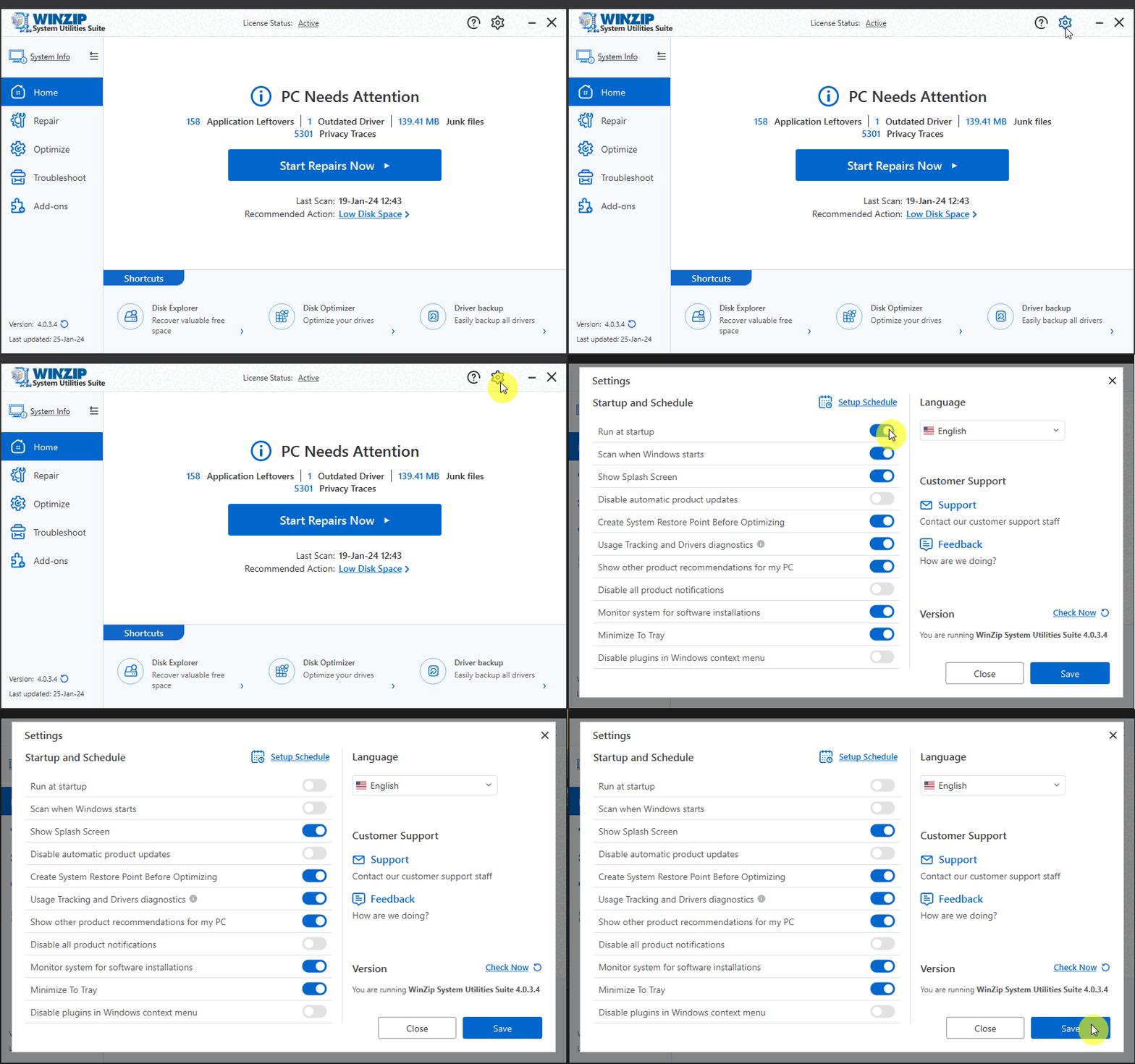
Open Settings with the gear icon in WinZip System Utilities Suite, turn off Run at startup and Scan when Windows starts, and select Save. The program then stays closed until you open it yourself.
Turn Off Startup in the Program Settings
- Open WinZip System Utilities Suite.
- Select the gear icon in the top-right corner of the program window. The Settings window opens.
- Under Startup and Schedule, turn off the Run at startup switch. The switch turns grey when it is off.
- If Scan when Windows starts is on, turn it off as well.
- Select Save.
Turn Off a Scheduled Scan
A schedule can also start a scan at a set time. To turn it off:
- In the Settings window, select Setup Schedule.
- Select Do not Schedule.
- Select Save in the schedule window, then select Save in the Settings window.
Turn It Off From Windows Instead
You can also stop the program from starting in Windows 11 and Windows 10:
- Select Start > Settings > Apps > Startup.
- Find WinZip System Utilities Suite (or a similar WinZip entry) in the list.
- Set its switch to Off.
Another way is Task Manager: right-click the Start button, select Task Manager, open the Startup apps tab, select the program and select Disable.
How to Tell It Worked
Restart your computer. WinZip System Utilities Suite should not open by itself. You can still open it at any time from the Start menu.
Related Help
- How do I create a schedule to run WinZip System Utilities Suite?
- How do I manage and improve the startup time of my PC?
- How do I uninstall WinZip System Utilities Suite?
- Refunds and cancellations
Still need help? Contact our support team.
Frequently Asked Questions
Will WinZip System Utilities Suite still work if it does not start with Windows?
Yes. All the tools work the same way when you open the program yourself. If you also turned off Scan when Windows starts and the schedule, scans only run when you start them.
How do I turn it back on?
Open Settings with the gear icon, turn on Run at startup and select Save.
Does turning off startup cancel my subscription?
No. Changing startup settings, or even uninstalling the program, does not cancel a subscription. See the Refunds and Cancellations page in the Support Center to manage it.
Sources
Related Questions
- How Can I Change the Settings and Preferences of System Utilities Suite?
- How to Change the Language of WinZip System Utilities Suite
- How Do I Check for Program Updates for System Utilities Suite?
- How Do I Create a Schedule to Run System Utilities Suite?
- How Do I Repair My PC to Improve Its Performance and Stability?
- How Do I Activate WinZip System Utilities Suite?