
How to Debloat Windows 11 Safely
Debloat Windows 11 with its own settings: remove apps you don't use and undo any change.
Remove programs and their leftovers. WinZip System Utilities Suite removes programs you don't use, finds the files they leave behind and lets you choose what starts with Windows.
Quick Answer
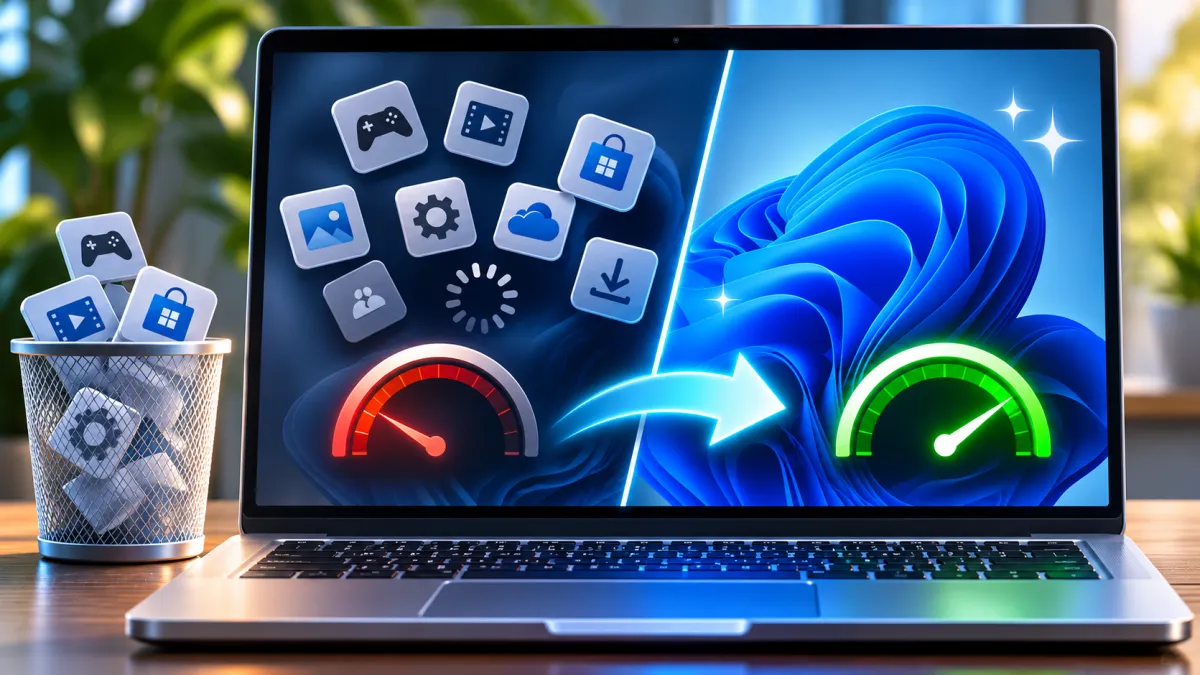
To debloat Windows 11 safely, uninstall the preinstalled apps you don't use in Settings, stop unneeded apps from starting with Windows and turn off suggested content. Use Windows' own settings rather than debloat scripts, so every change can be undone:
- Create a restore point: select Start, type Create a restore point, open it and select Create (if system protection is off, turn it on first, as in section 1).
- Remove apps: Start > Settings > Apps > Installed apps, select More options (...) next to an app and choose Uninstall.
- Stop startup apps: Start > Settings > Apps > Startup, and turn off the apps you don't need.
- Turn off suggestions: Settings > Privacy & security > Recommendations & offers, and turn off Show me suggested content in the Settings app.
How you know it worked: the apps you removed are gone from Installed apps and Start, and the ones you turned off no longer open when you sign in.
To debloat Windows 11 means removing the apps you never use, stopping programs from starting every time you sign in, and turning off the suggestions Windows shows you. Some of these apps come from Microsoft, others from your PC's maker or as trial software. This guide uses only Windows' own settings, so every step can be undone. It doesn't use debloat scripts from the internet: they can remove parts that Windows needs, and some of those can't be put back without resetting your PC.
1. Create a Restore Point Before You Start
A restore point lets you take system files, settings and installed programs back to how they are today, without touching your personal files. Make one before you remove anything.
- Select Start, type Create a restore point and select it in the results. System Properties opens on the System Protection tab.
- If system protection isn't on yet, select your system drive (usually C:), choose Configure, select Turn on system protection and choose Apply.
- Select Create, type a name you'll recognize, such as "Before debloat", and select Create.
Expected result: your restore point is listed with today's date when you open System Restore (press Windows key + R, type rstrui.exe and press Enter). The steps are the same on Windows 10. More in How to Use a System Restore Point in Windows 11.
2. How to Remove Bloatware From Windows 11
You remove bloatware from Windows 11 by uninstalling it in Settings. Start with apps you recognize and know you don't use: trial software, games you never play and apps you never open. If you aren't sure what an app is, look it up in our Bloatware Library, which explains what common preinstalled apps do and whether they're safe to remove. If you're still not sure, leave it.
- Select Start > Settings > Apps > Installed apps.
- Find the app in the list. Select the More options button (...) next to it, then Uninstall.
- Confirm, and follow any steps the app's own uninstaller shows.
Faster from Start: select Start > All apps, right-click the app and choose Uninstall.
If an app won't uninstall from Settings: Microsoft notes that some apps can't be uninstalled from the Settings app yet. Search for Control Panel, open it and select Programs > Programs and Features. Right-click the program, choose Uninstall or Uninstall/Change, and follow the steps on screen.
On Windows 10, the list of apps is under Settings > Apps > Apps & features.
Expected result: the app disappears from Installed apps and from the Start menu.
3. What to Do With Apps You Can't Uninstall
Some apps are part of Windows itself, and Microsoft doesn't support removing some of them, such as the Microsoft Store app. You can still keep them out of your way:
- Take it off Start: right-click the app on the Start menu and choose Unpin from Start.
- Stop it running in the background: select Start > Settings > Apps > Installed apps, select More options (...) next to the app, then Advanced options. Under Background app permissions, set Let this app run in background to Never. Microsoft notes that desktop apps don't have this option, so change those in the app's own settings. On Windows 10, go to Settings > Privacy > Background apps and turn the app off under Choose which apps can run in the background.
- Hide the Widgets button: right-click the taskbar, select Taskbar settings and turn Widgets off under Taskbar items. This only removes the button: Windows key + W still opens the Widgets board.
If an app should uninstall but shows an error, see How to Fix Programs That Won't Uninstall in Windows 10 and 11.
Expected result: the app no longer sits on Start or runs in the background, even though it's still installed.
4. Stop Apps From Starting With Windows
Apps that open every time you sign in add clutter even when you don't use them. Turning them off doesn't uninstall anything: the app just stops opening by itself.
- Select Start > Settings > Apps > Startup.
- Turn the switch Off for each app you don't need as soon as you sign in.
In Task Manager instead: right-click Start, select Task Manager and open Startup apps. Select an app and choose Disable. The Startup impact column (Low, Medium or High) shows how much processor time and disk use each app adds while Windows starts. To check what a startup program is before you turn it off, see our Startup Programs Library.
Expected result: the apps you turned off no longer open when you sign in, and Task Manager shows their startup impact as None.
5. Turn Off Suggestions and Personalized Offers
Debloating isn't only about apps. Windows 11 also shows suggested content and personalized tips, and you can turn these off in Settings:
- Select Start > Settings > Privacy & security > Recommendations & offers.
- Turn off Show me suggested content in the Settings app.
- Go back to Privacy & security, select Personalized offers and turn off Get personalized tips, ads, and recommendations based on my Windows activity.
Expected result: the Settings app stops showing suggested content, and the tips and recommendations Windows shows are no longer based on your Windows activity.
6. How to Get a Removed App Back
Changed your mind? Every step in sections 1 to 5 can be reversed.
- Apps from Microsoft Store: open Microsoft Store, select Library, find the app and select Install.
- Programs from other companies: download them again from the company's own website.
- Startup apps and settings: turn the same switches back on.
- Several changes at once, or something stopped working: use the restore point from section 1. Press Windows key + R, type rstrui.exe and press Enter. Select Next, choose your restore point and select Scan for affected programs to see what will change. Then select Next > Finish. Windows restarts when it's done, and your personal files aren't affected.
Expected result: the app is back in Installed apps and on the Start menu.
Still Cluttered? What to Try Next
- Your PC is still slow: unused apps are only one possible cause. See Why Is My Computer So Slow?
- Startup still takes a long time: see How to Fix Slow Startup in Windows 11.
- Start again without your PC maker's extras: Reset this PC reinstalls Windows. Unlike the steps above, it can't be undone, so treat it as a last resort and back up your files first. On Windows 11, select Start > Settings > System > Recovery, then Reset PC. Keep my files keeps your personal files but removes your apps and settings. Its Restore preinstalled apps setting puts your PC maker's customizations back when it's turned on, so leave it off if you don't want them. Remove everything also removes your personal files. On Windows 10, go to Settings > Update & Security > Recovery and select Get started under Reset this PC.
Frequently Asked Questions
Is it safe to use a Windows 11 debloat script?
Not always. Scripts can remove parts of Windows that other features rely on. Microsoft says uninstalling the Microsoft Store app, for example, isn't supported, can have unintended consequences, and can only be undone by resetting or reinstalling Windows. Uninstalling apps in Settings is safer because you can reinstall them.
Is there a version of Windows 11 without bloatware?
Every copy of Windows 11 includes apps that are part of Windows, and Microsoft doesn't support removing some of them, such as the Microsoft Store app. The extras your PC's maker adds are separate: if you reset your PC with Keep my files and leave Restore preinstalled apps turned off, the maker's customizations aren't applied.
Does a clean install of Windows 11 erase everything?
A clean installation does: Microsoft says it removes your personal files, apps and settings from the drive. Reset this PC with Keep my files is gentler: it keeps your personal files but removes apps and settings. Back up your files first either way.
What are bloatware apps in Windows 11?
Apps that come preinstalled on your PC that you don't need, such as trial software, games and extra apps from Microsoft or your PC's maker. Whether an app is bloatware depends on whether you use it. Our Bloatware Library explains what common preinstalled apps do and whether they're safe to remove.
Can WinZip System Utilities Suite help me debloat Windows 11?
It helps with the apps: its Uninstall Manager removes programs you don't use, Uninstall Cleanup finds the files they leave behind, and Startup Manager lets you turn off programs that start with Windows. For Windows' own settings, such as suggested content and background apps, use the steps in this guide.
How This Guide Was Checked
- Written by
- WinZip Team, November 2026.
- First published
- November 20, 2026
- Sources reviewed
- Microsoft Support: Uninstall or remove apps and programs in Windows
- Microsoft Support: System Protection
- Microsoft Support: System Restore
- Microsoft Support: Configure startup applications in Windows
- Microsoft Support: Windows background apps and your privacy
- Microsoft Support: Customize the Windows Start menu
- Microsoft Support: Stay up to date with Widgets in Windows
- Microsoft Support: Privacy settings for Recommendations & offers in Windows 11
- Microsoft Support: Fix problems with apps from Microsoft Store
- Microsoft Learn: Can't remove, uninstall, or reinstall Microsoft Store app
- Microsoft Learn: Overview of apps on Windows client devices
- Microsoft Support: Reset your PC
- Microsoft Support: Recovery options in Windows
Related Guides

Speed Up Your PC With WinZip System Utilities Suite
- Clean junk files and free up disk space
- Update outdated drivers
- Speed up startup
- Optimize and defrag your drives