
Why Is My Computer So Slow? Causes and Fixes
Find what's slowing your Windows PC down, then fix that cause instead of guessing.
Want one scan instead? WinZip System Utilities Suite scans for junk files, outdated drivers and uninstall leftovers, and its Startup Manager shows every app that starts with Windows.
Quick Answer
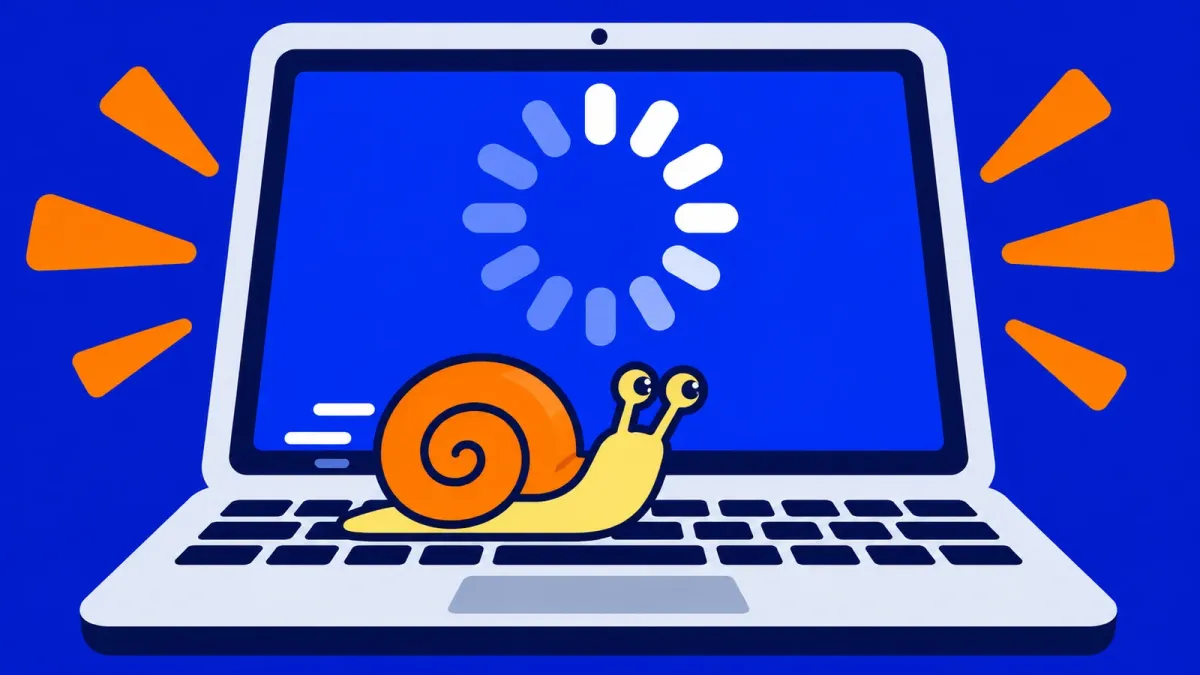
A Windows computer is usually slow because too many apps are running, the drive is nearly full, updates are missing, malware is using resources, or the hardware is getting old. To find and fix the cause:
- Press Ctrl + Shift + Esc to open Task Manager and check the Processes and Performance tabs for anything using a lot of CPU, memory or disk.
- On Task Manager's Startup apps page, right-click apps you don't need at sign-in and choose Disable.
- Free up space: Start > Settings > System > Storage > Temporary files > Remove files.
- Install updates: Start > Settings > Windows Update > Check for updates.
- Run a Quick scan in Windows Security > Virus & threat protection.
How you know it worked: after a restart, apps open faster and Task Manager's Performance tab shows lower CPU, memory and disk use.
Most slow computers come down to a few causes: too many apps running, a nearly full drive, missing updates, malware, or hardware that's showing its age. Guessing wastes time, so start by checking what your PC is actually busy with, then go to the matching cause below. Each one has a quick check and a fix that uses tools built into Windows 11 and Windows 10.
1. Check What's Slowing Your Computer Down
Task Manager shows what is using your processor (CPU), memory and disk right now. Microsoft notes that monitoring CPU, memory and disk usage can help identify the processes that may be slowing your PC.
- Press Ctrl + Shift + Esc to open Task Manager. You can also right-click Start and select Task Manager.
- On the Processes tab, look at the CPU, Memory and Disk columns. Select a column heading to put the busiest apps at the top.
- Open the Performance tab to see how busy each part of your PC is overall.
Expected result: you can see whether one app, or one part of your PC, is close to 100%. Use it as your guide:
- CPU or disk high with apps you didn't open: see causes 2 and 5. If one process keeps the processor or disk at 100%, see How to Fix 100% CPU Usage or How to Fix 100% Disk Usage.
- Memory nearly full: see cause 6.
- Nothing looks busy, but everything is still slow: see causes 3, 4 and 8.
2. Too Many Apps Start With Windows
Many apps set themselves to start every time you sign in and then keep running in the background. A few of them can slow down both startup and everything you do afterwards.
Check: in Task Manager, select Startup apps and look at the Startup impact column. Microsoft rates an app High Impact when it uses more than 1 second of CPU time or more than 3 MB of disk activity at startup.
Fix: right-click an app you don't need straight away and choose Disable. You can also use Start > Settings > Apps > Startup. The app stays installed and you can still open it yourself. For a full walk-through, see How to Fix Slow Startup in Windows 11.
Expected result: fewer apps open on their own the next time you sign in.
3. Your Drive Is Nearly Full
Microsoft notes that if your PC is running out of storage space, you may notice slower performance or trouble installing Windows updates.
Check: select Start > Settings > System > Storage to see how much space is used on your system drive.
Fix:
- Temporary files: in Storage, select Temporary files, tick the files you want to remove, then select Remove files.
- Cleanup recommendations (Windows 11): in Storage, open Cleanup recommendations to review temporary files, large or unused files, files synced to the cloud and unused apps.
Expected result: Storage shows more free space on your system drive.
4. Windows Updates Are Missing
Installing Windows updates and optional driver updates is the first fix on Microsoft's list for a slow PC.
Check and fix: select Start > Settings > Windows Update > Check for updates and install what's available. On Windows 10, Windows Update is under Settings > Update & Security. For driver updates on Windows 11, open Advanced options > Optional updates. Restart if Windows asks you to.
Still on Windows 10? Microsoft ended support for Windows 10 on October 14, 2025. It no longer gets regular security fixes, and Microsoft notes that Windows 10 PCs may also see slower performance. See Should You Upgrade to Windows 11?
Expected result: Windows Update says you're up to date.
5. Malware Is Running in the Background
Microsoft notes that malware can consume CPU and disk resources, which can reduce system performance. Windows Security is built in, so there's nothing to install.
Check and fix: on Windows 11, select Start > Settings > Privacy & security > Windows Security > Virus & threat protection > Quick scan. On Windows 10, go to Settings > Update & Security > Windows Security > Virus & threat protection and select Quick scan under Current threats.
Expected result: the scan reports no current threats, or tells you what it found and removed.
6. You're Running More Than Your Memory Can Handle
When memory is full, Windows has to juggle apps and browser tabs, and everything feels sluggish.
Check: in Task Manager, open Performance > Memory and compare how much is in use with the total while you work as usual.
Fix: on the Processes tab, close apps you aren't using, close browser tabs you don't need, then restart: Start > Power > Restart. Windows 11 needs at least 4 GB of memory, so a PC near that minimum has little room for many apps at once. If memory is always nearly full, more memory or a newer PC will help more than cleanup.
Expected result: memory use drops and switching between apps is quicker.
7. Your Power Mode Is Saving Energy Instead of Speed
Check and fix: on Windows 11, select Start > Settings > System > Power & battery and set Power mode to Best performance. On Windows 10, go to Settings > System > Power & sleep > Additional power settings and choose High performance.
Microsoft notes that on laptops this setting drains the battery more quickly and may make the device run warmer, so use it when you're plugged in.
8. Your Computer Is Getting Old
Microsoft notes that older PCs with outdated hardware may not see significant improvements from cleanup steps, and that upgrading the device may be the best long-term solution.
Check: compare your PC with Windows 11's minimum requirements, which include 4 GB of memory and 64 GB of storage. If your PC is well above that, work through causes 1 to 7 before blaming its age.
Why Is My Computer Slow All of a Sudden?
A sudden slowdown usually means something changed. Think back to what happened just before it started:
- You installed a new app: check Startup apps for a new entry, and uninstall the app if you don't need it.
- Windows installed updates: let them finish, then restart.
- Your drive filled up: a big download or sync can do it quickly. See cause 3.
- Something unexpected is running: run a Quick scan (cause 5).
If the slowdown started right after you installed an app or driver, System Restore can take your PC back to an earlier point. Open Control Panel > Recovery > Open System Restore (or press Windows + R, type rstrui.exe and press Enter), select Next, pick a restore point from before the problem began, and select Next > Finish. Windows restarts when it's done. More in How to Use a System Restore Point in Windows 11.
Is It Your Computer or Your Internet?
If apps open normally but websites, videos and downloads crawl, the problem is more likely your connection than your PC. Open Task Manager's Performance tab while a page is loading: if CPU, memory and disk use are low, your computer isn't the bottleneck. Try the same website on another device on the same network to confirm.
Still Slow? What to Try Next
- Work through the full speed-up method: uninstalling unused apps, stopping background apps, visual effects, drive optimization and a reset that keeps your files are covered step by step in How to Speed Up a Slow Windows PC.
- Update your drivers: see How to Update Drivers in Windows 11 and 10.
Frequently Asked Questions
Why is my PC laggy when my internet is fine?
Then the slowdown is on the PC itself. Open Task Manager with Ctrl + Shift + Esc and check whether CPU, memory or disk is close to 100% while it lags. Startup apps, a nearly full drive, missing updates and malware are the most common causes.
How much memory (RAM) does my computer need?
Windows 11 needs at least 4 GB of memory. If Task Manager's Performance > Memory shows memory almost full while you work, close apps and browser tabs you aren't using. If it's always nearly full, more memory or a newer PC will help more than cleanup.
Is a 7-year-old computer still good?
It can be, if it runs Windows 11 and has enough memory for what you do. Microsoft notes that older PCs may not improve much from cleanup steps. Windows 10 support ended on October 14, 2025, so a PC that can't move to Windows 11 no longer gets regular security fixes.
How do I clean up my PC so it runs faster?
Start with Settings > System > Storage: remove Temporary files, and on Windows 11 review Cleanup recommendations for large or unused files and unused apps. Then turn off startup apps you don't need in Task Manager.
Will System Restore delete my files?
No. Microsoft says System Restore undoes system changes without affecting your personal files. It does return system files, registry settings and installed programs to how they were when the restore point was made.
Can WinZip System Utilities Suite fix a slow computer?
It helps with several common causes: its scan clears junk files, finds leftovers from uninstalled apps and checks for outdated drivers, and its Startup Manager turns off apps that start with Windows. It isn't antivirus software, so use Windows Security to check for malware, and it can't make old hardware faster.
How This Guide Was Checked
- Written by
- WinZip Team, November 2026.
- First published
- November 13, 2026
- Sources reviewed
Related Guides



Speed Up Your PC With WinZip System Utilities Suite
- Clean junk files and free up disk space
- Update outdated drivers
- Speed up startup
- Optimize and defrag your drives