
How to Fix Slow Startup in Windows 11
Five checks that can help when Windows 11 takes too long to start, and what to try if it's still slow.
Want a quicker way? WinZip System Utilities Suite's Startup Manager shows every app that starts with Windows in one place, so you can turn off the ones you don't need.
Quick Answer
To speed up a slow Windows 11 startup:
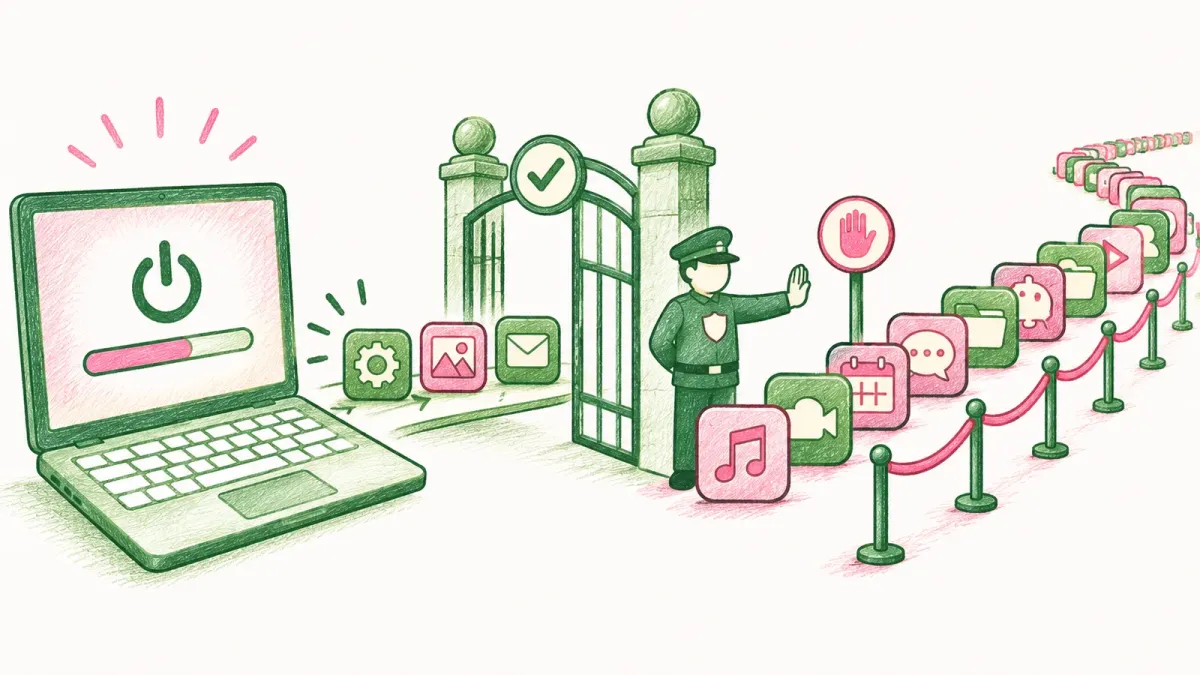
- Turn off startup apps you don't need: press Ctrl + Shift + Esc, open Startup apps, right-click an app and choose Disable.
- Install waiting updates: Start > Settings > Windows Update > Check for updates.
- Free up disk space: Settings > System > Storage > Temporary files.
- Run a Quick scan in Windows Security > Virus & threat protection.
- If your PC is plugged in, set Settings > System > Power & battery > Power mode to Best performance.
How you know it worked: restart your PC and time how long it takes to reach a usable desktop, before and after.
When Windows 11 takes a long time to start, common causes include too many apps launching when you sign in, missing updates, a nearly full drive, and malware using up processor and disk time. Work through the checks below in order, and restart after each one so you can see what made the difference.
1. Turn Off Startup Apps You Don't Need
Many apps set themselves to start every time you sign in. Each one adds work while Windows starts, so turning off the ones you don't need is a good first step.
- Press Ctrl + Shift + Esc to open Task Manager. You can also right-click Start and select Task Manager.
- Select Startup apps.
- Look at the Startup impact column. Microsoft rates an app High Impact when it uses more than 1 second of processor time or more than 3 MB of disk activity at startup.
- Right-click an app you don't need straight away and choose Disable.
You can also do this in Start > Settings > Apps > Startup, where each app has an on/off switch.
Disabling an app only stops it from starting automatically. It stays installed, you can still open it yourself, and you can turn it back on the same way. Keep your security software on, and look up any app you don't recognize before you disable it.
Expected result: the apps you disabled no longer open on their own the next time you sign in.
2. Install Windows Updates
Microsoft notes that Windows updates often include fixes and performance improvements, so make sure your PC is up to date.
- Select Start > Settings > Windows Update.
- Select Check for updates and install anything that's available.
- For driver updates, open Advanced options > Optional updates and select Download & install for any you need.
- Restart if Windows asks you to.
Expected result: Windows Update shows no more updates waiting.
3. Free Up Disk Space
Microsoft lists freeing up disk space as one of its fixes for a slow PC. Windows 11 gives you three ways to clear out files you don't need:
- Temporary files: select Start > Settings > System > Storage > Temporary files, tick the types of files you want to remove, then select Remove files.
- Storage Sense: in Settings > System > Storage, turn on Storage Sense so Windows clears temporary files for you. With its default settings it also empties items that have been in the Recycle Bin for a while, but it leaves your Downloads folder and OneDrive files alone unless you change its settings.
- Disk Cleanup: search for Disk Cleanup in the Start menu, pick your drive and tick the file types to delete.
Read each category before you tick it. The Recycle Bin, for example, holds files you deleted earlier and may still want back.
Expected result: Settings > System > Storage shows more free space on your system drive.
4. Scan for Malware With Windows Security
Malware can use up processor and disk resources in the background, which slows down everything, including startup. Windows 11 includes Windows Security, so you don't need to install anything to check.
- Select Start > Settings > Privacy & security > Windows Security, or search for Windows Security in the Start menu.
- Select Virus & threat protection > Quick scan.
- Follow any steps Windows Security gives you if it finds something.
Expected result: the scan finishes and reports no current threats, or tells you what it found and removed.
5. Set Power Mode to Best Performance
Power mode changes how Windows balances speed against power use.
- Select Start > Settings > System > Power & battery.
- Under Power mode, choose Best performance for when your PC is plugged in.
Microsoft notes that Best performance uses more power and drains a laptop battery faster, so you may prefer Balanced when you're on battery. If you can't change the power mode, Microsoft suggests opening Control Panel > System and Security > Power Options and selecting Balanced first.
6. Restart and Check the Result
Select Start > Power > Restart. Then compare:
- Time to a usable desktop: time it with your phone before and after the changes, from pressing the power button to the moment you can open an app.
- What's busy after sign-in: open Task Manager and look at the Processes and Performance tabs. Microsoft notes that watching processor, memory and disk use can help you find the processes slowing your PC down.
Still Slow? What to Try Next
- Uninstall apps you don't use: select Start > Settings > Apps > Installed apps, select More options (…) next to an app, then Uninstall.
- Stop apps running in the background: in Installed apps, select More options (…) > Advanced options, and set Let this app run in the background to Never for apps that don't need it.
- Optimize your drives: search for Defragment and Optimize Drives, select your drive, then Optimize.
- Older hardware: Microsoft notes that older PCs may not see significant improvements from these steps, and upgrading the device may be the best long-term fix.
Frequently Asked Questions
Is it safe to turn off startup apps?
Disabling a startup app only stops it from starting automatically when you sign in. It doesn't uninstall the app, and you can set it back to Enable in the same place. Leave your security software on, and look up any app you don't recognize before you turn it off.
Which startup apps slow Windows down the most?
Task Manager's Startup apps page shows a Startup impact for each app. Microsoft rates an app High Impact when it uses more than 1 second of processor time or more than 3 MB of disk activity at startup, so start with High Impact apps you don't need.
Which cleanup tool should I use on Windows 11?
Any of them works. Temporary files in Settings > System > Storage is the quickest one-off clean, Storage Sense keeps clearing temporary files automatically, and Disk Cleanup is still available from search. All three let you choose what to delete.
Will Storage Sense delete my Downloads folder?
Not with its default settings. Microsoft says Storage Sense then cleans temporary files and removes items that have been in the Recycle Bin for a while, but leaves your Downloads folder and OneDrive files alone unless you set it up to clean them.
Does Best performance mode drain my laptop battery?
Yes. Microsoft notes that Best performance uses more power and drains laptop batteries faster. Use it when you're plugged in, and choose Balanced on battery.
Do I need to install antivirus software to check for malware?
No. Windows 11 includes Windows Security. Open it from the Start menu and select Virus & threat protection > Quick scan. Microsoft recommends running a quick scan straight away if you suspect malware.
What if none of these steps help?
Try uninstalling apps you don't use, stopping apps from running in the background, and optimizing your drives. Microsoft notes that older PCs may not see significant improvements, and upgrading the device may be the best long-term fix.
How This Guide Was Checked
- Written by
- Chris, WinZip Team. Updated by the WinZip Team in November 2026.
- First published
- May 27, 2025
- Sources reviewed
- Microsoft Support: Tips to improve PC performance in Windows
- Microsoft Support: Configure Startup applications in Windows
- Microsoft Support: Windows Update FAQ
- Microsoft Support: Free up drive space in Windows
- Microsoft Support: Manage drive space with Storage Sense
- Microsoft Support: Stay protected with the Windows Security app
- Microsoft Support: Change the power mode for your Windows PC
Related Guides


Speed Up Your PC With WinZip System Utilities Suite
- Clean junk files and free up disk space
- Update outdated drivers
- Speed up startup
- Optimize and defrag your drives