
Should You Upgrade to Windows 11?
Windows 10 support has ended. Here's how to decide, check your PC and upgrade, or stay protected if you can't.
Make room before you upgrade. WinZip System Utilities Suite clears junk files, finds duplicate files and removes programs you no longer use, on Windows 11 and Windows 10.
Quick Answer
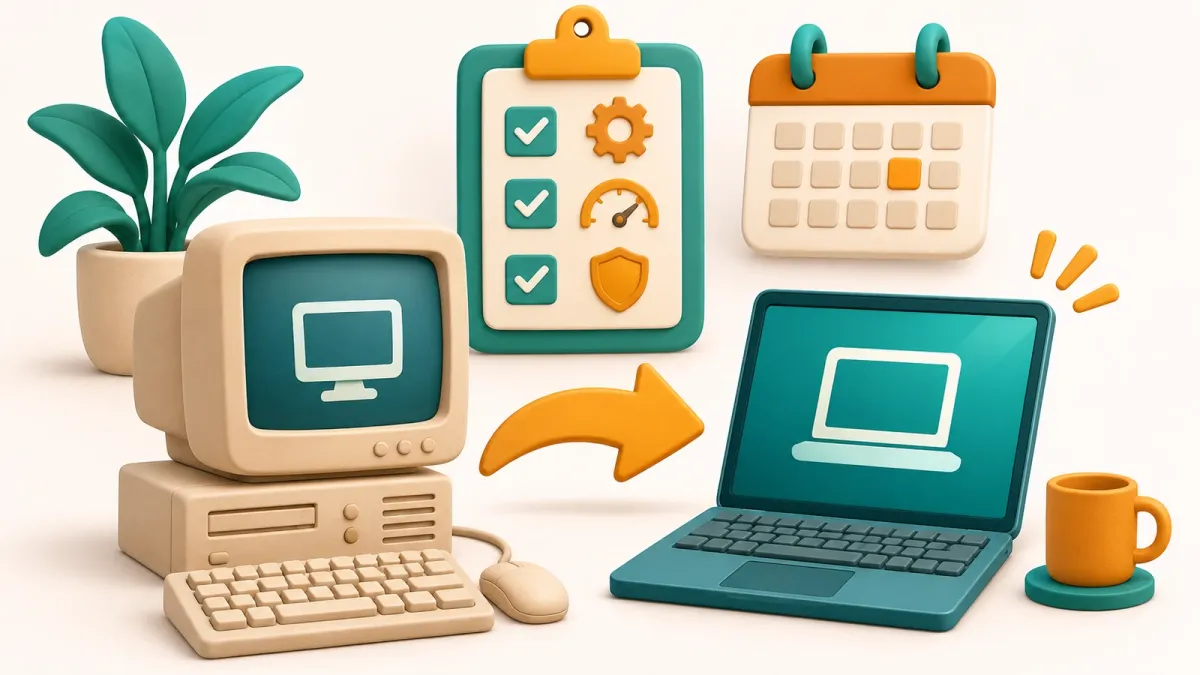
For most Windows 10 PCs that meet the requirements, yes. Windows 10 support ended on October 14, 2025, and the upgrade is free. To check and upgrade:
- Open the PC Health Check app and select Check now to see whether your PC can run Windows 11.
- Back up your files, for example with the Windows Backup app.
- Go to Start > Settings > Update & Security > Windows Update > Check for updates.
- If Windows 11 is ready, select Download and install, then Accept and install.
- If your PC can't upgrade, enroll in Extended Security Updates from the same Windows Update page.
How you know it worked: after the restarts, the Start button sits in the middle of the taskbar and Settings > System > About shows Windows 11.
For most people still on Windows 10, the answer is now yes, as long as the PC meets the requirements. Microsoft ended support for Windows 10 on October 14, 2025, so it no longer gets regular security updates. The upgrade to Windows 11 is free for eligible PCs, and you have 10 days to go back if you change your mind. If your PC can't upgrade, there's a paid or free way to keep getting security updates for a while longer. Here's how to decide and what to do.
1. What the End of Windows 10 Support Means
Your Windows 10 PC didn't stop working on October 14, 2025. But since then, Microsoft no longer provides:
- security updates or fixes,
- other software updates,
- technical support for Windows 10.
Without security updates, new security problems found in Windows 10 won't be fixed on your PC. Microsoft 365 apps still run on Windows 10, and Microsoft says it will keep providing security updates for Microsoft 365 on Windows 10 until October 10, 2028, but it recommends moving to Windows 11.
2. Check Whether Your PC Can Run Windows 11
The quickest way is Microsoft's PC Health Check app:
- Search for PC Health Check on the taskbar and open it. If it isn't installed, download it from aka.ms/GetPCHealthCheckApp.
- Select Check now.
- Read the result. If your PC isn't eligible, the app tells you why and what you can do.
You can also check Settings > Update & Security > Windows Update, which shows whether your PC can upgrade. Microsoft's minimum requirements are:
- Processor: 1 GHz or faster with 2 or more cores on a compatible 64-bit processor or System on a Chip (SoC)
- Memory: 4 GB of RAM
- Storage: 64 GB or larger
- Firmware: UEFI, Secure Boot capable
- TPM: Trusted Platform Module (TPM) version 2.0
- Graphics: compatible with DirectX 12 or later with a WDDM 2.0 driver
- Display: high definition (720p), larger than 9 inches diagonally, 8 bits per color channel
Windows 11 Home, and Windows 11 Pro for personal use, also need an internet connection and a Microsoft account during setup.
Expected result: PC Health Check tells you whether your PC meets the Windows 11 requirements.
3. What's Different in Windows 11
If you're used to Windows 10, these are the changes you'll notice first:
- A centered Start button and taskbar. If you prefer it on the left, right-click an empty part of the taskbar, open the taskbar settings, expand Taskbar behaviors and set Taskbar alignment to Left.
- Snap layouts. Hover over a window's maximize button, or press Windows key + Z, to arrange several windows side by side. Windows you snap together form a group you can bring back from the taskbar.
- Security built on newer hardware. Windows 11 requires TPM 2.0 and Secure Boot capable firmware, which is why some older PCs can't upgrade. On new Windows 11 installs, Windows Security also includes Smart App Control.
4. Back Up Your Files First
A backup means you're covered if anything goes wrong during the upgrade. Windows Backup can save your folders and settings to OneDrive:
- Search the Start menu for Windows Backup and open it. You need to be signed in with a Microsoft account (work or school accounts aren't supported).
- Expand Folders and turn on the folders you want to back up, such as Desktop, Documents and Pictures.
- Choose which apps and settings to include, then select Back up.
A free Microsoft account includes 5 GB of OneDrive storage, and you can buy more if your files don't fit. You can also copy important files to an external drive yourself.
Expected result: Windows Backup shows your folders as backed up.
5. How to Upgrade to Windows 11 for Free
Microsoft's end-of-support page says the free upgrade is for PCs running Windows 10, version 22H2, that meet the minimum hardware requirements.
- Select Start > Settings > Update & Security > Windows Update.
- Select Check for updates.
- If Windows 11 is ready for your PC, select Download and install, then Accept and install on the license screen.
- When it's ready, select Restart now. Your PC restarts a few more times to finish installing Windows 11.
- Sign in when the sign-in screen appears.
If Windows Update doesn't offer the upgrade yet, Microsoft's software download page has the Windows 11 Installation Assistant. Microsoft recommends waiting for the Windows Update offer first. If the Installation Assistant needs more information, run PC Health Check, then select Refresh in the Installation Assistant window.
Expected result: Settings > System > About shows Windows 11.
6. Changed Your Mind? Go Back Within 10 Days
In most cases, you have 10 days after upgrading to return to Windows 10.
- Go to Start > Settings > System > Recovery.
- Select Go back, if it's available, and follow the steps.
Going back keeps your personal files, but removes apps and drivers installed after the upgrade, and any changes you made in Settings. For it to work, keep the windows.old and $windows.~bt folders, remove any user accounts you added after the upgrade, and have the USB drive you upgraded with, if you used one.
Expected result: your PC restarts into Windows 10.
7. If Your PC Can't Run Windows 11
You have two main options.
Keep Getting Security Updates With ESU
Microsoft's consumer Extended Security Updates (ESU) program keeps sending critical and important security updates to Windows 10 PCs until the program ends on October 12, 2027. Your PC must be running Windows 10, version 22H2 (Home, Pro, Pro Education or Workstations). Microsoft lists three ways to enroll:
- at no extra cost, if you sync your PC settings,
- by redeeming 1,000 Microsoft Rewards points, or
- with a one-time purchase of $30 USD (or local equivalent) plus tax.
To enroll, go to Settings > Update & Security > Windows Update. If your PC qualifies, you'll see a link to enroll there.
Move to a New PC
If your PC doesn't meet the requirements, Microsoft's other recommendation is a new PC that comes with Windows 11. Use Windows Backup first (section 4) so you can bring your files and settings across by signing in with the same Microsoft account.
Whichever you choose, keep your current PC in good shape in the meantime: install updates, clear out files you don't need and turn off apps you don't need at startup. See how to speed up a slow Windows PC.
Frequently Asked Questions
Is the upgrade to Windows 11 still free?
Yes, for eligible PCs. Microsoft says PCs running Windows 10, version 22H2, that meet the minimum hardware requirements can upgrade for free through Settings > Update & Security > Windows Update.
Will my Windows 10 PC stop working now that support has ended?
No. Windows 10 keeps working, but Microsoft no longer provides security updates, other software updates or technical support for it, unless you enroll in Extended Security Updates.
How long can I keep getting security updates on Windows 10?
With the consumer Extended Security Updates (ESU) program, until October 12, 2027. You can enroll at no extra cost if you sync your PC settings, with 1,000 Microsoft Rewards points, or with a one-time purchase of $30 USD plus tax.
Will I lose my files if I upgrade and then go back?
Going back to Windows 10 within the 10 days keeps your personal files, but removes apps and drivers installed after the upgrade and any Settings changes. Back up your files before you start either way.
Why does PC Health Check say my PC can't run Windows 11?
Windows 11 has stricter requirements than Windows 10, including TPM 2.0, Secure Boot capable UEFI firmware and a compatible 64-bit processor. PC Health Check tells you which requirement your PC doesn't meet and what you can do.
Can I move the Start button back to the left in Windows 11?
Yes. Right-click an empty part of the taskbar, open the taskbar settings, expand Taskbar behaviors and set Taskbar alignment to Left.
Will Microsoft 365 keep working on Windows 10?
The apps still run, but Microsoft no longer supports Microsoft 365 Apps on Windows 10. It will keep providing security updates for Microsoft 365 on Windows 10 until October 10, 2028, and recommends upgrading to Windows 11.
How This Guide Was Checked
- Written by
- Chris, WinZip Team. Updated by the WinZip Team in November 2026.
- First published
- November 3, 2022
- Sources reviewed
- Microsoft Support: Windows 10 support has ended on October 14, 2025
- Microsoft: Windows 10 Extended Security Updates
- Microsoft: Windows 11 Specs and System Requirements
- Microsoft Support: How to use the PC Health Check app
- Microsoft Support: Ways to install Windows 11
- Microsoft Support: Go back to the previous version of Windows
- Microsoft Support: Back up and restore with Windows Backup
- Microsoft Support: App & browser control in the Windows Security App
- Microsoft Support: Customize the Taskbar in Windows
- Microsoft Support: Snap Your Windows
Related Guides


Speed Up Your PC With WinZip System Utilities Suite
- Clean junk files and free up disk space
- Update outdated drivers
- Speed up startup
- Optimize and defrag your drives