
How to Clear Cache and Temp Files in Windows 11
Clear temp files, memory and the DNS cache in Windows 11 with tools already on your PC.
Clear temp files in one scan. WinZip System Utilities Suite's Junk Files scan clears Windows temporary files and the Recycle Bin, and Privacy Cleaner clears your browser cache.
Quick Answer
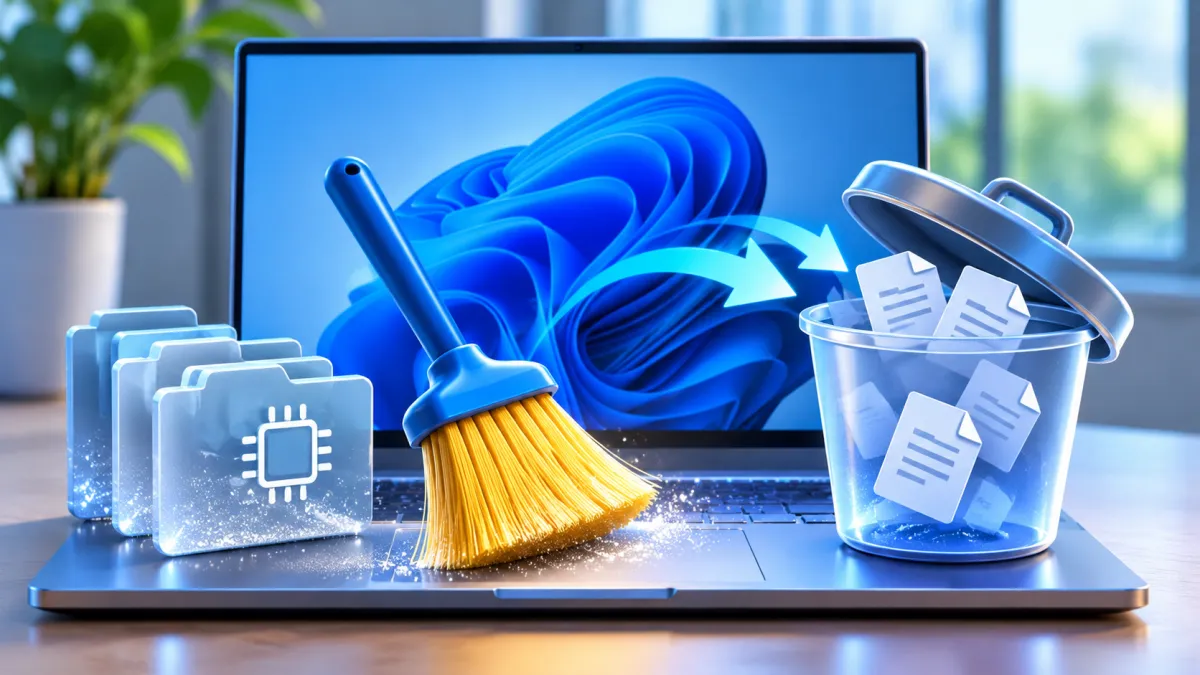
Clearing the cache in Windows 11 mostly means deleting temporary files: files Windows and your apps create while they work and no longer need. Settings removes them in a few clicks, Storage Sense can do it automatically, and restarting your PC clears what's held in memory (RAM). To clear the cache:
- Select Start > Settings > System > Storage > Temporary files, tick what you want to delete and select Remove files.
- Clear your own temp folder: press Windows key + R, type %temp%, select OK, then select everything and delete it. Skip any file that's in use.
- Turn on Storage Sense on the same Storage page so Windows removes temporary files for you.
- Free up RAM: close apps and browser tabs you don't need, then select Start > Power > Restart.
How you know it worked: Settings > System > Storage shows more free space on drive C, and the Temporary files total is smaller.
To clear the cache in Windows 11, delete your temporary files from Settings, let Storage Sense remove them automatically, and restart your PC to free up memory (RAM). Windows keeps several kinds of cache, and each one is cleared in a different place. This guide covers each of them with tools built into Windows 11, with Windows 10 differences where the steps change.
What Does Clearing the Cache Mean on a PC?
A cache is data your PC keeps so it can do something faster the next time. On a Windows PC, "clearing the cache" usually means one of these:
- Temporary files: files Windows and your apps create while they work, plus thumbnails and, after an upgrade, your previous version of Windows. These usually take the most space (sections 1 to 4).
- RAM (memory): data held in memory while apps run. Closing apps and restarting frees it (section 5).
- DNS cache: a list of website names your PC has looked up recently, so it can find them again quickly (section 6).
- Microsoft Store cache: files the Store app keeps (section 7).
- Browser cache: copies of web pages your browser saves. You clear this inside the browser itself: see How to Clear Your Browser's Data and Cache.
1. How to Clear Temp Files in Settings
Settings is the quickest way to clear temp files in Windows 11, and it shows how much space each type uses before you delete anything.
- Select Start > Settings > System > Storage.
- Under your drive, select Temporary files. Give Windows a moment to add up each type.
- Tick the types you want to delete. The list varies from PC to PC and can include temporary files, thumbnails, the Recycle Bin and your previous version of Windows. Read the warning below before you tick everything.
- Select Remove files.
Prefer suggestions? On Windows 11, select Cleanup recommendations on the same Storage page. Windows suggests temporary files, large or unused files, files synced to the cloud and unused apps. Choose the items and select Clean up in each section.
On Windows 10, the path is the same: Settings > System > Storage > Temporary files > Remove files.
Expected result: the Temporary files total drops, and the Storage page shows more free space on drive C.
2. Clear Temp Files With Disk Cleanup
Disk Cleanup is the older built-in tool. It's still in Windows 11 and Windows 10, and it can also remove temporary system files.
- Select Start, type disk cleanup and select Disk Cleanup.
- Choose drive (C:) and select OK.
- Tick the file types you want to delete. Microsoft notes that Downloaded Program Files, Temporary Internet Files and Thumbnails are ticked by default.
- For more space, select Clean up system files, choose drive (C:) again and select OK. When it has finished counting, tick the system file types you want to remove.
- Select OK, then Delete Files to confirm.
Expected result: Disk Cleanup closes when it's done, and drive C has more free space.
3. Clear Your Temp Folder With %temp%
Each Windows account has its own temp folder, usually C:\Users\<your name>\AppData\Local\Temp. The shortcut %temp% opens it without you having to find it.
- Save your work and close the apps you have open, so fewer files are in use.
- Press Windows key + R to open the Run box, type %temp% and select OK. The temp folder opens in File Explorer.
- Press Ctrl + A to select everything, then press Delete.
- If Windows says a file or folder is in use, choose Skip. An app that's still running is using it.
- Deleted files go to the Recycle Bin first, so empty it to get the space back: tick Recycle Bin in Settings > System > Storage > Temporary files (section 1) and select Remove files. Open the Recycle Bin and check it first: emptying it deletes everything in it for good.
Expected result: the temp folder is empty, or holds only the few files that were in use.
4. Turn On Storage Sense to Clear Temp Files Automatically
Storage Sense clears temporary files for you. It's off by default, and once it's on, Windows removes unnecessary temporary files when your PC runs low on space. It only cleans the system drive (C:).
- Select Start > Settings > System > Storage and turn Storage Sense on.
- Select Storage Sense to change how it works. Under Run Storage Sense, choose how often it runs.
- Choose how long files stay in the Recycle Bin with Delete files in my recycle bin if they have been there for over.
- Leave Delete files in my Downloads folder if they haven't been opened for more than set to Never if you keep files you want in Downloads.
- To clean straight away on Windows 11, select Run Storage Sense now. On Windows 10, the Storage Sense switch is on the same Storage page, and Clean now runs it straight away.
Storage Sense only runs while you're signed in and online for more than 10 minutes. If your PC runs low on space and you've never used it, Windows may turn it on to clean temporary files and let you know.
Expected result: Storage Sense shows On, and temporary files no longer build up.
5. How to Clear RAM Cache in Windows 11
You can't empty memory (RAM) like a folder, and you don't need a special tool to free it up: closing apps and restarting your PC does the job. Part of what Task Manager shows as Cached is data Windows keeps in memory that isn't otherwise being used. Microsoft counts that part as available memory, which Windows can hand to an app straight away when it needs it.
- Press Ctrl + Shift + Esc to open Task Manager. Open Performance > Memory to see how much memory is in use and how much is available.
- On the Processes tab, right-click an app you aren't using and choose End task.
- Close browser tabs you don't need. Many open apps and tabs can slow your PC down.
- Restart: select Start > Power > Restart.
- Stop apps you don't need from starting with Windows: in Task Manager, open Startup apps, right-click an app and choose Disable. Not sure what an app is? Look it up in our free startup programs library.
Expected result: Task Manager shows more memory available. On an older PC, Microsoft notes that these steps may not help much, and upgrading the device may be the best long-term fix.
6. Clear the DNS Cache
The DNS cache holds recent website name lookups so your PC can find sites quickly. Microsoft lists clearing it as a troubleshooting step when your PC has trouble finding websites by name.
- Select Search, type cmd, right-click Command Prompt and choose Run as administrator.
- Type ipconfig /flushdns and press Enter.
Expected result: Windows confirms that it flushed the DNS Resolver Cache. Your PC looks up each site again the next time you visit it.
7. Clear the Microsoft Store Cache
Microsoft suggests this if you see a Low Disk Space error soon after a cleanup, because the temp folder can fill up quickly with app files used by Microsoft Store.
- Press Windows key + R, type wsreset.exe and select OK.
- A blank Command Prompt window opens. Wait: it closes after about ten seconds and Microsoft Store opens by itself.
- If the problem continues, select Start > Settings > System > Troubleshoot > Other troubleshooters, then select Run next to Windows Store Apps. On Windows 10, select Start > Settings > Update & Security > Troubleshoot, select Windows Store Apps and select Run the troubleshooter. Restart your PC afterwards.
Expected result: Microsoft Store opens on its own after the reset.
Still Low on Space? What to Try Next
- Find your biggest files: Microsoft notes that the Videos, Music, Pictures and Downloads folders usually hold the largest files you've saved. Open them in File Explorer, sort by size and delete or move what you don't need. Extra copies of the same file are another common space-taker: see How to Find and Remove Duplicate Files in Windows.
- Uninstall apps you don't use: on Windows 11, Cleanup recommendations (section 1) lists Unused apps you can remove.
- Windows Update files: Windows Update keeps a download cache of its own. Clearing it is a separate job, not covered here.
- Your disk is busy at 100%: see How to Fix 100% Disk Usage in Windows 10 and 11.
- Your PC is still slow after clearing the cache: see Why Is My Computer So Slow?
Frequently Asked Questions
Is it safe to clear the cache on a PC?
Yes, for the cache types in this guide. Microsoft describes Cleanup recommendations as a way to identify and clean up temporary files and system files, and Storage Sense removes items you don't need, like temporary files, automatically. Flushing the DNS cache only makes your PC look websites up again, and restarting clears memory, not your files.
Will I lose anything if I delete temp files?
Your documents, photos and apps aren't kept in the temp folder, so deleting temp files doesn't remove them. What you can lose is anything else you tick alongside them in Settings or Disk Cleanup, such as the Recycle Bin or your previous version of Windows. Microsoft notes that removing a previous version of Windows can't be undone.
Which temporary files should be deleted?
Start with what Windows suggests. On Windows 11, Cleanup recommendations picks out temporary files you can clean up, and in Disk Cleanup, Downloaded Program Files, Temporary Internet Files and Thumbnails are ticked by default. Leave Downloads and the Recycle Bin unticked until you've checked what's in them, and keep your previous version of Windows for its 10 days if you might want to go back.
Is it a good idea to clear cached RAM?
There's usually no need. Part of what Task Manager shows as Cached is data Windows keeps in spare memory, and Microsoft counts it as available memory that can be reused straight away. If your memory really is full, close apps and browser tabs you aren't using, or restart your PC.
Why is my Windows 11 computer using so much RAM?
Usually because of what's running. Microsoft notes that having many apps or browser tabs open can slow your PC, and that apps that run at startup increase background use. Press Ctrl + Shift + Esc to open Task Manager and see what's using memory, then close what you don't need and turn off startup apps you don't use (section 5). On an older PC, Microsoft notes that upgrading the device may be the best long-term fix.
Can WinZip System Utilities Suite clear the cache?
It clears two kinds: its Junk Files scan removes Windows temporary files and empties the Recycle Bin, and its Privacy Cleaner clears your browser cache. It doesn't flush the DNS cache or free up memory (RAM), so use sections 5 and 6 of this guide for those.
How This Guide Was Checked
- Written by
- WinZip Team, November 2026.
- First published
- November 20, 2026
- Sources reviewed
- Microsoft Support: Free up drive space in Windows
- Microsoft Support: Manage drive space with Storage Sense
- Microsoft Support: Tips to improve PC performance in Windows
- Microsoft Support: Delete your previous version of Windows
- Microsoft Support: Free up space for Windows updates
- Microsoft Support: Keyboard shortcuts in Windows
- Microsoft Learn: Recognized environment variables
- Microsoft Learn: ipconfig
- Microsoft Learn: MEMORYSTATUSEX structure (available physical memory)
- Microsoft Tech Community: Finally a Windows Task Manager Performance tab blog!
- Dell: How to Free up Disk Space on Your Windows Personal Computer
- ASUS: Recommended Actions When You Encounter Insufficient Storage Space
Related Guides



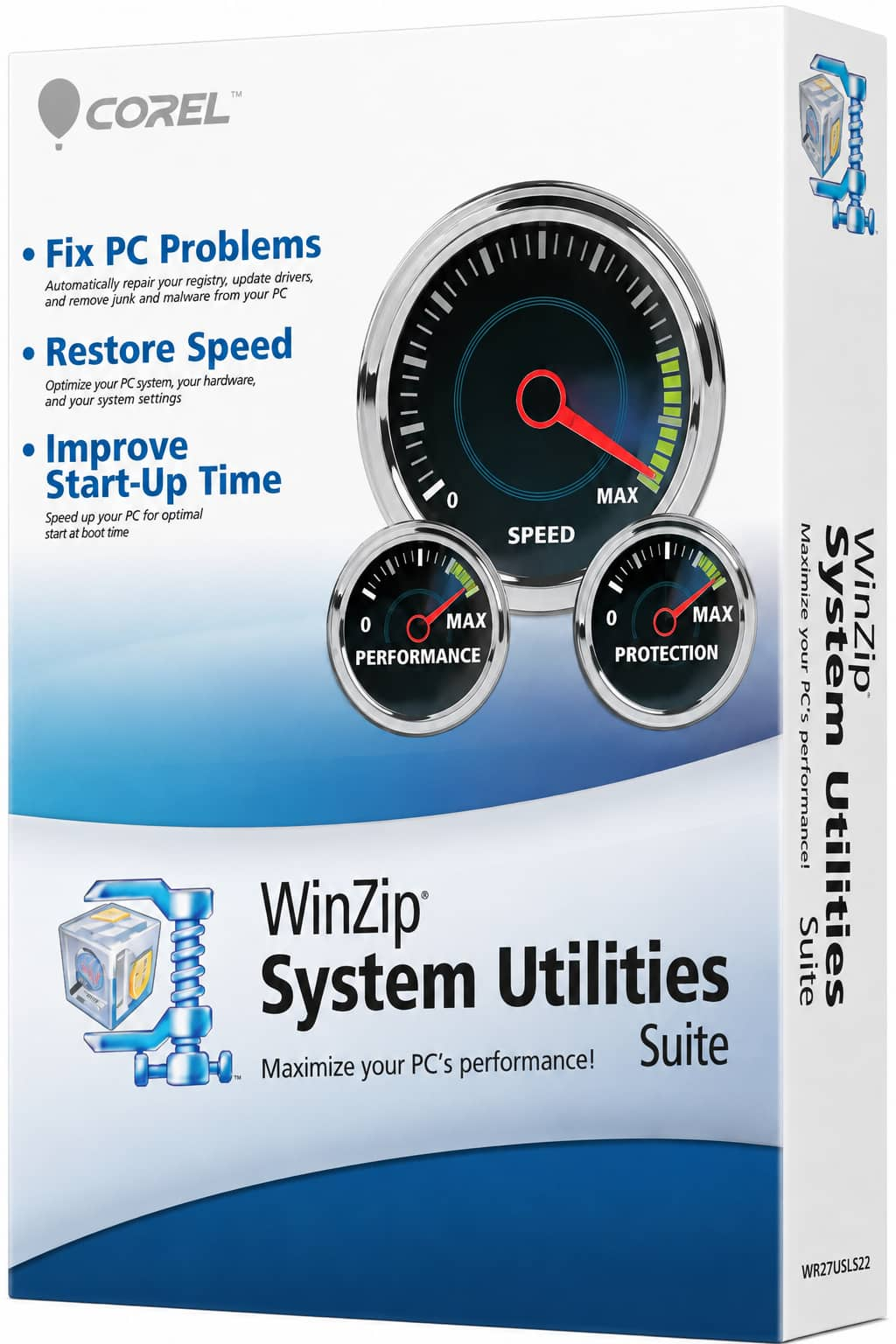
Speed Up Your PC With WinZip System Utilities Suite
- Clean junk files and free up disk space
- Update outdated drivers
- Speed up startup
- Optimize and defrag your drives