
How to Find and Remove Duplicate Files in Windows
Find extra copies of your files, keep the right one and get the disk space back.
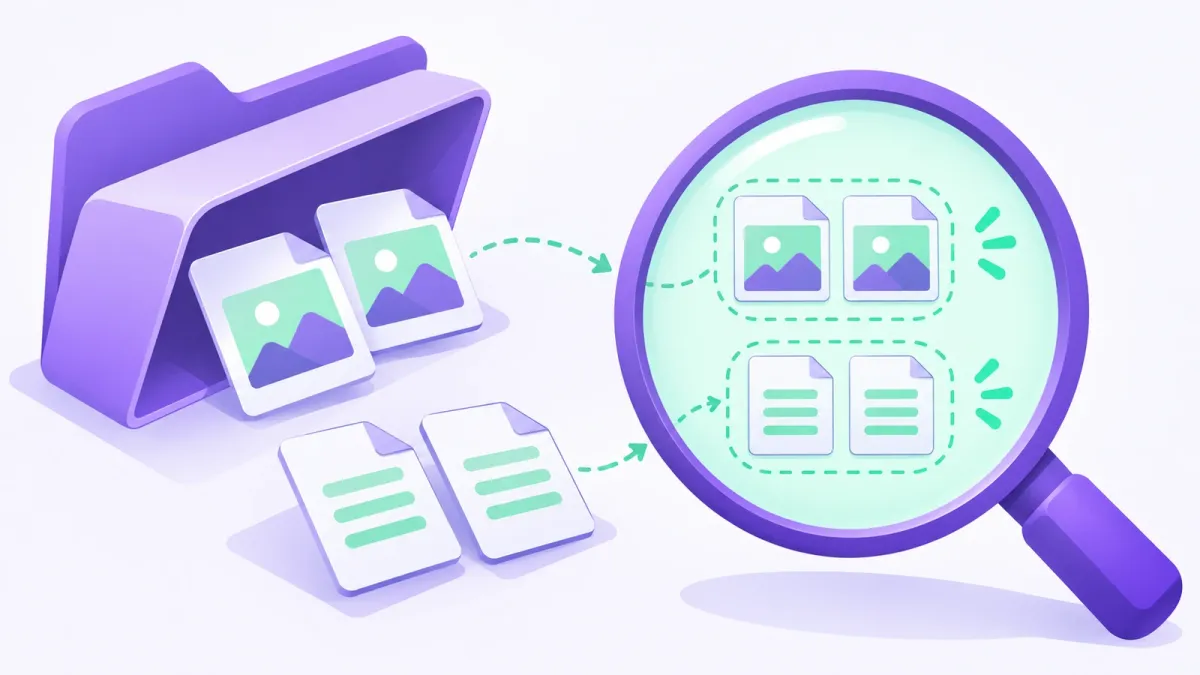
Too many copies to check by hand? WinZip System Utilities Suite's Duplicates Finder looks for duplicate files for you, so you can review the list and delete the extra copies.
Quick Answer
To remove duplicate files in Windows 11 or 10:
- Open File Explorer and go to a folder where copies pile up, such as Downloads, Pictures or Documents.
- Select View > Details, then right-click an empty area and choose Sort by > Name or Size so copies sit next to each other.
- Open both copies to make sure they really are the same, and decide which one to keep.
- Select the extra copy and press Delete, then empty the Recycle Bin to free the space.
How you know it worked: Settings > System > Storage shows more free space on the drive.
Duplicate files are extra copies of the same document, photo, song or video. They build up quietly and take space you could use for something else. This guide shows how to find them with File Explorer, how to check which copy to keep, and how to delete the rest safely. It works in Windows 11 and Windows 10.
1. Know Where Duplicates Come From
Knowing how copies are made tells you where to look first. Common causes:
- Downloading the same file or email attachment more than once. Browsers often add a number, such as report (1).pdf.
- Copying a file into the same folder, which Windows names report - Copy.docx.
- Copying photos from your phone or camera more than once.
- Backing up the same folder to several places on the same drive.
- Copying whole folders to a new location and keeping the originals.
That makes Downloads, Pictures, Documents and any old backup folders the best places to start.
2. Find Duplicates in File Explorer
Sorting a folder by name or size puts copies of the same file next to each other.
- Open File Explorer from the taskbar and go to the folder you want to check.
- Windows 11: select View > Details. Windows 10: select the View tab > Details.
- Right-click an empty area of the folder and choose Sort by > Name. Look for names ending in (1), (2) or - Copy.
- Then choose Sort by > Size. Files with exactly the same size and a similar name are likely copies. This view also shows your largest files first.
- To search for copies, press Ctrl + E to jump to the search box and type copy or (1). Results update as you type.
Expected result: you have a short list of files that look like duplicates.
3. Check Which Copy to Keep
Two files with the same name aren't always the same file. One might be an older draft or an edited photo.
- Compare the details: in Details view, check Size and Date modified. A different size or date usually means different content.
- Open both: for documents and photos, open each copy and compare them.
- Keep the copy in the right place: keep the one in the folder where you'd look for it, such as Documents, and remove the stray copy from Downloads.
- Leave program files alone: don't delete files inside Windows, Program Files or app folders, even if they look alike. Apps can need their own copies.
Expected result: you know which copies are true extras.
4. Delete the Extra Copies and Empty the Recycle Bin
- Select the extra copies. Hold Ctrl and click to select several files.
- Press the Delete key.
- When you're sure you don't need them, open the Recycle Bin on the desktop and empty it.
Deleted files stay in the Recycle Bin until you empty it, so the space isn't freed until you do. Until then, you can right-click a file in the Recycle Bin and choose Restore to put it back.
Expected result: the copies are gone and Settings > System > Storage shows more free space.
5. Let Duplicates Finder Do the Searching
Checking folder by folder works, but it takes time if you have thousands of photos or years of downloads. WinZip System Utilities Suite includes Duplicates Finder, which looks for duplicate files for you and lists them so you can choose which copies to delete.
- Download and install WinZip System Utilities Suite.
- Open Duplicates Finder and run a scan.
- Review the list it finds. Use the checks in step 3 before you delete anything, and keep at least one copy of every file.
Expected result: you get a list of duplicate files to review in one place, instead of sorting each folder yourself.
6. Free Up More Space After You Clean Up
If you still need room, Windows has other built-in options:
- Cleanup recommendations (Windows 11): Settings > System > Storage > Cleanup recommendations lists large or unused files, files synced to the cloud and unused apps.
- Temporary files: Settings > System > Storage > Temporary files.
- Move files you rarely use: cut and paste photos, music or videos to an external drive. You can still use them while the drive is connected.
- OneDrive Files On-Demand: keeps small placeholders on your PC instead of full copies of your cloud files.
For more ways to speed things up once you have space back, see How to Speed Up a Slow Windows PC.
Frequently Asked Questions
Is a file named "- Copy" or "(1)" always a duplicate?
No. The name only tells you how the file was created. It may have been edited afterwards. Compare Size and Date modified in Details view, or open both files, before you delete one.
Will deleting duplicate files speed up my PC?
The main benefit is free space. Microsoft lists freeing up disk space as one of its fixes for a slow PC, so clearing duplicates can help most when your drive is nearly full.
Why didn't I get any space back after deleting duplicates?
Deleted files go to the Recycle Bin first. Microsoft notes you need to empty the Recycle Bin to remove them completely and free up the space.
How do I find the biggest files on my PC?
In File Explorer, open a folder such as Downloads or Videos, select View > Details, then right-click an empty area and choose Sort by > Size. On Windows 11, Cleanup recommendations in Settings > System > Storage also lists large or unused files.
Should I delete duplicate files in the Windows or Program Files folders?
No. Leave files in Windows, Program Files and app folders alone, even if they look alike. Stick to your own files in folders such as Documents, Downloads and Pictures.
How This Guide Was Checked
- Written by
- Loki, WinZip Team. Updated by the WinZip Team in November 2026.
- First published
- September 17, 2020
- Sources reviewed
Related Guides



Speed Up Your PC With WinZip System Utilities Suite
- Clean junk files and free up disk space
- Update outdated drivers
- Speed up startup
- Optimize and defrag your drives