
What Is OneDrive on My Computer?
What OneDrive does with your files, what its icons mean, and how to change or stop what it syncs.
Short on disk space? WinZip System Utilities Suite's Disk Explorer shows what uses the most space on your drive, and its Duplicates Finder finds copies you don't need.
Quick Answer
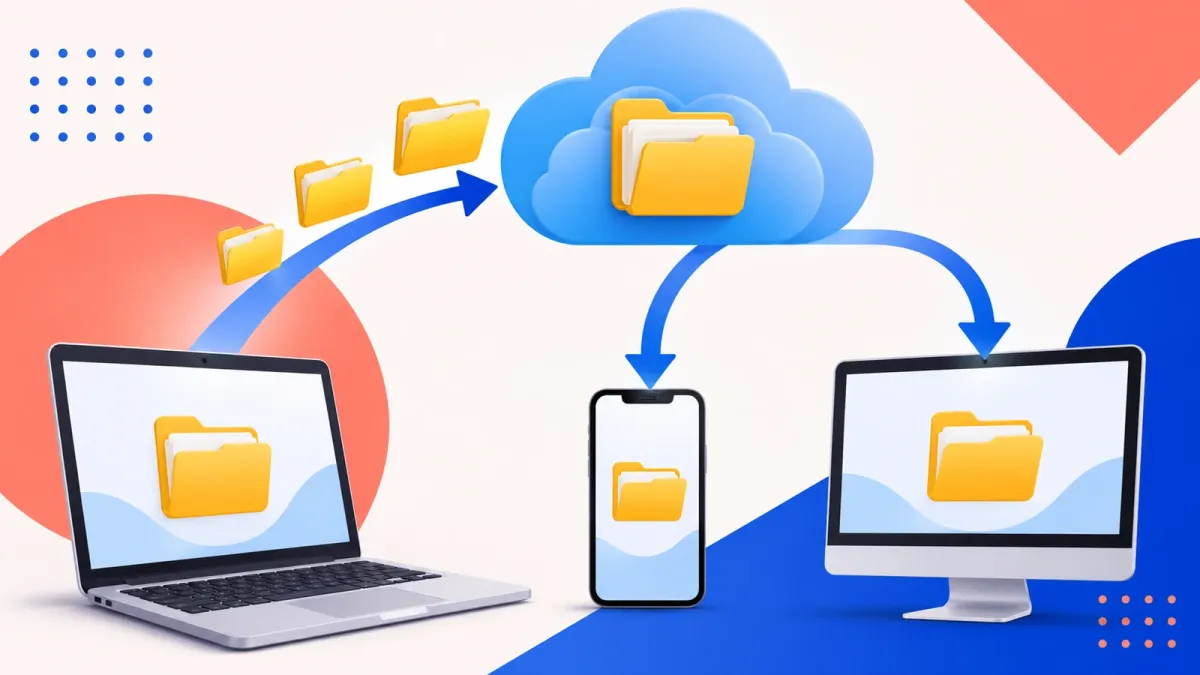
OneDrive is Microsoft's cloud storage, built into Windows. It copies the files in your OneDrive folder to your Microsoft account so you can reach them on other devices. To control it:
- Select the OneDrive cloud icon in the notification area, then Help & Settings > Settings.
- To choose which folders it backs up, open Sync and back up > Manage backup.
- To keep a file offline, right-click it and select Always keep on this device; to save space, select Free up space.
- To stop using OneDrive on this PC, open the Account tab and select Unlink this PC. Your files stay at OneDrive.com.
How you know it worked: the icons next to your files change, and the folders you chose show as backed up in Manage backup.
If you see a small cloud icon near the clock, or a OneDrive folder in File Explorer, that's OneDrive: Microsoft's cloud storage service. It comes with Windows, so it's there even if you never installed it. This guide explains what OneDrive does with your files, what its icons mean, and how to change what it syncs or stop using it.
1. What OneDrive Does on Your PC
OneDrive keeps a copy of the files in your OneDrive folder in your Microsoft account online. That means:
- You can reach your files elsewhere. Sign in at OneDrive.com, use the OneDrive mobile app, or sign in to OneDrive on another PC with the same account.
- Changes follow you. Edit a file on one device and the updated version shows up on the others.
- Your main folders can be backed up. OneDrive can back up folders such as Desktop, Documents and Pictures, so they're safe if something happens to your PC.
- It can save disk space. Files can stay online until you open them, so they don't fill your drive.
Every Microsoft account includes 5 GB of free cloud storage. Microsoft 365 subscriptions include much more.
2. What the OneDrive Icons Next to Your Files Mean
Open your OneDrive folder in File Explorer and look at the small icon shown with each file. Microsoft uses three main icons:
- Blue cloud: an online-only file. It doesn't take up space on your PC, but you can't open it without an internet connection.
- Green check mark: a locally available file. It downloaded when you opened it, and you can open it any time, even offline.
- Solid green circle with a white check mark: a file you've set to always keep on this device. It stays downloaded and is always available offline.
3. Keep Files Offline or Free Up Space
OneDrive's Files On-Demand feature lets you choose, file by file, what stays on your PC.
- Open your OneDrive folder in File Explorer.
- Right-click a file or folder.
- Select Always keep on this device to keep it available offline, or Free up space to make it online-only again.
To check that Files On-Demand is on, select the OneDrive cloud icon, then Help & Settings > Settings > Sync and back up > Advanced settings, and turn on Files On-Demand.
Expected result: the file's icon changes to a solid green circle (always on this device) or a blue cloud (online-only). Choosing Free up space doesn't delete the file from OneDrive.
4. Choose Which Folders OneDrive Backs Up
- Select the OneDrive cloud icon in the notification area, then Help & Settings > Settings.
- Open the Sync and back up tab and select Manage backup.
- To start backing up a folder, turn on its switch and select Save changes.
- To stop backing up a folder, turn off its switch, then choose Keep the files only in OneDrive (removing them from your computer) or Keep the files only on my PC (removing them from OneDrive).
You can also start from the Windows Backup app: select Start, type backup, open Windows Backup and use the switches under Folders.
Expected result: Manage backup shows the folders you chose as backed up.
5. Share a File With a Link
Instead of attaching a big file to an email, you can share a link to it.
- Right-click the file or folder in your OneDrive folder and select Share a OneDrive link. The link is copied, ready to paste into an email or message.
- For more control, sign in at OneDrive.com, select the file, then Share. Use the link settings to allow or block editing before you select Copy.
A link from Share a OneDrive link lets people edit by default. To stop sharing later, select the file on OneDrive.com, open its details, choose Manage access and remove the link.
6. Pause, Unlink or Remove OneDrive
- Pause it for a while: right-click the OneDrive icon on the taskbar and choose to pause for 2, 8 or 24 hours. Syncing starts again on its own when the time is up. OneDrive also pauses by itself in battery saver mode or on a metered network.
- Stop using it on this PC: select the OneDrive icon, then Help & Settings > Settings > Account > Unlink this PC > Unlink account. Microsoft says you won't lose files or data by unlinking, and you can still sign in at OneDrive.com.
- Uninstall it: open Start, search for Programs, select Add or remove programs, find Microsoft OneDrive and select Uninstall. On some versions of Windows, OneDrive is built in and can't be uninstalled; you can unlink it and hide it instead.
Expected result: after pausing, the OneDrive cloud icon shows that syncing is paused; after unlinking, it no longer syncs files on this PC.
7. What Happens When OneDrive Is Full
The free 5 GB covers your OneDrive files and photos as well as Outlook.com attachments. If you go over your limit, Microsoft says you can't upload, edit or sync new files, existing files become read-only, and you can't send or receive Outlook.com email. To fix it, delete files you don't need from OneDrive, stop backing up a folder and choose Keep the files only on my PC, or add storage with a Microsoft 365 subscription.
Want to understand cloud storage in general? Read What Is the Cloud?
Frequently Asked Questions
Why is OneDrive on my computer if I never installed it?
OneDrive comes with Windows. Microsoft notes it's built in to some versions of Windows and can't be uninstalled there, but you can unlink it and hide it if you don't want to use it.
If I unlink or turn off OneDrive, will I lose my files?
No. Microsoft says you won't lose files or data by unlinking OneDrive from your computer, and you can still get to them by signing in at OneDrive.com.
Can I open OneDrive files without the internet?
Only files stored on your PC. Online-only files (blue cloud icon) need a connection. Right-click a file and select Always keep on this device to keep it available offline.
If I delete a file in my OneDrive folder, is it gone from the cloud too?
Yes, for online-only files: Microsoft says deleting one from your device deletes it from OneDrive on all devices and online. To save space without deleting, choose Free up space instead.
How much free OneDrive storage do I get?
A Microsoft account comes with 5 GB of free cloud storage, shared between OneDrive files and photos and Outlook.com attachments. Microsoft 365 subscriptions include more.
Why has OneDrive stopped syncing?
It may be paused, either by you or automatically: Microsoft says OneDrive pauses in battery saver mode and on metered networks. Select the OneDrive icon to resume. It also stops syncing new files when your storage is full.
How This Guide Was Checked
- Written by
- Loki, WinZip Team. Updated by the WinZip Team in November 2026.
- First published
- September 20, 2021
- Sources reviewed
- Microsoft Support: Save disk space with OneDrive Files On-Demand for Windows
- Microsoft Support: Back up your folders with OneDrive
- Microsoft Support: Back up and restore with Windows Backup
- Microsoft Support: Share files and folders in Microsoft OneDrive
- Microsoft Support: How to pause and resume OneDrive sync
- Microsoft Support: Turn off, disable, or uninstall OneDrive
- Microsoft Support: Microsoft storage FAQs
Related Guides


Speed Up Your PC With WinZip System Utilities Suite
- Clean junk files and free up disk space
- Update outdated drivers
- Speed up startup
- Optimize and defrag your drives