
What Is the Cloud? Cloud Storage Explained
What the cloud is, how cloud storage works, and how to start keeping your files safe in it on Windows.
Tidy up before you back up. WinZip System Utilities Suite's Duplicates Finder and Disk Explorer show duplicate files and what uses the most space, so you only store what you need.
Quick Answer
"The cloud" means services you use over the internet instead of on your own PC. Cloud storage saves your files on a provider's servers so you can reach them from any device. To start on Windows:
- Select Start, type backup and open Windows Backup.
- Under Folders, turn on the folders you want to keep in OneDrive, such as Desktop, Documents and Pictures.
- Let OneDrive finish syncing, then sign in at OneDrive.com on another device to see your files.
- Protect the account: at account.microsoft.com/security, select Manage how I sign in and turn on Two-step verification.
How you know it worked: the files you backed up appear when you sign in at OneDrive.com from another computer or the OneDrive app.
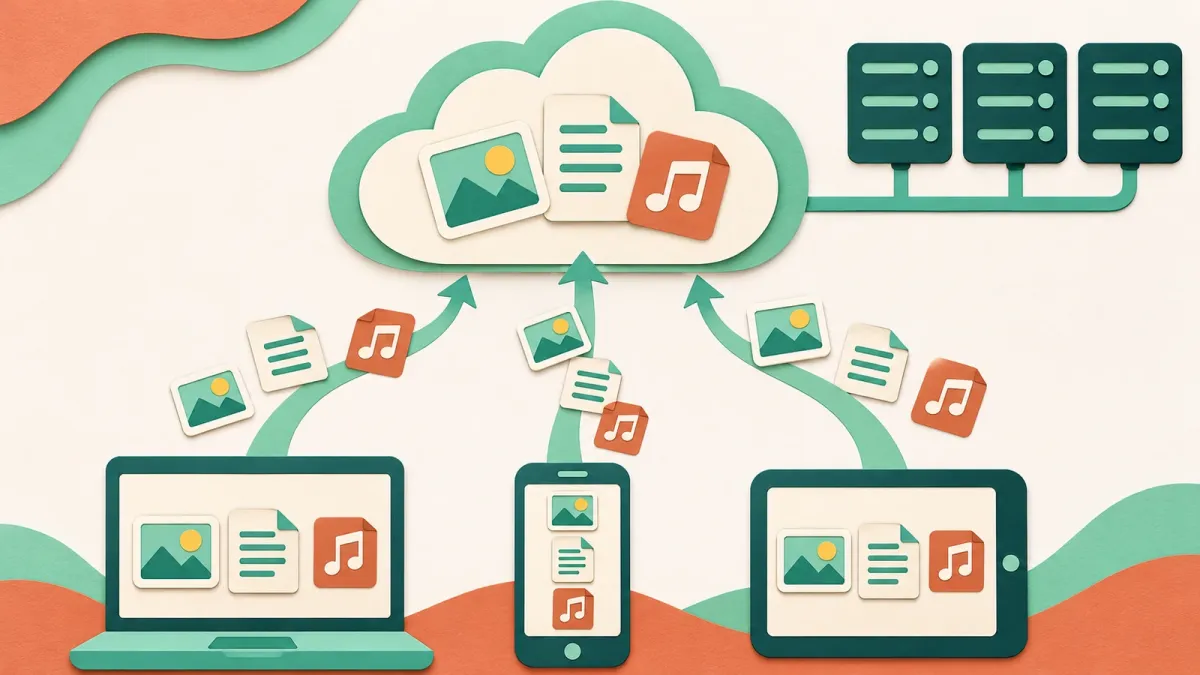
"The cloud" is a name for computer services you use over the internet instead of running them on your own PC. Microsoft describes cloud computing as the delivery of computing services, such as servers, storage, databases, networking and software, over the internet. For most people, the part that matters day to day is cloud storage: a safe place online for your photos and documents that you can reach from any device. This guide explains how it works and how to start using it on a Windows PC.
1. What the Cloud Means in Plain English
You probably use the cloud already. Microsoft lists web mail, streaming video and online office apps as everyday cloud services. Your messages, films and documents live on a company's computers, not on your device, and you open them through a browser or an app.
Cloud storage works the same way for your own files. Microsoft defines it as a way of saving data on remote servers where it can be accessed online, instead of on local computers or physical hard drives. You reach it through a website, a browser or a mobile app.
Common cloud storage services include OneDrive (built into Windows), Google Drive, Apple iCloud and Dropbox. They all follow the same idea: save a file once, then open it from your PC, your phone or someone else's computer after you sign in.
2. How Cloud Storage Works
When you save a file to a cloud folder, a copy is uploaded to the provider's servers. According to Microsoft:
- Your files are kept in more than one place. Data is split into pieces, stored across several devices and often copied to other regions, so it stays available even if one server or location has a problem.
- Your files are encrypted. Providers encrypt files while they travel over the internet and while they're stored, and they add safeguards such as access controls and monitoring.
- Your devices stay in step. Cloud storage keeps files consistent across devices, so a change you make on your PC shows up on your phone, and the other way round.
3. Why People Use the Cloud
- Your files go where you go. Show family photos on your phone at lunch, or open a document on a library computer, without carrying your laptop.
- You have a copy if your PC fails. Microsoft notes that storing information offsite in the cloud adds a layer of protection. If your computer won't start, the files you saved to the cloud are still there.
- Sharing is easier. Instead of attaching a large file to an email, you can send a link to it.
- It can save space on your PC. OneDrive can keep files online only until you open them, so they don't take up room on your drive.
4. Start Backing Up Your PC to the Cloud
Windows includes OneDrive, and every Microsoft account comes with 5 GB of free cloud storage. The Windows Backup app is the simplest way to start.
- Select Start, type backup and select Windows Backup.
- Under Folders, turn on the switch for each folder you want to back up: Desktop, Documents, Pictures, Videos or Music.
- Windows syncs those folders to your OneDrive account, so they're available on other computers where you sign in with the same Microsoft account.
You can also choose folders in OneDrive itself: select the OneDrive cloud icon in the notification area, select Help & Settings > Settings, open Sync and back up, select Manage backup, turn on the folders and select Save changes.
On Windows 10, the same Windows Backup app is available, with the folder switches under Back up files. Microsoft ended support for Windows 10 on October 14, 2025.
Expected result: Windows Backup (or Settings > Accounts > Windows backup on Windows 11) shows the folders as backed up.
5. Open Your Files From Another Device
- On any computer, go to OneDrive.com and sign in with the Microsoft account you used on your PC.
- On a phone or tablet, install the OneDrive app and sign in with the same account.
- On another Windows PC, sign in to OneDrive with the same account and your backed-up files are available there too.
Setting up a new PC? Sign in with the same Microsoft account during setup. Windows detects your backup and offers to restore it.
Expected result: you can open the same photos and documents you saved on your own PC.
6. Keep Your Cloud Account Safe
Your cloud files are only as safe as the account that protects them. Microsoft says two-step verification makes it harder for someone else to sign in, because they'd need a second proof of identity as well as your password.
- Go to account.microsoft.com/security and sign in.
- Select Manage how I sign in.
- Under Additional security, find Two-step verification and select Turn on, then follow the steps on screen.
Be wary of emails that ask you to "verify your storage" or sign in through a link. Microsoft warns that phishing messages are made to look like official communication, and recommends checking where a link really goes before you open it.
Expected result: the next time you sign in on a new device, Microsoft asks for a second check as well as your password.
7. What to Know Before You Rely on the Cloud
- Some files need the internet. Online-only files can't be opened when your device is offline. To keep a file on your PC as well, right-click it in your OneDrive folder and select Always keep on this device.
- Deleting works everywhere. Microsoft notes that when you delete an online-only file from your device, it's deleted from OneDrive on all your devices and online.
- Free space is limited. The free 5 GB is shared with Outlook.com attachments. If you go over it, you can't upload, edit or sync new files, and you can't send or receive Outlook.com email until you free up space or add more.
Learn more about how OneDrive works on a PC in What Is OneDrive on My Computer?
Frequently Asked Questions
Is it safe to store my files in the cloud?
Microsoft says cloud providers encrypt files while they travel and while they're stored, and use safeguards such as access controls and monitoring. The weak point is usually the account, so use a strong password and turn on two-step verification.
Where is "the cloud" actually?
On real computers. Microsoft explains that cloud data is saved on physical servers managed by cloud providers, split across several devices and often copied to other regions so it stays available if one location has a problem.
Do I need an internet connection to use my cloud files?
For online-only files, yes: they can't be opened offline. Files you've opened before stay on your device, and you can right-click any file in your OneDrive folder and select Always keep on this device to keep it available offline.
How much free cloud storage comes with Windows?
A Microsoft account includes 5 GB of free cloud storage, which is shared between OneDrive files and Outlook.com attachments. Microsoft 365 subscriptions include more.
What happens if my cloud storage is full?
Microsoft says you can't upload, edit or sync new files to OneDrive, and you can't send or receive Outlook.com email until you free up space or get more storage.
Can I get my files back on a new computer?
Yes, if you backed them up with Windows Backup. When you set up the new PC, sign in with the same Microsoft account and Windows offers to restore your backup. You can also sign in at OneDrive.com to download your files.
How This Guide Was Checked
- Written by
- Chris, WinZip Team. Updated by the WinZip Team in November 2026.
- First published
- August 12, 2019
- Sources reviewed
- Microsoft Azure: What is cloud computing?
- Microsoft Azure: What is cloud storage?
- Microsoft Support: Back up and restore with Windows Backup
- Microsoft Support: Back up your folders with OneDrive
- Microsoft Support: Save disk space with OneDrive Files On-Demand for Windows
- Microsoft Support: Microsoft storage FAQs
- Microsoft Support: Share files and folders in Microsoft OneDrive
- Microsoft Support: How to use two-step verification with your Microsoft account
- Microsoft Learn: How to protect against phishing attacks
Related Guides




Speed Up Your PC With WinZip System Utilities Suite
- Clean junk files and free up disk space
- Update outdated drivers
- Speed up startup
- Optimize and defrag your drives