
5 Reasons to Use WinZip System Utilities Suite
What WinZip System Utilities Suite does, what it doesn't do, and how to get started.
See it on your own PC. Download WinZip System Utilities Suite and run a scan to see the junk files, privacy traces and app leftovers you can clean up.

Quick Answer
To get started with WinZip System Utilities Suite:
- Download and install it from the WinZip System Utilities Suite page.
- Run a scan. It checks for junk files, privacy items, files left behind by removed apps, and outdated drivers.
- Review the results before you let it clean anything up.
- Open Startup Manager and switch off programs you don't need when Windows starts.
How you know it worked: Settings > System > Storage shows more free space, and fewer apps open on their own when you sign in.
Over time, every Windows PC collects clutter: temporary files, leftovers from programs you removed, duplicate downloads, add-ons you never use and a growing list of apps that start with Windows. WinZip System Utilities Suite brings the tools to deal with these into one program. Here are five reasons to use it, plus what it doesn't do, so you know exactly what you're getting.
1. One Scan Covers the Common Clutter
Instead of checking each part of Windows yourself, you can run one scan. It looks at four things:
- Junk Files: temporary and unneeded files that take up disk space.
- Privacy Cleaner: traces of sensitive information you may want to clean up.
- Uninstall Cleanup: files left behind by apps you removed and by system changes.
- Driver Updater: drivers that may need updating.
When the scan finishes, look through what it found before you clean anything up.
2. Get Disk Space Back
When your drive is nearly full, Windows has less room to work, and Microsoft lists freeing up disk space as one of its fixes for a slow PC. WinZip System Utilities Suite gives you three ways to find space:
- Disk Explorer builds a list of your files and folders so you can see what is taking up space, then delete what you don't need.
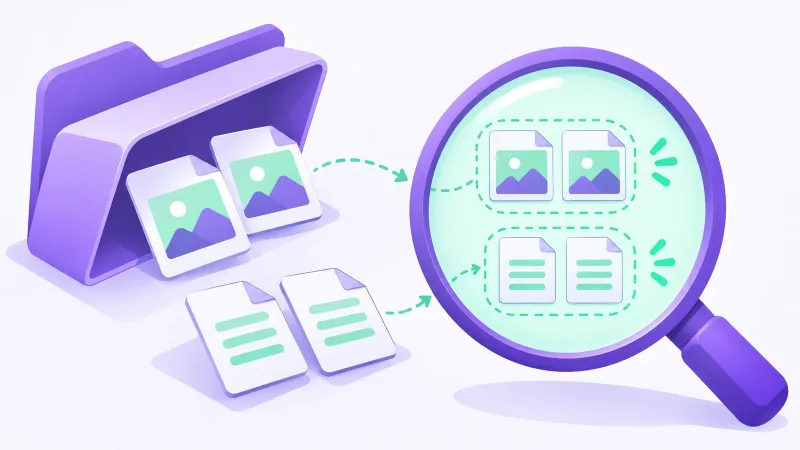
- Duplicates Finder looks for extra copies of the same file. Our guide How to Find and Remove Duplicate Files in Windows explains how to decide which copy to keep.
- Junk Files, part of the scan above, clears out files you don't need.
3. Remove Programs and Add-ons You Don't Want
Programs you no longer use take up space, and some keep running in the background.
- Uninstall Manager lists the programs installed on your PC. Select Uninstall next to one and follow the on-screen steps. For a program that isn't working properly, it also offers Repair.
- Add-ons Manager helps you remove add-ons you don't want.
- Uninstall Cleanup finds the files that removed apps leave behind.
If a program won't uninstall at all, see How to Fix Programs That Won't Uninstall.
4. Take Control of Startup
Every program that starts with Windows adds to the wait before your PC is ready. Startup Manager shows the programs and services that start with Windows in one list, with a switch next to each so you can turn off the ones you don't need straight away. They stay installed, and you can still open them yourself.
Registry Defrag analyzes the Windows Registry, shows you the results, and then defragments and optimizes it. It may need to finish the job the next time you restart, so save your work first.
For the built-in Windows way to do the same, see How to Fix Slow Startup in Windows 11.
5. Handy Tools for Drives and Files
- Disk Optimizer optimizes your drives.
- Mass File Renamer renames a whole batch of files at once, which is useful for folders of photos or scans with meaningless names.
- File Shredder securely deletes files you want gone for good, such as old financial documents, before you sell or give away a PC.
What WinZip System Utilities Suite Doesn't Do
It's a cleanup and maintenance tool for Windows PCs. It is not antivirus or antimalware software, so it doesn't scan for or remove viruses. Keep Windows Security (or your own antivirus) turned on, and to check for malware, open Windows Security > Virus & threat protection > Quick scan. It also runs on Windows only, not on Mac computers, phones or tablets.
How to Get Started
- Go to the WinZip System Utilities Suite page, select Download and run the installer.
- Run a scan and review what it finds.
- Try the tools above that match your problem: Disk Explorer or Duplicates Finder for space, Uninstall Manager for unwanted programs, Startup Manager for a slow start.
Some functions can be used free in the trial version; others unlock when you buy a license.
Frequently Asked Questions
Is WinZip System Utilities Suite an antivirus?
No. It cleans junk files, manages programs and startup apps, and optimizes drives, but it doesn't scan for or remove viruses or malware. Use Windows Security or your own antivirus for that.
Can I try WinZip System Utilities Suite for free?
Yes. Some functions can be used free in the trial version, and the rest unlock when you buy a license.
Does it work on a Mac or a phone?
No. WinZip System Utilities Suite is made for Windows PCs.
Can't I do all this with the tools in Windows?
Many of these jobs have a built-in Windows tool: Startup apps in Task Manager, Temporary files in Settings > System > Storage, and Defragment and Optimize Drives. WinZip System Utilities Suite brings them together in one program and adds tools such as Duplicates Finder, File Shredder and Mass File Renamer.
Does Startup Manager uninstall programs?
No. Startup Manager only switches off programs and services so they don't start with Windows. To remove a program completely, use Uninstall Manager.
Why does Registry Defrag finish when my PC restarts?
To complete the defrag, WinZip System Utilities Suite may schedule itself to run the next time your PC starts. When it is done, your PC finishes starting and loads Windows normally.
How This Guide Was Checked
- Written by
- Chris, WinZip Team. Updated by the WinZip Team in November 2026.
- First published
- August 18, 2020
- Sources reviewed
- WinZip SystemTools Support Center: Can I try System Utilities Suite for FREE?
- WinZip SystemTools Support Center: How do I manage and improve the startup time of my PC?
- WinZip SystemTools Support Center: How do I completely uninstall unnecessary programs from my PC?
- WinZip SystemTools Support Center: What does the Registry Defrag feature do? How do I use it?
- WinZip SystemTools Support Center: How to Increase Available Hard Drive Space
- Microsoft Support: Tips to improve PC performance in Windows
Related Guides



Speed Up Your PC With WinZip System Utilities Suite
- Clean junk files and free up disk space
- Update outdated drivers
- Speed up startup
- Optimize and defrag your drives