
How to Clear Your Browser's Data and Cache
Clear cache and cookies in Chrome and Edge on Windows, and fix pages that won't load right.
Prefer one place to clean up? WinZip System Utilities Suite's Privacy Cleaner, part of its one-click scan, clears browser cache, cookies and browsing history from one place.

Quick Answer
To clear your browser's cache and cookies on Windows:
- Chrome: select More (⋮) > Delete browsing data, pick a time range, tick Cookies and other site data and Cached images and files, then select Delete data.
- Edge: select Settings and more (…) > Settings > Privacy, search, and services > Clear browsing data > Choose what to clear, tick the items, then select Clear now.
- Reload the page that was giving you trouble.
How you know it worked: sites ask you to sign in again, and the page that wasn't loading properly now shows its latest version.
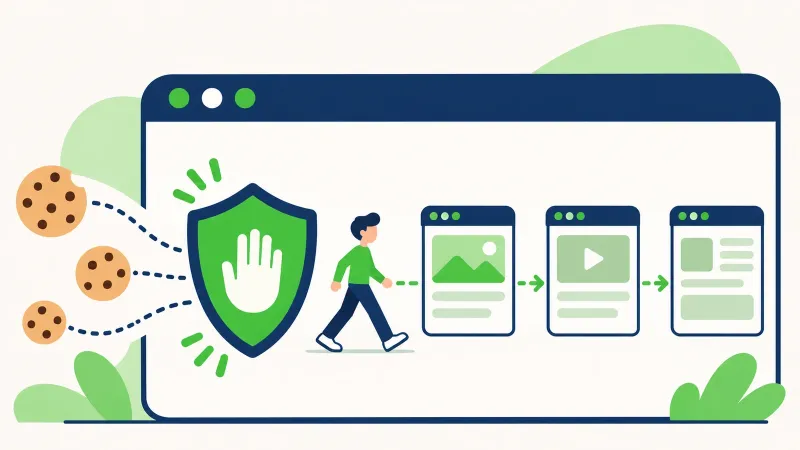
Your browser saves parts of the websites you visit, such as images and text (the cache), and small files that remember things like your sign-ins and settings (cookies). This helps pages open faster, but stored data can get out of date. Clearing it is a common fix when a page won't load properly, shows old content, or a site keeps misbehaving. Below are the current steps for Chrome and Edge on Windows.
1. Clear Cache and Cookies in Google Chrome
- Open Chrome.
- At the top right, select More (⋮) > Delete browsing data. You can also type Delete browsing data in the address bar and select the action that appears.
- Choose a time range, such as Last hour or All time.
- Tick Cookies and other site data and Cached images and files. Untick anything you want to keep, such as Browsing history.
- Select Delete data.
Here's what the main options remove, according to Google:
- Cached images and files: copies of text and images from pages you've visited, which Chrome keeps so pages open faster.
- Cookies and other site data: cookies and other data websites store in your browser. You'll need to sign in to sites again.
- Download history: only the list of downloads. The files themselves stay on your computer.
Saved passwords aren't removed by this tool. Google manages those separately in Google Password Manager. If you're signed in to Chrome with sync on, you stay signed in to your Google Account, and the data you delete is also removed from your other synced devices.
Expected result: sites you were signed in to ask you to sign in again, and pages may load a little more slowly at first while Chrome downloads their images again.
2. Clear Cache and Cookies in Microsoft Edge
- In Edge, select Settings and more (…) at the top right.
- Select Settings > Privacy, search, and services.
- Select Clear browsing data, then Choose what to clear next to Clear browsing data now.
- Under Time range, choose how far back to go.
- Tick Cookies and other site data and Cached images and files.
- Select Clear now.
Edge's list also includes Passwords and Autofill form data, so check what's ticked before you select Clear now. Microsoft notes that items you've synced are cleared on all your synced devices. To clear data on this PC only, turn sync off first in Settings > Profiles > Sync.
Expected result: Edge clears the items you ticked, and sites ask you to sign in again.
3. Clear Cookies for Just One Site
If only one website is misbehaving, you can clear that site's data and stay signed in everywhere else.
- Chrome: select More > Settings > Privacy and security > Third-party cookies > See all site data and permissions. Search for the site, select Delete next to it, then select Delete again to confirm.
- Edge: select Settings and more > Settings > Privacy, search, and services > Cookies > See all cookies and site data. Search for the site, select the down arrow next to it, then Delete.
Expected result: that site treats you as a new visitor, and every other site keeps you signed in.
4. Clear Cookies Automatically When You Close Edge
If you'd rather not do this by hand, Edge can clear data every time you close it. Go to Settings > Privacy, search, and services > Clear browsing data > Choose what to clear every time you close the browser, and turn on Cookies and other site data (or any other item).
Keep in mind that you'll have to sign in to your sites again each time you open the browser.
5. Check That It Worked
- Open the page that was giving you trouble and reload it. It should now show its current version.
- Sites you were signed in to should ask you to sign in again. If they don't, check that you ticked the cookies option and chose a long enough time range.
Still Not Working? What to Try Next
- Try a private window: press Ctrl + Shift + N in Chrome for an Incognito window, or select Settings and more > New InPrivate window in Edge. If the page works there, clear that site's data again (section 3) or check your extensions.
- Turn off extensions one at a time: in Chrome, select More > Extensions > Manage extensions. In Edge, select Extensions next to the address bar > Manage extensions. Switch them off, then back on one by one to find the culprit.
- Update your browser: in Chrome, select More > Help > About Google Chrome and select Relaunch if an update is ready. In Edge, select Settings and more > Help and feedback > About Microsoft Edge.
Frequently Asked Questions
Will clearing my cache and cookies delete my saved passwords?
Not in Chrome: Google says saved passwords aren't deleted with the browsing data tool and are managed in Google Password Manager instead. In Edge, passwords are only removed if you tick Passwords in the list.
Will I be signed out of websites?
Yes, if you clear cookies. Cookies are what keep you signed in, so you'll need to sign in to those sites again. Clearing only the cache keeps you signed in.
What's the difference between the cache and cookies?
The cache stores copies of text and images from pages you've visited so they open faster. Cookies are small files websites create to save information about your visit, such as your sign-in and preferences.
Why are websites slower right after I clear the cache?
The browser has to download images and other content again the first time you visit each site. Google notes that some sites may load more slowly at first; it speeds up again as the cache refills.
Does deleting download history delete my downloaded files?
No. In Chrome, deleting download history only removes the list of downloads. The files stay on your computer.
Will clearing data on this PC clear it on my phone too?
It can. If sync is on, Chrome and Edge remove the data you delete from your other synced devices as well. In Edge, turn sync off first if you only want to clear this PC.
How This Guide Was Checked
- Written by
- Chris, WinZip Team. Updated by the WinZip Team in November 2026.
- First published
- March 15, 2020
- Sources reviewed
- Google Chrome Help: Delete browsing data in Chrome
- Google Account Help: Clear cache & cookies
- Google Chrome Help: Delete, allow, and manage cookies in Chrome
- Microsoft Support: View and delete browser history in Microsoft Edge
- Microsoft Support: Manage cookies in Microsoft Edge: View, allow, block, delete and use
- Google Chrome Help: Browse in Incognito mode
- Microsoft Support: Browse InPrivate in Microsoft Edge
- Chrome Web Store Help: Install and manage extensions
- Microsoft Support: Add, turn off, or remove extensions in Microsoft Edge
- Google Chrome Help: Update Google Chrome
- Microsoft Support: Microsoft Edge update settings
Related Guides



Speed Up Your PC With WinZip System Utilities Suite
- Clean junk files and free up disk space
- Update outdated drivers
- Speed up startup
- Optimize and defrag your drives