
How to Block Tracking Cookies in Chrome
Block third-party cookies, clear the ones already stored and stop ads from following you around the web.
Clear out the cookies already stored. WinZip System Utilities Suite's Privacy Cleaner, part of its one-click scan, clears browser cookies, cache and browsing history from one place.
Quick Answer
To block tracking cookies in Chrome on a computer:
- Select More (⋮) > Settings > Privacy and security > Third-party cookies.
- Choose Block third-party cookies.
- Delete the cookies already stored: More > Delete browsing data, tick Cookies and other site data, then Delete data.
- Optional: turn off Personalized ads in Google's My Ad Center.
How you know it worked: Block third-party cookies is selected in Chrome's settings, and sites you were signed in to ask you to sign in again after you delete cookies.
Cookies are small files websites create to save information about your visit, like keeping you signed in or remembering your preferences. Google describes two kinds:
- First-party cookies are created by the site you visit, the one shown in the address bar.
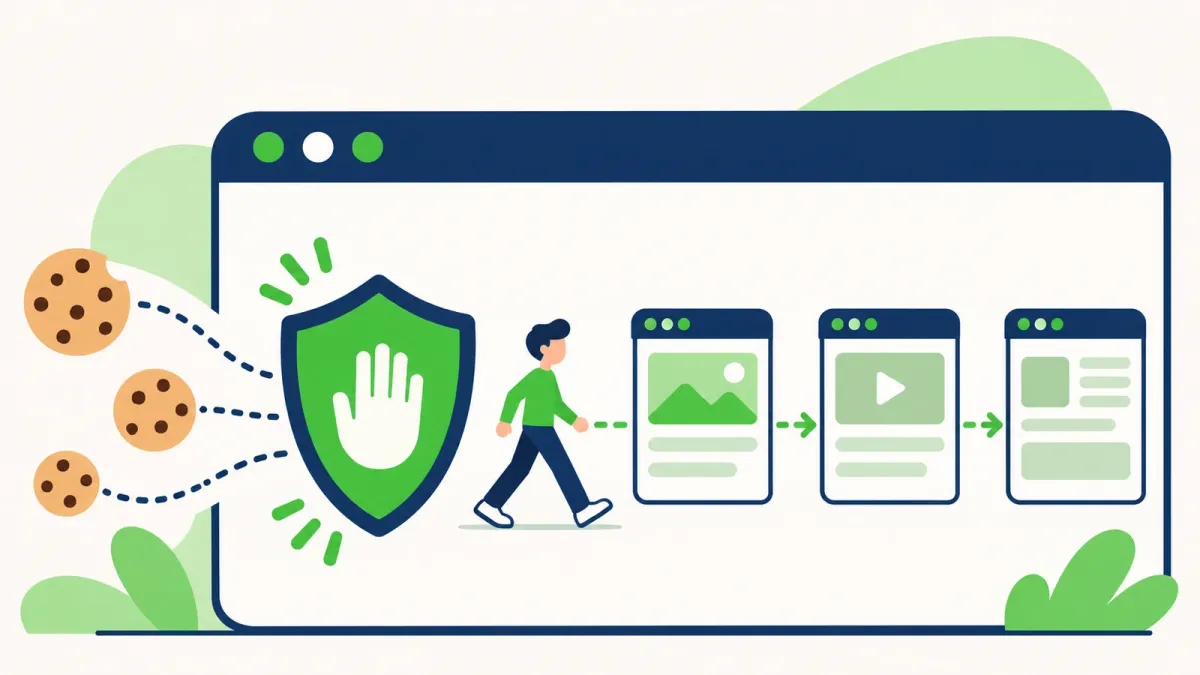
- Third-party cookies are created by other sites. A page can include content such as ads or images from other sites, and those sites can use their cookies to personalize content and track what you do across sites.
Microsoft notes that trackers following you across sites are why ads can seem to chase you around the web. Blocking third-party cookies keeps the useful first-party cookies working while cutting down on cross-site tracking.
1. Block Third-Party Cookies in Chrome
- Open Chrome and select More (⋮) > Settings.
- Select Privacy and security > Third-party cookies.
- Choose Block third-party cookies.
If a site you trust stops working properly, you can let just that site use third-party cookies. On the same page, select Add next to Sites allowed to use third-party cookies, enter the address and select Add. To cover a whole domain, put [*.] before it, for example [*.]example.com. You can also allow them for the site you're on from the address bar: select Third-party cookies blocked and turn on Third-party cookies. The site can then use them for 90 days or until you turn the setting off.
Expected result: Block third-party cookies stays selected, and new third-party cookies are blocked unless a site is on your exceptions list.
2. Delete the Tracking Cookies Already Stored
Blocking stops new third-party cookies, but it doesn't remove the ones already saved.
- Select More > Delete browsing data.
- Choose a time range. Pick All time to remove everything.
- Tick Cookies and other site data.
- Select Delete data.
To remove one site's cookies only, go to Settings > Privacy and security > Third-party cookies > See all site data and permissions, search for the site, select Delete next to it, then select Delete again to confirm. For Edge and Firefox, see our guide on how to clear your browser's data and cache.
Expected result: sites you were signed in to ask you to sign in again.
3. Don't Block All Cookies Unless You Need To
You can stop sites from saving any cookies at all, but it's rarely worth it. Google warns that if you don't allow sites to save cookies, sites may not work as expected, and Microsoft notes that blocking cookies might stop some pages from displaying correctly. Deleting or blocking cookies can sign you out of sites and remove saved preferences. Blocking third-party cookies, as in step 1, deals with cross-site tracking without those problems.
4. Block Tracking in Edge and Firefox Too
Each browser has its own settings, so repeat this in any other browser you use.
- Edge, third-party cookies: select Settings and more (…) > Settings > Privacy, search, and services > Cookies, and turn on Block third-party cookies.
- Edge, tracking prevention: in Privacy, search, and services, select Tracking prevention, make sure it's on, and choose Balanced (recommended) or Strict. Microsoft notes that Strict blocks most cross-site trackers but could stop some sites working as expected, such as a video that won't play.
- Firefox: Total Cookie Protection is on by default in Firefox's Standard protection. It keeps each site's cookies separate, so trackers find it much harder to follow you across sites. For more blocking, select the shield icon to the left of the address bar > Protection Settings and choose Strict. Mozilla notes that some sites may need adjustments in this mode.
Expected result: in Edge, select View site information in the address bar on any site, then Trackers, to see how many trackers were blocked.
5. Use a Private Window for One-Off Browsing
Private windows are handy on a shared computer or when you don't want a visit remembered.
- Chrome: press Ctrl + Shift + N, or select More > New Incognito window. Third-party cookies are blocked by default in Incognito, and cookies and site data are removed when you close the Incognito session.
- Edge: select Settings and more > New InPrivate window. Edge doesn't save your browsing history, cookies, site data or form entries from it.
Private windows don't make you invisible. Google notes that the websites you visit, and your school, employer or internet service provider, may still see your activity.
6. Turn Off Personalized Ads in Your Google Account
Cookies aren't the only way ads are tailored. When you're signed in, Google can use your account activity to personalize ads. To turn this off:
- Go to My Ad Center while signed in to your Google Account.
- Select Off next to Personalized ads, then confirm.
You'll still see ads, but Google says they'll be based on things like the topic of the page and the time of day rather than your info, and personalized ads on sites and apps that partner with Google are turned off too. The topics and brands you set in My Ad Center are deleted. If you browse without signing in, use Google's Ad Settings page instead; those settings are saved to that browser only.
7. More Ways to Browse Safely
- Keep Chrome up to date: select More > Help > About Google Chrome, and select Relaunch if an update is ready.
- Turn on Enhanced protection: in Settings > Privacy and security > Security, choose Enhanced protection. Chrome then warns you about dangerous sites, downloads and extensions, including ones Google hasn't seen before. Standard protection is the default.
- Be choosy with extensions: Google advises turning on only extensions you trust, and lists unwanted extensions that keep coming back as a sign of unwanted software. Our guide on removing ads in Chrome, Edge and Firefox shows how to check them.
Frequently Asked Questions
Will blocking third-party cookies stop all ads?
No. You'll still see ads, but fewer of them will be based on what you did on other sites. Microsoft says that with stronger tracking prevention, content and ads are likely to be less personalized.
Will blocking third-party cookies break websites?
It can. Microsoft notes that blocking third-party cookies might stop some pages from displaying correctly. In Chrome you can add a trusted site to Sites allowed to use third-party cookies, and in Edge you can add a site to the tracking prevention exceptions.
Does Incognito mode stop tracking?
Partly. Chrome blocks third-party cookies in Incognito by default and removes the session's cookies and site data when you close it. But the websites you visit, and your school, employer or internet service provider, may still see your activity.
Why do ads still follow me after I deleted my cookies?
Ads can also be personalized from your signed-in account activity. Turning off Personalized ads in Google's My Ad Center stops Google from using your info to personalize ads, including on partner sites and apps.
Is it a good idea to block all cookies?
Usually not. Google and Microsoft both warn that sites may not work or display correctly without cookies, because sign-ins and saved preferences depend on them. Blocking only third-party cookies is the better balance.
Does WinZip System Utilities Suite block tracking cookies?
No. Blocking new tracking cookies is done in your browser's settings, as shown above. WinZip System Utilities Suite's Privacy Cleaner clears the cookies, cache and browsing history already stored on your PC.
How This Guide Was Checked
- Written by
- Chris, WinZip Team. Updated by the WinZip Team in November 2026.
- First published
- July 9, 2023
- Sources reviewed
- Google Chrome Help: Delete, allow, and manage cookies in Chrome
- Google Chrome Help: Delete browsing data in Chrome
- Google Chrome Help: Browse in Incognito mode
- Microsoft Support: Manage cookies in Microsoft Edge: View, allow, block, delete and use
- Microsoft Support: Learn about tracking prevention in Microsoft Edge
- Microsoft Support: Browse InPrivate in Microsoft Edge
- Firefox: Total Cookie Protection
- Firefox: Ad tracker blocking
- My Ad Center Help: How personalized ads work
- Google Chrome Help: Update Google Chrome
- Google Chrome Help: Choose your Safe Browsing protection level in Chrome
- Google Chrome Help: Remove unwanted ads, pop-ups & malware
Related Guides



Speed Up Your PC With WinZip System Utilities Suite
- Clean junk files and free up disk space
- Update outdated drivers
- Speed up startup
- Optimize and defrag your drives