
How to Install a Program Safely and Securely
Six steps to install software on Windows without picking up unwanted extras, and how to undo it if needed.
Clean up after installs. WinZip System Utilities Suite's Uninstall Manager and Add-ons Manager help you remove programs and browser add-ons you don't want to keep.
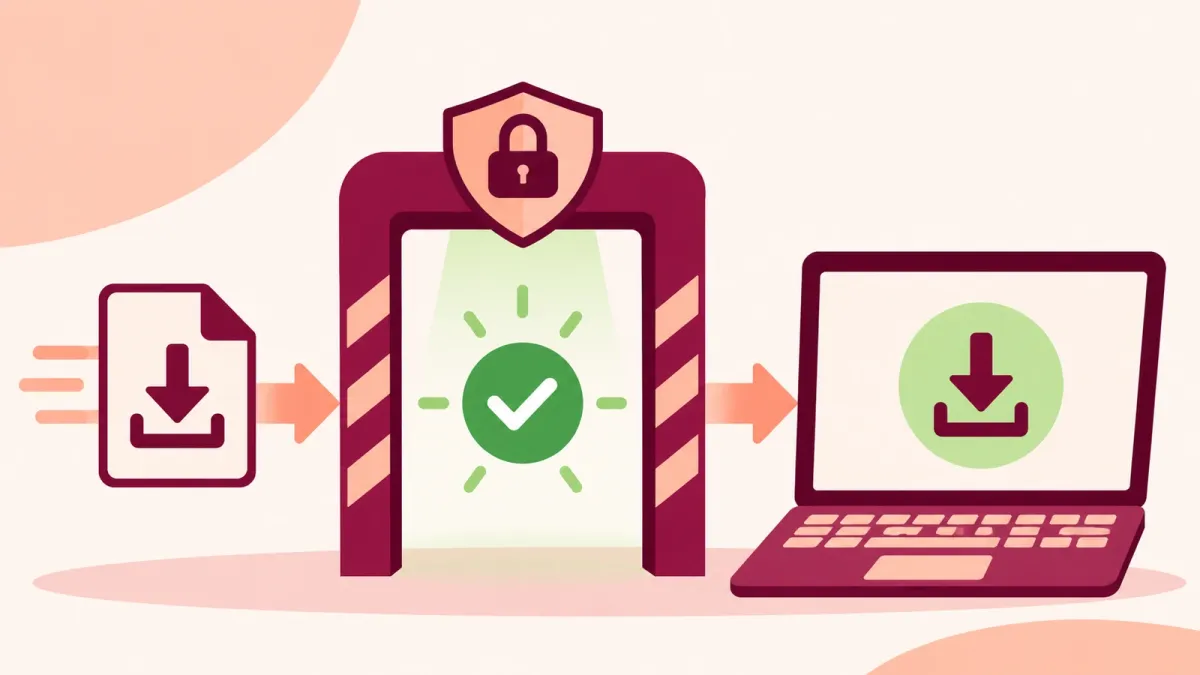
Quick Answer
To install a program safely on Windows 11 or 10:
- Get it from a trusted source: the Microsoft Store or the maker's official website.
- Check that Windows Security > App & browser control > Reputation-based protection is on.
- Right-click the downloaded file and select Scan with Microsoft Defender (on Windows 11, select Show more options first).
- Create a restore point: search for Create a restore point, then select Create.
- Read every install screen and untick any extra software you didn't ask for.
How you know it worked: after installing, Settings > Apps > Installed apps shows the program you wanted and nothing new you didn't.
Most problems with new software start before you click Install: a download from the wrong website, or an installer that adds extra programs you never asked for. Microsoft calls this kind of software potentially unwanted applications (PUAs): programs that can slow your PC down, show unexpected ads or install other software. The six steps below help you avoid them, and give you an easy way back if something goes wrong.
1. Download From a Trusted Source
Microsoft's advice is to download apps only from trusted sources, such as the Microsoft Store, and to be thoughtful about which apps you install.
- Check the Microsoft Store first. Open Microsoft Store from the Start menu and search for the app.
- Otherwise, go to the maker's own website. Type the company's address yourself rather than clicking an ad or a download link on a third-party site.
Expected result: you have one installer file, from the company that makes the program.
2. Make Sure Windows Security's App Protection Is On
Windows Security includes reputation-based protection, which uses what Microsoft knows about sites, services and publishers to help protect you from malicious or unwanted apps and files.
- Search for Windows Security in the Start menu and open it.
- Select App & browser control > Reputation-based protection settings.
- Make sure Check apps and files is on. This turns on Microsoft Defender SmartScreen, which checks the reputation of apps and files you download.
- Make sure Potentially unwanted app blocking is on, with both Block apps and Block downloads ticked.
Block apps finds PUAs you've already downloaded or installed, whatever browser you use. Block downloads checks files as they download, but only in Microsoft Edge. Microsoft turned PUA protection on by default in August 2021, but it's worth checking, and Microsoft recommends keeping both options on.
Windows 10: go to Settings > Update & Security > Windows Security > App & browser control > Reputation-based protection settings.
Expected result: all the reputation-based protection switches are on.
3. Scan the Installer Before You Run It
Windows Security can check a single file before you open it.
- Open File Explorer and go to your Downloads folder.
- Right-click the installer and select Scan with Microsoft Defender. On Windows 11, you may need to select Show more options first.
- Wait for the result. If Windows Security finds a threat, don't run the file; follow the actions it recommends.
Expected result: Windows Security reports no current threats for the file.
4. Create a Restore Point Before Installing
A restore point lets you take Windows back to how it was before the install. It covers system files, installed apps, the registry and system settings, without affecting your personal files. Microsoft notes that System Protection, which creates restore points, isn't turned on by default, so check it first.
- Search for Create a restore point in the Start menu and open it.
- On the System Protection tab, if protection for your system drive is Off, select the drive, then Configure > Turn on system protection, and select Apply.
- Select Create, type a name such as "Before installing photo editor", and select Create again.
For more on this, see our guide to using a System Restore point in Windows 11.
Expected result: Windows tells you the restore point was created successfully.
5. Read Every Install Screen
Some installers offer extra software along the way. Slow down here:
- Read each screen before you select Next.
- If the installer offers a Custom or Advanced option, choose it so you can see everything it plans to install.
- Untick any extra programs, toolbars or browser changes (such as a new home page or search engine) you didn't ask for.
- If you can't untick an offer, or you don't understand what it is, cancel the install and look for another way to get the program.
Expected result: only the program you chose is installed.
6. Check Your PC After Installing
- Go to Start > Settings > Apps > Installed apps and look for anything new you don't recognize.
- If something appeared that you didn't want, select More (…) next to it, then Uninstall.
- Open your web browser and check that your home page and search engine haven't changed.
Windows 10: the list is in Settings > Apps > Apps & features. On either version you can also use Control Panel > Programs > Programs and Features.
Expected result: the program you wanted works, and nothing else new is on the list.
Something Unwanted Got Installed? What to Do Next
- Uninstall it as in step 6. If it won't uninstall, see how to fix problems that block programs from being removed.
- Run a full scan: in Windows Security, get the latest security intelligence, then run a full scan with Microsoft Defender Antivirus. If the software keeps coming back, Microsoft suggests a Microsoft Defender Offline scan.
- Go back to your restore point: use System Restore to return Windows to the point you made in step 4. Our guide to using a System Restore point in Windows 11 walks you through it.
Frequently Asked Questions
What is a potentially unwanted application (PUA)?
Microsoft describes PUAs as a category of software that can cause your PC to run slowly, show unexpected ads or install other software that may be more harmful or annoying. Windows Security notes that some can also use your PC for crypto mining.
Does Windows block unwanted apps automatically?
Microsoft turned potentially unwanted app blocking on by default in August 2021. You can check it in Windows Security > App & browser control > Reputation-based protection. Block downloads only works in Microsoft Edge, while Block apps works whatever browser you use.
Is the Microsoft Store safer than downloading from a website?
Microsoft recommends downloading apps only from trusted sources, such as the Microsoft Store. If an app isn't in the Store, download it from the maker's official website.
Is System Restore turned on by default?
No. Microsoft says System Protection isn't enabled by default and recommends turning it on. Search for Create a restore point, select your system drive, then Configure > Turn on system protection.
Will System Restore delete my documents or photos?
No. Microsoft says System Restore rolls back system files and settings but not personal files. System changes made after the restore point are undone, which may affect recently installed apps, drivers, updates or settings.
What is Smart App Control?
Smart App Control is part of Windows Security in Windows 11. Microsoft says it can be used on new Windows 11 installs only and isn't available in Windows 10.
How This Guide Was Checked
- Written by
- Chris, WinZip Team. Updated by the WinZip Team in November 2026.
- First published
- August 27, 2024
- Sources reviewed
- Microsoft Support: Protect your PC from unwanted software
- Microsoft Support: Protect your PC from potentially unwanted applications
- Microsoft Support: Potentially unwanted apps are blocked by default
- Microsoft Support: App & browser control in the Windows Security App
- Microsoft Support: Stay protected with the Windows Security app
- Microsoft Support: System Protection
- Microsoft Support: Recovery options in Windows
- Microsoft Support: Uninstall or remove apps and programs in Windows
Related Guides

Speed Up Your PC With WinZip System Utilities Suite
- Clean junk files and free up disk space
- Update outdated drivers
- Speed up startup
- Optimize and defrag your drives