
What Is a Deep Scan in WinZip Registry Optimizer?
What the Deep Scan option checks, how it differs from a standard scan, and how to run it.
Deep Scan is the most thorough scan in WinZip Registry Optimizer. It checks all parts (hives) of the Windows registry for invalid or leftover entries, traces of programs that did not uninstall correctly and general registry errors. It takes longer than a standard scan and usually finds more items.
How Deep Scan Differs From a Standard Scan
A standard scan checks 10 common areas of the registry:
- App Paths, User Shell Folders, Fonts and Help Files Info
- Windows Startup Items, Uninstall Entries, Shared DLL and File Associations
- Program Shortcuts and Com/ActiveX
Deep Scan goes one level deeper. It looks for problems in parts of the registry outside these 10 areas, so it finds items that the standard categories do not cover.
How to Run a Deep Scan
Repairs change your registry
WinZip Registry Optimizer backs up your registry before it repairs anything. For extra safety, keep Create System Restore Point Before Optimizing selected under Options > General, so Windows also saves a restore point first.
- Open WinZip Registry Optimizer.
- Close other programs. WinZip Registry Optimizer cannot repair registry items that belong to programs that are running.
- Click Scan in the top menu bar.
- Under Select categories to scan, select the Deep Scan check box. Keep the other categories selected for a full check.
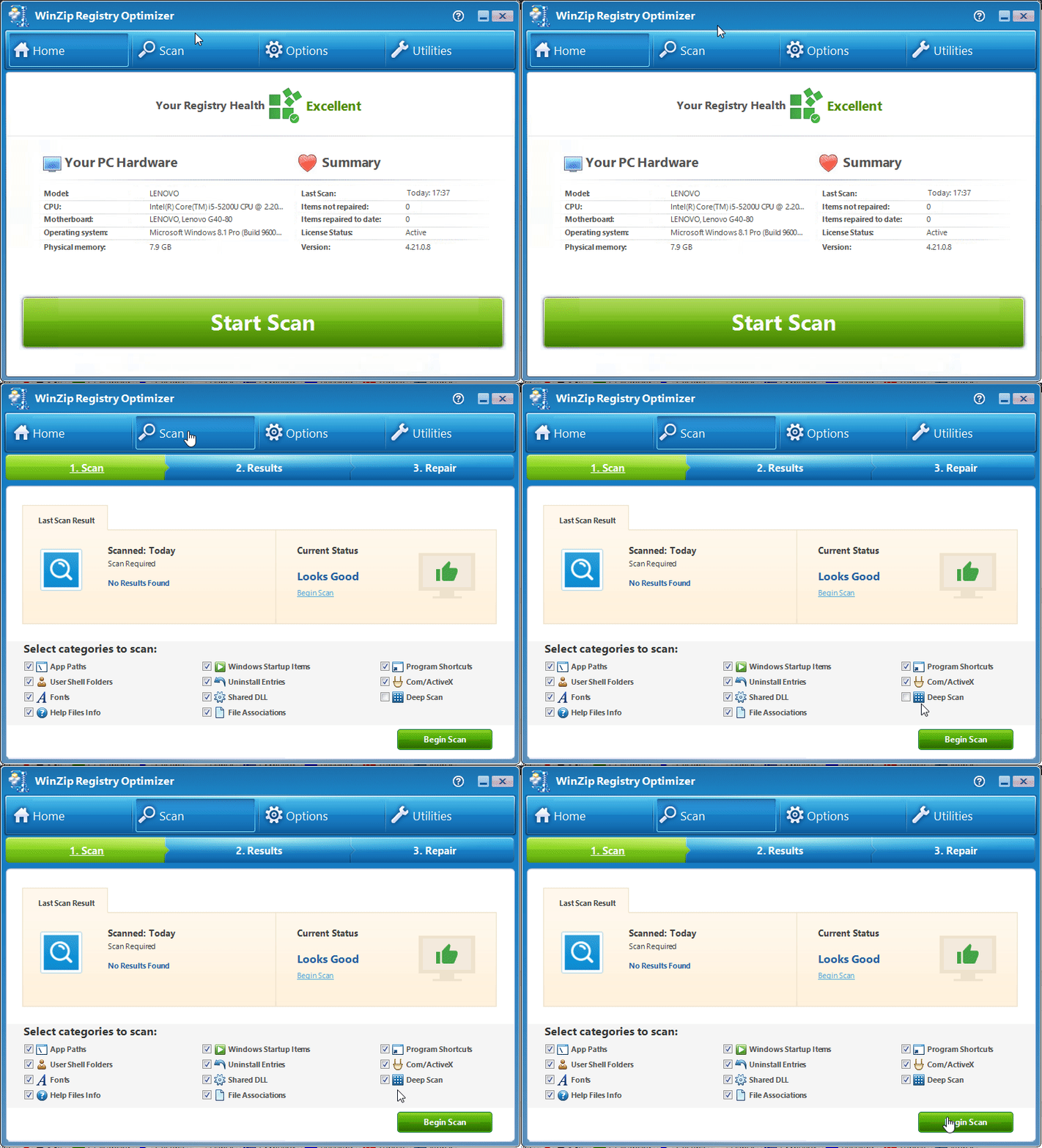
- Click Begin Scan and wait for the scan to finish.
- Review the items on the 2. Results screen, then click Fix All to repair them.
If Something Goes Wrong
If a program stops working correctly after a repair, you can undo the repairs from Options > Restore. To keep a program's registry entries out of future scans, exclude them on the Exclusions tab.
Frequently Asked Questions
Why does Deep Scan find more items than a standard scan?
Deep Scan checks every part of the registry, not only the 10 standard areas. Because it covers more of the registry, the number of items it finds is almost always higher.
How long does a Deep Scan take?
It takes longer than a standard scan because it checks much more of the registry. How long it takes depends on how many entries your registry has.
Is it safe to repair the items Deep Scan finds?
WinZip Registry Optimizer backs up your registry before every repair, and you can undo the repairs from Options, Restore. If a program you use is affected, add its registry entries on the Exclusions tab so they are skipped next time.
Why do some items come back after a repair?
Some programs create the same blank or placeholder registry entries again each time they run. These items are generally harmless. To stop them from appearing, exclude them from future scans.
Sources
Related Questions
- How Do I Exclude or Ignore Registry Issues?
- How Do I Undo or Restore the Registry Repairs?
- How Do I Use Registry Optimizer to Scan for Issues and Repair Them? (Visual Guide)
- How Do I Use the Startup Manager to Improve the Start Up Speed (boot Time) of My Computer?
- I Have Purchased Registry Optimizer but It Will Not Remove the Issues Found
- Registry Optimizer Is Unable to Remove All the Issues Detected and Keeps Showing the Same Issues Every Time.