
How to Roll Back or Uninstall a Windows Update
Roll back a Windows update, even if Windows won't start, and stop it coming back.
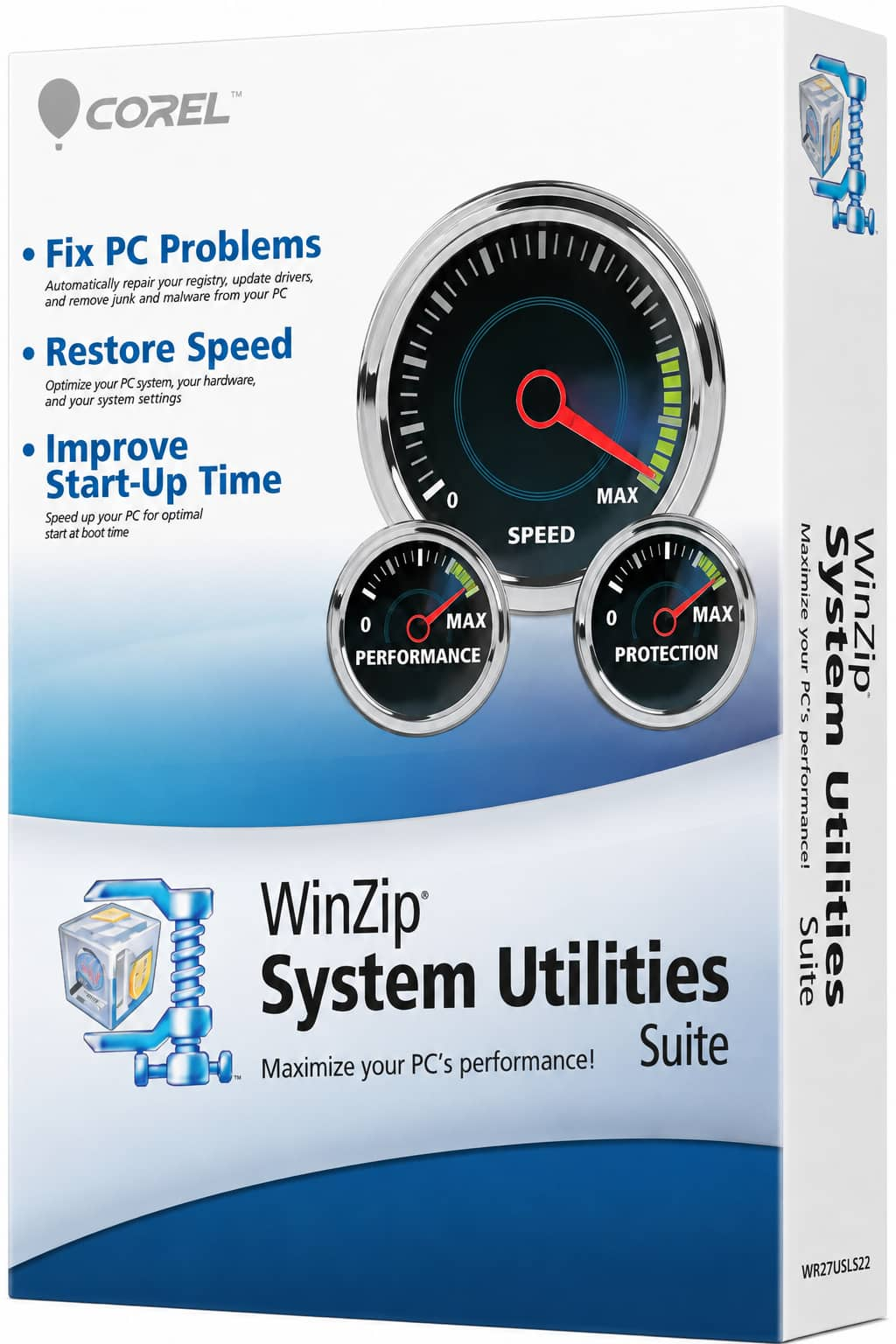
Update removed? Check your drivers next. WinZip System Utilities Suite's one-click scan includes Driver Updater, which looks for outdated drivers.
Quick Answer
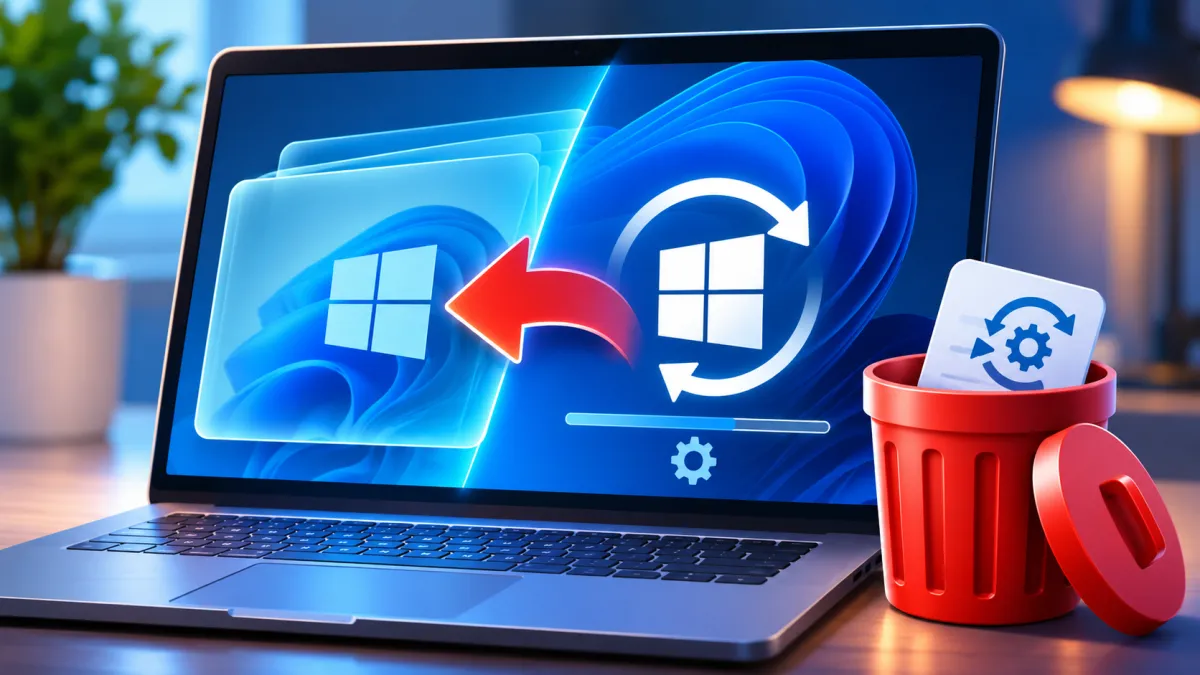
To roll back a Windows update, uninstall it from your update history in Settings. Your files, apps and settings stay as they are. A new version of Windows can usually be undone within 10 days, and if Windows won't start you can remove the latest update from the Windows Recovery Environment. On Windows 11:
- Select Start > Settings > Windows Update > Update history.
- Under Related settings, select Uninstall updates.
- Select the update that caused the problem and choose Uninstall. Restart if Windows asks you to.
- To undo a new version of Windows, select Settings > System > Recovery > Go back (if it's offered).
- Stop it reinstalling straight away: on the Windows Update page, pause updates for up to 35 days.
How you know it worked: the update no longer appears in the Uninstall updates list, and the problem it caused has gone.
If a Windows update has caused problems, you can usually roll it back. How you do it depends on the kind of update. Quality updates arrive often and mainly contain fixes and security updates: uninstall those from your update history. A feature update moves your PC to a new version of Windows, typically once a year: undo that with Go back. Everything below uses tools built into Windows 11 and Windows 10, including a way to uninstall a Windows update when your PC won't start.
1. How to Uninstall a Windows Update in Settings
This is the quickest way to undo a recent update while Windows still starts. Your personal files, apps and settings are kept; only the changes that update made are removed.
Windows 11:
- Select Start > Settings > Windows Update.
- Under More options, select Update history. Note which updates installed around the time the problem started.
- Under Related settings, select Uninstall updates.
- Find the update in the list and select Uninstall. Restart your PC if Windows asks you to.
Windows 10: select Start > Settings > Update & Security > Windows Update > View your update history > Uninstall updates. Select the update and choose Uninstall.
Expected result: the update is no longer in the Uninstall updates list, and the problem it caused is gone. If the update isn't listed, or there's no way to uninstall it, go to section 5: Microsoft notes that some updates can't be uninstalled.
2. How to Roll Back a Windows 11 Update to Your Previous Version
If the trouble started after your PC moved to a new version of Windows, you can go back to the version you had before. Microsoft gives you a limited time to do this: in most cases, 10 days.
Before you start, Microsoft asks you to:
- Keep everything in the windows.old and $windows.~bt folders that the upgrade created. Don't delete them or clean them up.
- Remove any user accounts you added after the upgrade.
- Have the USB drive you used to upgrade, if you used one.
To go back:
- Select Start > Settings > System > Recovery. On Windows 10, Recovery is under Settings > Update & Security > Recovery.
- If the option is available, select Go back and follow the prompts.
Expected result: your PC restarts on the version of Windows you had before, with your personal files still in place. If there's no Go back option, the time to go back has run out on your PC; try section 5 instead.
3. How to Uninstall an Update When Windows Won't Start
If an update leaves your PC unable to start, remove it from the Windows Recovery Environment (Windows RE), a set of repair tools that runs before Windows loads. Uninstalling an update here also keeps your files, apps and settings.
- Open Windows RE. Windows opens it by itself after two failed attempts to start in a row. To open it yourself, turn the PC on and, when the Windows or manufacturer logo appears, hold the power button until it turns off. Do this twice. On the third start, Windows shows the Automatic Repair screen: select Advanced options.
- If you can get as far as the sign-in screen, there's an easier way: hold Shift while you select Power > Restart.
- Select Troubleshoot > Advanced options > Uninstall Updates.
- Select Uninstall latest quality update and follow the prompts. If your drive is encrypted with BitLocker, you may need your BitLocker recovery key for some of these tools.
Expected result: your PC restarts and Windows starts normally. Pause updates next (section 4) so the update isn't installed again straight away. If Windows still won't start, System Restore is in the same menu: Troubleshoot > Advanced options > System Restore (see section 5).
4. How to Stop the Update From Reinstalling
Windows Update keeps checking for updates, so pause it to stop the update you removed from coming straight back. You can't stop updates for good: Microsoft says they help keep your PC safe and secure, and once you reach the pause limit you have to install them.
Windows 11:
- Select Start > Settings > Windows Update.
- Next to Pause updates, select Pick a date and choose when updates should start again. You can pause for up to 35 days from today.
- To pause for longer, pick a new end date before the pause runs out. The new date can still be no more than 35 days from the day you change it.
Windows 10: select Start > Settings > Update & Security > Windows Update, then Pause updates for 7 days, or select Advanced options and choose a date under Pause updates.
Expected result: Windows Update shows that updates are paused. Nothing new downloads or installs until the date you chose. When the pause ends, Windows checks for, downloads and installs the latest updates, and once you reach the pause limit you'll need to install them before you can pause again. You can resume updates yourself at any time.
5. What If the Update Can't Be Uninstalled?
Microsoft notes that some updates can't be uninstalled. If the update you want to remove isn't in the list, or removing it didn't help, try these, starting with the least disruptive.
Reinstall Your Current Version of Windows (Windows 11)
This repairs Windows with a fresh copy of the last update that installed successfully, and keeps your apps, files and settings. Microsoft suggests trying it before removing a security update. It needs Windows 11 version 22H2 or later with the February 2024 optional update or newer, and may not be available on a work or school PC.
- Select Start > Settings > System > Recovery.
- Under Fix problems using Windows Update, select Reinstall now.
- Choose whether your PC should restart automatically 15 minutes after the installation finishes, then select OK. Keep the PC plugged in and connected to the internet until it's done.
Expected result: Windows Update downloads and installs the repair. After the restart, your apps and files are where you left them.
Use System Restore
System Restore takes system files, registry settings and installed programs back to how they were when a restore point was made. Windows can create restore points automatically when apps or updates are installed, so there may be one from just before the update. Your personal files aren't affected.
- Press Windows key + R, type rstrui.exe and press Enter.
- In Restore system files and settings, select Next.
- Pick a restore point from before the update. Select Show more restore points if you don't see one. To see which apps will change, select Scan for affected programs.
- Select Next, then Finish. Windows restarts when the restore is applied.
If Windows won't start, open Windows RE (section 3) and select Troubleshoot > Advanced options > System Restore. You'll need your BitLocker recovery key if your drive is encrypted.
Expected result: system files, settings and programs are back to how they were at the restore point, before the update. More in How to Use a System Restore Point in Windows 11.
Use Point-in-Time Restore (Newer Windows 11 PCs)
On Windows 11 version 24H2 and later, Windows RE can also offer point-in-time restore. It returns the whole system drive to how it was at an earlier point, up to 3 days back, including your files.
- Open Windows RE (section 3) and select Troubleshoot > Point-in-time restore.
- Enter your BitLocker recovery key if asked, select a restore point from before the update and follow the prompts to start the restore.
Expected result: your PC restarts and boots into Windows as it was at that point. Then check for updates, because the restore can roll back recent security updates too.
6. How to Roll Back a Driver That Came With an Update
If one device stopped working properly after Windows Update, the cause may be a new driver rather than a Windows update. Microsoft says that if a problem began after a Windows Update, reinstalling the previous driver often fixes it. You need to be signed in as an administrator.
- Right-click Start and select Device Manager.
- Expand the device's category, right-click the device and select Properties.
- On the Driver tab, select Roll Back Driver.
- Choose a reason, select Yes, and restart if prompted.
Expected result: the device works as it did before the update. More in How to Update Drivers in Windows 11 and 10.
Still Having Problems? What to Try Next
- Windows Update fails, gets stuck or shows an error: see How to Fix Windows Update Problems.
- Your PC still won't start: see How to Fix Windows Boot Problems.
- You see a blue screen after the update: see How to Fix the Blue Screen of Death in Windows 11.
- Nothing here helped: copy your important files somewhere safe and contact your PC's manufacturer for support.
Frequently Asked Questions
Is it possible to roll back a Windows update?
Yes, in most cases. Regular updates can be uninstalled from Settings > Windows Update > Update history > Uninstall updates, and a new version of Windows can usually be undone within 10 days with Go back. Microsoft notes that some updates can't be uninstalled; System Restore is the fallback for those.
How do I uninstall a specific update, such as KB5077181?
Each Windows update has a KB number. On Windows 11, open Settings > Windows Update > Update history > Uninstall updates, find the update with that number and select Uninstall. If it isn't in the list, it may be one that can't be uninstalled: use a System Restore point from before it installed instead.
How do I uninstall the Windows 11 25H2 update?
A new version of Windows, such as 25H2, is a feature update. If your PC offers it, Settings > System > Recovery > Go back returns you to the version you had before. In most cases this is only possible for 10 days after the upgrade. PCs that moved up from version 24H2 usually got 25H2 as a small update called KB5054156 rather than a full upgrade.
Will uninstalling a Windows update delete my files?
No. Uninstalling an update keeps your personal files, apps and settings, and only removes the changes that update made. Going back to a previous version of Windows also keeps your files, but removes apps and drivers installed since the upgrade.
Are Windows updates really necessary?
Yes. Microsoft says updates help keep your PC safe and secure, and quality updates mainly contain fixes and security updates. You can pause them for up to 35 days on Windows 11, but you can't stop them entirely.
Can WinZip System Utilities Suite roll back a Windows update?
No. WinZip System Utilities Suite doesn't remove or roll back Windows updates, so use the built-in steps in this guide. Once Windows is working normally again, its one-click scan includes Driver Updater, which checks for outdated drivers, and it can clear junk files.
How This Guide Was Checked
- Written by
- WinZip Team, November 2026.
- First published
- November 20, 2026
- Sources reviewed
- Microsoft Support: How to uninstall a Windows Update
- Microsoft Support: Go back to the previous version of Windows
- Microsoft Support: Recovery options in Windows
- Microsoft Support: Windows recovery environment
- Microsoft Learn: Windows Recovery Environment (Windows RE)
- Microsoft Support: Pause updates in Windows
- Microsoft Support: Windows Update: FAQ
- Microsoft Support: Fix issues by reinstalling the current version of Windows
- Microsoft Support: System Restore
- Microsoft Support: Point-in-time restore for Windows
- Microsoft Support: KB5054156: Feature update to Windows 11, version 25H2 by using an enablement package
- Microsoft Support: Update drivers through Device Manager in Windows
Related Guides


Speed Up Your PC With WinZip System Utilities Suite
- Clean junk files and free up disk space
- Update outdated drivers
- Speed up startup
- Optimize and defrag your drives