
How to Fix the Blue Screen of Death in Windows 11
What a blue screen (stop code) error means, and the checks that find and fix the most common causes.
Keep your drivers up to date. Drivers are a common cause of stop code errors. WinZip System Utilities Suite's Driver Updater scans for outdated drivers so you can keep them current.

Quick Answer
If the same blue screen keeps coming back in Windows 11:
- Write down the stop code shown at the bottom of the error screen, for example MEMORY_MANAGEMENT.
- Remove any hardware you added just before the errors started, then restart.
- Right-click Start > Device Manager, right-click any device marked with ! and choose Update driver.
- Install updates: Start > Settings > Windows Update > Check for updates.
- If Windows won't stay running, start in safe mode or use System Restore to go back to a point before the problem began.
How you know it worked: your PC runs normally through the tasks that used to trigger the error, with no new stop code restarts.
A blue screen, also called a stop code error, a bug check or a BSOD, happens when Windows hits a problem it can't safely recover from, so it shuts down and restarts to protect itself from data loss. Microsoft says it can be caused by a hardware device, its driver, or related software. Most one-off restarts don't need any action. If the same error keeps coming back, work through the checks below in order.
On Windows 11 version 24H2 and later, the error screen may be black instead of blue. The checks are the same.
1. Write Down the Stop Code
The error screen shows a stop code near the bottom, such as PAGE_FAULT_IN_NONPAGED_AREA, MEMORY_MANAGEMENT or CRITICAL_PROCESS_DIED. When it's available, it also shows the name of the file that was running, often a driver ending in .sys.
- Take a photo of the screen with your phone, or write the stop code down.
- Note what you were doing when it happened, and anything you installed or plugged in recently.
- Search for the stop code and the file name. They often point straight at the device or driver involved.
Expected result: you have the stop code, and possibly a driver name, to guide the rest of the checks.
2. Remove New Hardware and Start in Safe Mode
If the errors started after you added a device, shut down your PC, remove the device and restart. Check with the device maker for updates before you try it again.
If Windows keeps crashing before you can fix anything, start it in safe mode, which loads only the minimum drivers and services. You get there through the Windows Recovery Environment:
- If you can reach the desktop, select Start > Settings > System > Recovery, and next to Advanced startup select Restart now. On Windows 10, it's Settings > Update & Security > Recovery.
- If Windows can't start, it opens the recovery environment on its own after it fails to start correctly several times.
- Select Troubleshoot > Advanced options > Startup Settings > Restart.
- When the list appears, press 4 or F4 for safe mode, or 5 or F5 for safe mode with networking.
Expected result: Windows starts in safe mode, so you can run the next checks without it crashing.
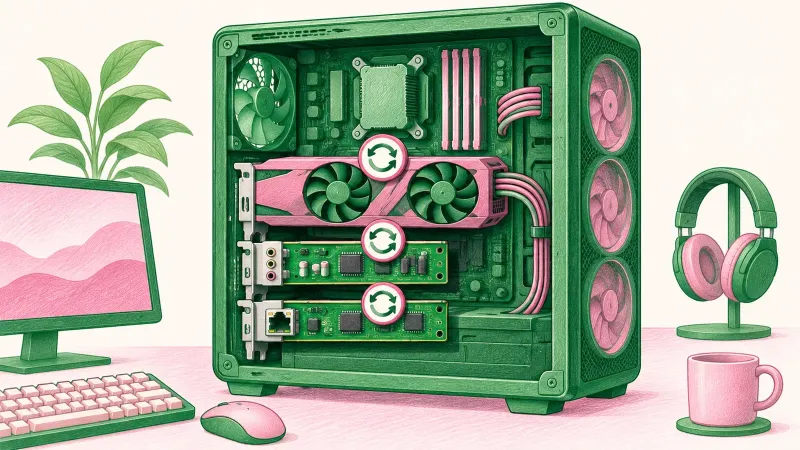
3. Update, Roll Back or Reinstall Drivers
Microsoft estimates that about three quarters of stop code errors are caused by faulty drivers, so this is the most important check.
- Right-click Start and select Device Manager.
- Look for devices marked with an exclamation point (!), and for the device named in your stop code, if there was one.
- Right-click the device, select Update driver > Search automatically for updated driver software.
- If the errors started after a driver update, right-click the device, select Properties > Driver > Roll Back Driver, choose a reason and select Yes.
- If neither helps, select Uninstall device, confirm, and restart. Windows tries to reinstall the driver when it starts.
Expected result: no devices show an exclamation point, and the device linked to your stop code has a working driver.
4. Install Windows Updates, or Remove a Bad One
Select Start > Settings > Windows Update > Check for updates and install what's available. On Windows 10, the path is Settings > Update & Security > Windows Update.
If the blue screens started right after an update, you can remove it instead. In the recovery environment, select Troubleshoot > Advanced options > Uninstall Updates. Microsoft says this removes the update without affecting your files or apps.
Expected result: Windows Update shows you're up to date, or the update that caused the problem is gone.
5. Free Up Disk Space
Windows needs free space to work. Microsoft suggests keeping 10% to 15% of your drive free. Select Start > Settings > System > Storage > Cleanup recommendations, review each category and select Clean up. On Windows 10, search for Disk Cleanup instead.
Expected result: at least 10% of your system drive is free.
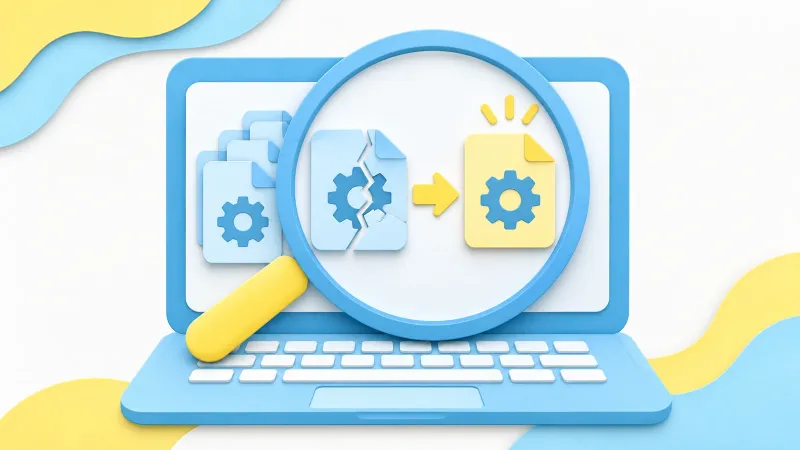
6. Repair System Files and Check the Drive
Damaged Windows files and file system errors can both cause stop codes. Search for cmd, right-click Command Prompt and select Run as administrator, then run these one at a time:
DISM.exe /Online /Cleanup-image /Restorehealth(this can take several minutes).sfc /scannow, and leave the window open until it reaches 100%.chkdsk C: /f. Because Windows is using drive C, chkdsk asks whether to check it the next time you restart. Type Y and restart.
For what each System File Checker message means, see our guide to repairing system files with System File Checker.
Expected result: SFC reports no integrity violations or says it repaired the files, and chkdsk finishes its check.
7. Test Your Memory
Memory (RAM) errors are one of the hardware problems Microsoft lists as a cause of stop codes. Windows includes a tool to test it.
- In Control Panel, search for Memory and select Diagnose your computer's memory problems.
- Save your work, then follow the prompts to run the test.
- After the test runs, open Event Viewer, go to the System log and look for the MemoryDiagnostics-Results entry.
Expected result: the results report no memory errors. If they do, run your PC maker's hardware diagnostics or contact the maker.
8. Scan for Malware
Malware can damage system files and disks, which can lead to stop codes. Open Windows Security from the Start menu and select Virus & threat protection > Quick scan.
Expected result: the scan finishes with no current threats, or tells you what it found and removed.
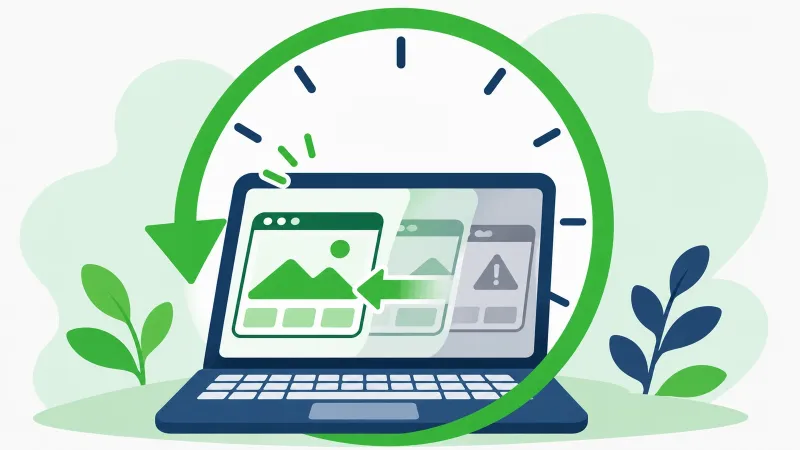
9. Use System Restore
System Restore takes Windows back to a restore point from before the problem began, without changing your personal files.
- From Windows, press Windows logo key + R, type rstrui.exe and press Enter. From the recovery environment, select Troubleshoot > Advanced options > System Restore.
- Select Next and pick a restore point from before the errors started.
- Select Scan for affected programs to see what will change, then Next > Finish.
System Restore can only use restore points that already exist. Windows can create them automatically during events such as software installs or updates, and you can make them yourself before big changes. For a step-by-step walkthrough, see how to use a Windows 11 system restore point.
Expected result: Windows restarts at the earlier point and the blue screens stop.
Still Getting Blue Screens? What to Try Next
- Check Event Viewer: look in the System log for critical errors from the same time as the crash. They can name the device or driver.
- Run your PC maker's hardware diagnostics, and ask the maker whether a BIOS or UEFI firmware update is available.
- Check connections: on a desktop PC, make sure cards are seated properly and cables are firmly connected.
- Reset this PC: as a last resort, this reinstalls Windows. You can choose to keep your personal files, but your apps and settings are removed.
Frequently Asked Questions
What causes a blue screen in Windows 11?
Microsoft says a stop code error can be caused by a hardware device, its driver, or related software. Its developer documentation estimates that about three quarters of stop code errors come from faulty drivers, which is why updating or rolling back drivers is one of the first checks.
Why is my Windows 11 "blue screen" black?
On Windows 11 version 24H2 and later, the stop code screen can be black. It still shows the stop code, and when available the name of the file that was running. The fixes are the same.
What does the stop code mean?
The stop code, such as MEMORY_MANAGEMENT or PAGE_FAULT_IN_NONPAGED_AREA, names the type of error Windows hit. If a file name such as a .sys driver appears with it, that's the code that was running at the time, which helps you find the device or driver to update.
Is one blue screen something to worry about?
Not usually. Microsoft notes that most of these restarts resolve on their own. Start troubleshooting when the same stop code keeps coming back.
Will System Restore delete my files?
No. System Restore keeps your personal files, but it undoes system changes made after the restore point, which can remove recently installed apps, drivers and updates.
How much free disk space does Windows need to avoid crashes?
The exact amount depends on your PC, but Microsoft suggests keeping 10% to 15% of your drive free so Windows has room for swap files and other tasks.
Can WinZip System Utilities Suite fix a blue screen?
It can't diagnose or repair stop code errors. Its Driver Updater can help you keep drivers up to date, which is one of the checks in this guide. For everything else, use the built-in Windows tools above.
How This Guide Was Checked
- Written by
- Chris, WinZip Team. Updated by the WinZip Team in November 2026.
- First published
- June 24, 2024
- Sources reviewed
- Microsoft Support: Troubleshooting Windows unexpected restarts and stop code errors
- Microsoft Learn: Bug Checks (Stop Code Errors)
- Microsoft Learn: Analyze Bug Check Stop Code Error Data
- Microsoft Support: Windows recovery environment
- Microsoft Support: Windows startup settings
- Microsoft Support: Update drivers through Device Manager in Windows
- Microsoft Support: Use the System File Checker tool to repair missing or corrupted system files
- Microsoft Learn: chkdsk
- Microsoft Support: System Restore
- Microsoft Support: Recovery options in Windows
- Microsoft Support: Free up drive space in Windows
- Microsoft Support: Virus and Threat Protection in the Windows Security App
Related Guides

Speed Up Your PC With WinZip System Utilities Suite
- Clean junk files and free up disk space
- Update outdated drivers
- Speed up startup
- Optimize and defrag your drives