
How to Fix a Black Screen in Windows 11
Quick keyboard fixes first, then safe mode, driver and restore steps if the screen stays black.
Keep your drivers up to date. WinZip System Utilities Suite's Driver Updater scans your PC for outdated drivers, so you can keep them up to date from one place.
Quick Answer
To fix a black screen in Windows 11:
- Check that the PC is plugged in and the monitor is connected and switched on.
- Press Windows + Ctrl + Shift + B to reset the graphics driver. A beep or flicker means it worked.
- Press Windows + P, then P and Enter, to switch display modes.
- If you see a cursor, press Ctrl + Shift + Esc and restart Windows Explorer in Task Manager.
- Still black? Start in safe mode, then update or roll back the graphics driver, or use System Restore.
How you know it worked: your desktop and taskbar appear and stay on screen after a normal restart.
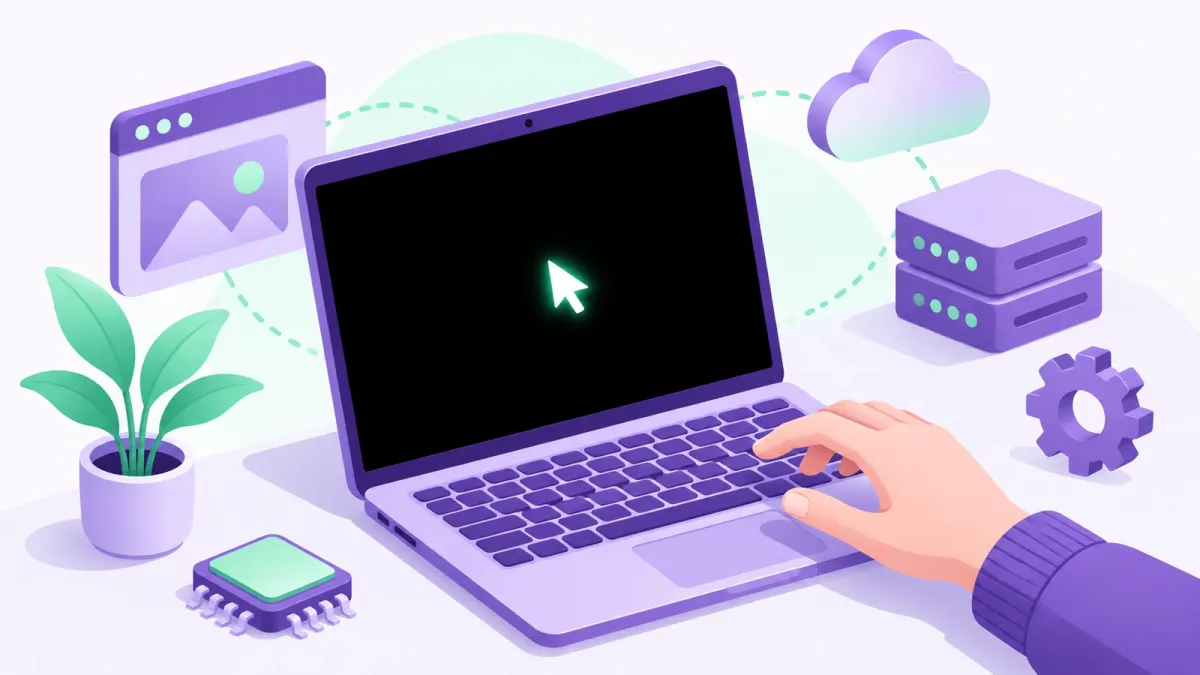
A black or blank screen in Windows 11 doesn't come with an error message, which makes it hard to know where to start. Microsoft lists the usual causes: a display connection or setting problem, a stalled process (often when you can still see the mouse pointer), and incompatible drivers or an incomplete update after updating Windows. Start with the quick checks below, which take seconds, and only move on to safe mode if the screen stays black.
1. Check the Power, Cables and Monitor
- Make sure the PC is plugged in or charged.
- If you use an external monitor, check that it's plugged in, switched on and connected to the PC.
- Check that the HDMI, DisplayPort or VGA cable is firmly connected at both ends. If you can, try a different cable or a different monitor.
- On a laptop, disconnect external displays and other accessories, then check the laptop's own screen.
Expected result: if a cable or monitor was the problem, the picture comes back as soon as it's fixed. For a monitor that says "No Signal", see How to Fix VGA No Signal Problems.
2. Wake the Screen With Keyboard Shortcuts
These work even when you can't see anything.
- Press Windows logo key + Ctrl + Shift + B. This resets the graphics driver. A beep or a flicker means it worked.
- Press Windows logo key + P, then P, then Enter. Repeat a few times, pausing after each, to move through the display modes (PC screen only, Duplicate, Extend and so on). This helps when Windows is sending the picture to a screen you aren't looking at.
Expected result: the screen comes back after the reset, or after Windows switches to the right display mode.
3. Restart Windows Explorer (Black Screen With a Cursor)
If you can see the mouse pointer but nothing else, a process may have stalled. Restarting Windows Explorer often brings the desktop back.
- Press Ctrl + Shift + Esc to open Task Manager. You can also press Ctrl + Alt + Delete and select Task Manager.
- Find Windows Explorer in the list, right-click it and select Restart.
- If Windows Explorer isn't listed, select File > Run new task, type explorer.exe and press Enter.
Expected result: the desktop and taskbar reappear.
4. Force a Restart
If nothing responds, press and hold the power button for about 20 seconds until the PC turns off, then turn it on again.
Expected result: Windows starts normally and shows the sign-in screen.
5. Start in Safe Mode
Safe mode starts Windows with a limited set of files and drivers. If the screen works in safe mode, the problem is likely a driver or an app, and you can fix it from there. Older guides say to press F8, but Microsoft's current route goes through the recovery screen:
- Hold the power button for 10 seconds to turn the PC off, then turn it on again. Repeat 2 to 3 times until Windows opens the recovery screen.
- Select Troubleshoot > Advanced options > Startup Settings > Restart.
- When the PC restarts, press 4 or F4 for Safe Mode, or 5 or F5 for Safe Mode with Networking (needed if you want to download a driver).
Expected result: Windows starts in safe mode. To leave safe mode later, restart normally.
6. Update or Roll Back the Graphics Driver
In safe mode (or as soon as you can see the desktop again):
- Search for device manager in the search box on the taskbar and select it.
- Expand Display adapters.
- If the black screen started after an update, right-click your graphics adapter, select Properties > Driver > Roll Back Driver, and follow the prompts.
- Otherwise, right-click the adapter, select Update driver and then Search automatically for updated driver software.
- Restart your PC.
You need to be signed in as an administrator to roll back a driver. For more detail, see how to update your graphics driver.
Expected result: Windows starts normally with a picture after the restart.
7. Remove a Recently Installed App
If the black screen started just after you installed a program, remove it in safe mode, or as soon as you can see the desktop again.
- Select Start > Settings > Apps > Installed apps.
- Find the app, select More (…), then Uninstall.
- If an app can't be removed there, search for Control Panel, open Programs > Programs and Features, right-click the program and select Uninstall.
Expected result: after a normal restart, Windows starts with a picture.
8. Undo Recent Changes With System Restore
If the problem started recently, System Restore can take system files, registry settings and installed programs back to an earlier restore point without affecting your personal files.
- Open the recovery screen (see section 5) and select Troubleshoot > Advanced options > System Restore.
- Choose a restore point from before the problem started. Select Scan for affected programs to see what will change.
- Select Next > Finish, then Restart.
Read more in how to use a Windows 11 System Restore point.
Expected result: Windows starts normally, as it did when the restore point was made.
How to Avoid a Black Screen Next Time
- Keep Windows up to date: select Start > Settings > Windows Update > Check for updates. Microsoft suggests setting your active hours and keeping a laptop plugged in, so updates have time and power to finish.
- Get drivers from trusted places: Microsoft recommends Windows Update for driver updates, or the device maker's official website.
- Make a restore point before big changes: Windows can create restore points automatically when you install software or updates, and you can create one yourself before a major change. System Restore can only take you back to a restore point that already exists.
If the screen shows a stop code or "Your device ran into a problem and needs to restart", that's a different problem: see how to fix a blue screen of death. A black screen with only a blinking cursor usually means the PC can't find a drive to start from: see how to fix Windows boot problems.
Frequently Asked Questions
What causes a black screen in Windows 11?
Microsoft lists several causes: a stalled process or driver issue (often with a cursor on screen), a display output problem or corrupted user profile at sign-in, and incompatible drivers or an incomplete update after updating Windows.
What does Windows + Ctrl + Shift + B do?
It resets the graphics driver. If it works, you'll hear a beep or see the screen flicker. Microsoft lists it among the first quick steps to try, before a forced restart.
How do I get into safe mode if the screen is black?
Hold the power button for 10 seconds to turn the PC off, turn it back on, and repeat 2 to 3 times until the recovery screen opens. Then select Troubleshoot > Advanced options > Startup Settings > Restart and press F4 or F5.
Why does my PC show a black screen with a blinking cursor?
Microsoft says a blank screen with a blinking cursor usually means the PC's UEFI or BIOS can't find a device to start Windows from. That's a startup problem rather than a display problem.
Will System Restore delete my files?
No. Microsoft says System Restore undoes recent changes to system files, registry settings and installed programs without affecting your personal files.
How do I get out of safe mode?
Restart your PC. If it keeps starting in safe mode, press Windows + R, type msconfig, select OK, and on the Boot tab clear the Safe boot tick box.
How This Guide Was Checked
- Written by
- Chris, WinZip Team. Updated by the WinZip Team in November 2026.
- First published
- September 13, 2024
- Sources reviewed
- Microsoft Support: Troubleshooting blank screens in Windows
- Microsoft Support: Windows startup settings
- Microsoft Support: Update drivers through Device Manager in Windows
- Microsoft Support: Uninstall or remove apps and programs in Windows
- Microsoft Support: System Restore
- Microsoft Support: Windows Update: FAQ
Related Guides



Speed Up Your PC With WinZip System Utilities Suite
- Clean junk files and free up disk space
- Update outdated drivers
- Speed up startup
- Optimize and defrag your drives