
How to Fix a Flickering Screen in Windows 11 and 10
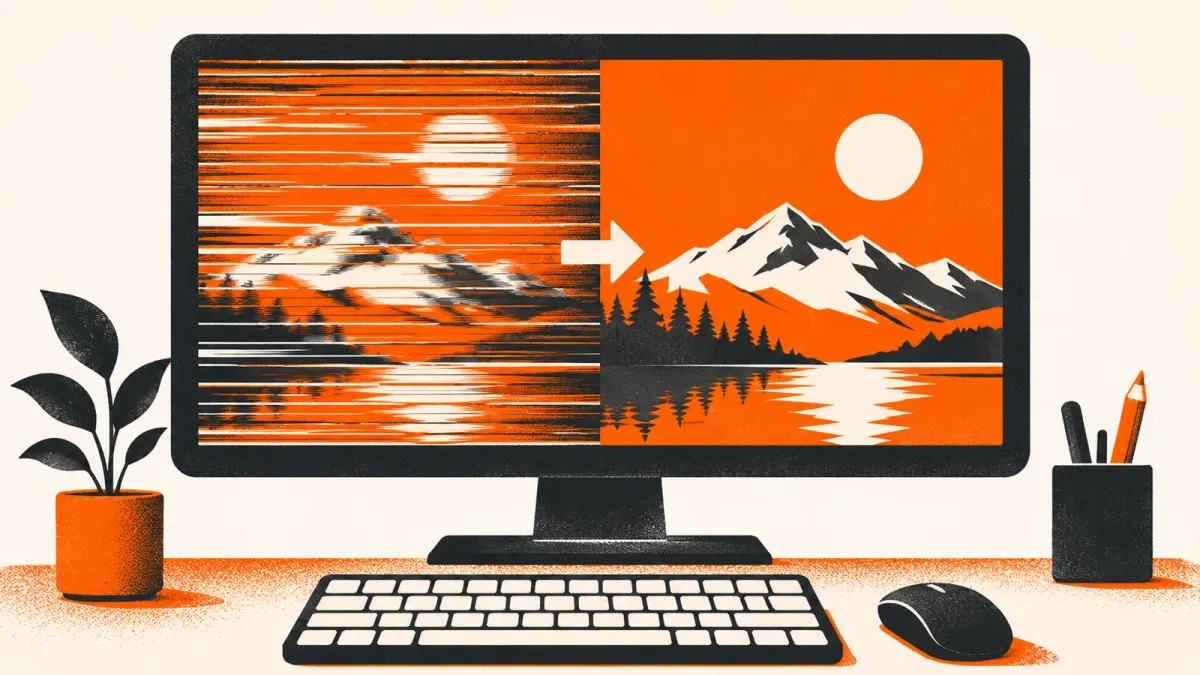
A quick test tells you if a driver or an app is to blame, then the fix for each one.
Display driver out of date? WinZip System Utilities Suite's Driver Updater scans your PC for outdated drivers, so you can keep them up to date from one place.
Quick Answer
To stop your screen flickering in Windows:
- Press Ctrl + Shift + Esc. If Task Manager flickers too, the display driver is the likely cause. If it doesn't, an app probably is.
- Press Windows + Ctrl + Shift + B to reset the graphics driver, then restart if that doesn't help.
- Driver: in Device Manager > Display adapters, roll back, update or uninstall the driver, then restart.
- App: update it, or uninstall it from Settings > Apps > Installed apps and restart.
How you know it worked: after a restart, the screen and Task Manager stay steady while you use your usual apps.
Microsoft says screen flickering in Windows is usually caused by a display driver problem or an incompatible app. A one-minute test with Task Manager tells you which one you're dealing with, so you can go straight to the right fix. If the screen is too hard to read to follow these steps, start your PC in safe mode first (see the FAQ below).
1. Check Whether Task Manager Flickers
- Press Ctrl + Shift + Esc to open Task Manager. You can also press Ctrl + Alt + Delete and select Task Manager.
- Watch the screen for a few seconds.
- Task Manager flickers along with everything else: a display driver is probably causing the problem. Go to sections 2 and 3.
- Task Manager doesn't flicker, but the rest of the screen does: an incompatible app is probably causing the problem. Go to section 4.
Expected result: you know whether to fix the driver or an app.
2. Reset the Graphics Driver
Press Windows logo key + Ctrl + Shift + B. Microsoft notes that resetting the graphics driver this way may fix the issue in some cases. If it doesn't, restart your PC: Start > Power > Restart.
Expected result: you may hear a beep or see the screen flicker once as the driver resets, and then the screen stays steady.
3. Roll Back, Update or Reinstall the Display Driver
All three fixes start in Device Manager. Search for device manager in the search box on the taskbar and select it, then expand Display adapters. You need to be signed in as an administrator to roll back or uninstall a driver.
Roll Back the Driver
Try this first if Windows Update recently updated your PC.
- Right-click your display adapter and select Properties.
- Select the Driver tab, then Roll Back Driver, and follow the prompts.
- Restart your PC.
If Roll Back Driver isn't available, Windows doesn't have a previous driver to go back to. Move on to updating the driver.
Update the Driver
- Right-click your display adapter and select Update driver.
- Select Search automatically for updated driver software and follow the prompts.
If Windows doesn't find a newer driver, you may need to get the latest one from your PC or display adapter maker's website. For more detail, see how to update your graphics driver.
Uninstall and Reinstall the Driver
- Right-click your display adapter and select Properties > Driver > Uninstall Device.
- Tick Attempt to remove the driver for this device (on Windows 10: Delete the driver software for this device) and select OK to confirm.
- Restart your PC. Windows tries to reinstall the driver.
If you can't see the tick box, start your PC in safe mode and try again.
Expected result: after the restart, nothing on the screen flickers, Task Manager included.
4. Update or Remove the App Causing It
If only the apps flicker, think about what you installed or updated just before the flickering started.
- Update the app: check for updates in Microsoft Store or on the app maker's website.
- Uninstall the app: on Windows 11, select Start > Settings > Apps > Installed apps, select More (…) next to the app, then Uninstall. On Windows 10, select Start > Settings > Apps > Apps & features, select the app, then Uninstall.
- Restart your PC and check the screen. If it still flickers, uninstall other recent apps one at a time, restarting after each, until the flickering stops.
- Reinstall what you need: open Microsoft Store and look in Library, or download the app again from its maker.
Expected result: the flickering stops once the app that caused it is updated or removed.
5. Check the Refresh Rate
The refresh rate is how many times per second the image refreshes on the screen. The rates Windows lists depend on what your display supports. Microsoft notes that a higher refresh rate can help minimize flicker, so if your display offers more than one rate, try a higher one.
- On Windows 11, select Start > Settings > System > Display > Advanced display, then pick a rate next to Choose a refresh rate.
- On Windows 10, select Start > Settings > System > Display > Advanced display settings, choose your display if you have more than one, then pick a rate under Refresh rate.
On Windows 11, a rate marked with an asterisk (*) doesn't support your current resolution. Choosing it changes the resolution too.
Expected result: the rate you picked is shown as the current refresh rate on the same page.
6. Check the Cable on an External Monitor
If only an external monitor flickers, check the connection:
- Make sure the cable is firmly connected at both ends, or try a different cable.
- Disconnect docks, dongles and adapters and connect the monitor straight to the PC.
- Try a different video port on the PC, or try the monitor on another PC to see whether the monitor or the PC is at fault.
Expected result: if the flickering stops with a different cable or port, the old cable or port was the problem.
Still Flickering? What to Try Next
- Install Windows updates: select Start > Settings > Windows Update > Check for updates (on Windows 10: Update & Security > Windows Update).
- Get the driver from the maker: download the latest display driver for your exact model from your PC or graphics card maker's support site.
- Undo recent changes: if the flickering started recently, System Restore can take Windows back to an earlier restore point without affecting your personal files.
Frequently Asked Questions
Why is my screen flickering in Windows?
Microsoft says screen flickering is usually caused by a display driver problem or an incompatible app. Open Task Manager: if it flickers too, suspect the driver; if it stays steady while the rest of the screen flickers, suspect an app.
What does Windows + Ctrl + Shift + B do?
It resets the graphics driver. Microsoft suggests it as a first step for flickering, black or blank screens. If it doesn't help, restart your PC.
Why is Roll Back Driver greyed out?
Either you're not signed in as an administrator, or Windows has no previous driver to restore. In that case, update or reinstall the driver instead.
What if the flickering makes the screen too hard to read?
Start your PC in safe mode and do the steps there. Hold the power button for 10 seconds to turn the PC off, turn it on again, and repeat 2 to 3 times until Windows opens the recovery screen. Select Troubleshoot > Advanced options > Startup Settings > Restart, then press F5 for Safe Mode with Networking. Restart normally to leave safe mode.
Why did my resolution change when I picked a new refresh rate?
In Windows 11, the refresh rate list marks rates that don't support your current resolution with an asterisk (*). If you choose one of those, Windows changes the resolution to reach that rate.
How This Guide Was Checked
- Written by
- Chris, WinZip Team. Updated by the WinZip Team in November 2026.
- First published
- November 17, 2019
- Sources reviewed
- Microsoft Support: Troubleshoot screen flickering in Windows
- Microsoft Support: Update drivers through Device Manager in Windows
- Microsoft Support: Change the refresh rate on your monitor in Windows
- Microsoft Support: Uninstall or remove apps and programs in Windows
- Microsoft Support: Troubleshoot external monitor connections in Windows
- Microsoft Support: Troubleshooting blank screens in Windows
- Microsoft Support: Windows Update: FAQ
- Microsoft Support: System Restore
Related Guides


Speed Up Your PC With WinZip System Utilities Suite
- Clean junk files and free up disk space
- Update outdated drivers
- Speed up startup
- Optimize and defrag your drives