
How to Install Wi-Fi and Bluetooth Drivers in Windows 11
Find your adapter, install the right driver and get it working, even with no internet.
Back online? Check every driver at once. WinZip System Utilities Suite's one-click scan includes a Driver Updater that finds outdated drivers, so you can review updates in one place.
Quick Answer
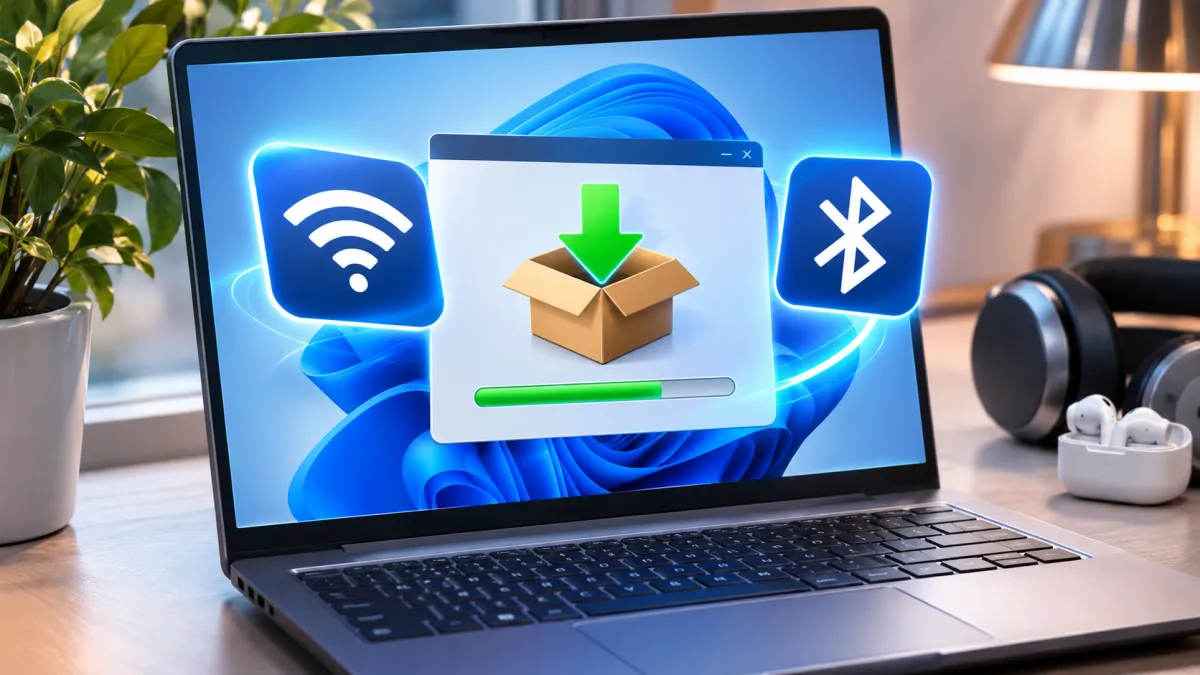
To install a Wi-Fi driver in Windows 11, first let Windows Update look for it. If it finds nothing, download the driver for your exact PC model from your PC maker's support site and run it. Bluetooth drivers install the same way. If your PC can't get online, download the driver on another device and copy it over on a USB drive.
- Find your adapter: right-click Start > Device Manager, then expand Network adapters (Wi-Fi) and Bluetooth.
- Check Windows Update: Start > Settings > Windows Update > Advanced options > Optional updates, select the driver updates and choose Download and install.
- If nothing is listed, download the Wi-Fi or Bluetooth driver for your model from your PC maker's support site and run the file.
- For a folder of driver files, right-click the adapter in Device Manager > Update driver > Browse my computer for drivers.
- No internet? Plug in an Ethernet cable, use USB tethering from an Android phone, or bring the driver from another PC on a USB drive.
How you know it worked: the adapter is listed by name under Network adapters or Bluetooth in Device Manager, and you can see Wi-Fi networks or turn on Bluetooth in Settings.
Windows 11 installs drivers for most Wi-Fi and Bluetooth adapters by itself through Windows Update. When it doesn't, or a driver stops working, you can install the Wi-Fi driver in Windows 11 yourself: find out which adapter you have, get its driver from Windows Update or your PC's maker, then install or reinstall it in Device Manager. Bluetooth works the same way, and there's a section below for PCs that can't get online. Windows 10 steps are noted where they differ.
1. Find Out Which Wi-Fi and Bluetooth Adapter You Have
You need the adapter's name, and your PC's model, to pick the right driver.
- Right-click Start and select Device Manager.
- Expand Network adapters. Your Wi-Fi adapter is the wireless network adapter listed here.
- Expand Bluetooth. Your Bluetooth adapter's name may include the word "Radio".
- To see which driver is installed now, right-click the adapter and select Properties, then open the Driver tab and note the Driver Version and Driver Date.
For Wi-Fi there's a quicker way: type change wi-fi settings in the search box on the taskbar, open Wi-Fi settings and select Hardware properties. It shows who made the adapter, its name (Description, the same name Device Manager uses) and its Driver version.
On PCs with an Intel wireless card, the Wi-Fi part is listed under Network adapters and the Bluetooth part under Bluetooth as Intel Wireless Bluetooth, so check both entries.
Can't Find the Adapter?
- Look under Other devices. An adapter without a working driver can appear there instead of in its usual category.
- It isn't listed anywhere: restart your PC and look again. If it's still missing, get the driver from your PC maker's website (section 3).
- No Bluetooth anywhere: some PCs don't have Bluetooth. Check your PC's product specifications.
Expected result: you know your adapter's name and which driver version it's running.
2. Install Wi-Fi and Bluetooth Drivers From Windows Update
Windows 11 installs recommended drivers automatically, but optional drivers aren't installed automatically. To check for them:
- Select Start > Settings > Windows Update > Advanced options.
- Turn on Receive updates for other Microsoft products.
- Under Additional options, select Optional updates.
- Select any Wi-Fi, network or Bluetooth driver updates listed, then select Download and install.
- Restart your PC when it's done.
Windows 10: select Start > Settings > Update & Security > Windows Update > Check for updates, then select View optional updates if it appears.
You can also ask Windows from Device Manager: right-click the adapter, select Update driver > Search automatically for drivers (Windows 10: Search automatically for updated driver software) and follow the prompts.
Expected result: the driver installs and the adapter works. If Windows says the best driver is already installed or finds nothing, go to section 3.
3. How to Install a Wi-Fi or Bluetooth Driver From Your PC Maker
The best driver for a laptop or branded desktop is the one your PC's maker publishes for your exact model. Intel suggests checking with your PC maker first, because some PCs use Bluetooth hardware from other companies.
- Go to your PC maker's support site and identify your PC by its model number. Dell PCs also have a Service Tag, and Dell's site can detect your PC for you.
- Open the Network category and download the Wi-Fi or Bluetooth driver. Pick the one listed for your version of Windows.
- If you downloaded an .exe file, run it and follow the prompts. That's all you need to do.
- Restart your PC if you're asked to.
Built your own PC or added a Wi-Fi card yourself? Get the driver from the adapter's maker instead, such as Intel's support site for an Intel adapter. Microsoft advises against downloading drivers from any site other than the maker's official one.
If the Download Is a Folder of Files
Some drivers come as files (at least one .inf and one .sys file) instead of an installer:
- In Device Manager, find your adapter under Network adapters or Bluetooth, or under Other devices.
- Right-click it and select Update driver > Browse my computer for drivers (Windows 10: Browse my computer for driver software).
- Select Browse, choose the folder with the driver files and select OK.
- Select Next, let it finish, then select Close. Restart if asked.
Expected result: the adapter shows its full name in Device Manager. If you see "The best drivers for your device are already installed", you already have this version.
4. How to Install a Wi-Fi Driver Without Internet
A PC with no working Wi-Fi driver can't download one over Wi-Fi. There are three ways around that:
- Plug in a network cable. If your PC has an Ethernet port, connect it to your router with a cable, then use Windows Update or your PC maker's site as above.
- Use your Android phone's connection. Connect the phone to your PC with a USB cable, swipe down from the top of the phone's screen, press and hold the Hotspot tile and turn on USB tethering. Some of these steps only work on Android 14 and up, and some mobile carriers limit or charge extra for tethering.
- Download it on another computer. Download the driver for your PC model on any device with internet access and copy it to a USB flash drive. Plug the drive into your PC and run the file, or use Browse my computer for drivers (section 3).
Expected result: the driver installs and you can see Wi-Fi networks from the network icon on the taskbar.
5. How to Reinstall the Bluetooth Driver in Windows 11
Reinstalling gives Windows a fresh copy of the Bluetooth driver, which helps when Bluetooth stops working or disappears.
- Right-click Start > Device Manager and expand Bluetooth.
- Right-click your Bluetooth adapter and select Uninstall device, then select Uninstall to confirm.
- Select Start > Power > Shut down. Wait a few seconds after it turns off, then turn it back on.
- Windows tries to reinstall the driver as it starts. If it doesn't, open Device Manager and select Action > Scan for hardware changes.
Installing a newer Intel Bluetooth driver? Intel's clean install steps: download the driver first, uninstall the Bluetooth adapter in Device Manager with the option to delete its driver software ticked, repeat until that option is greyed out, restart, then right-click the file you downloaded and select Run as administrator. Windows may keep a built-in Bluetooth driver that can't be removed. If the same version comes back, just run the installer.
Expected result: your Bluetooth adapter is back under Bluetooth in Device Manager, and the Bluetooth switch is in Settings > Bluetooth & devices.
6. How to Reinstall the Wi-Fi Driver
Reinstalling the network adapter driver in Windows 11 works the same way, with one choice to make: keep the driver you have, or replace it with one you've downloaded.
- Save your work and close your apps.
- Right-click Start > Device Manager and expand Network adapters.
- Right-click your Wi-Fi adapter and select Uninstall device.
- Can't get online to download another driver? Leave Attempt to remove the driver for this device unticked, so Windows puts the same driver back (Dell's advice). Did Wi-Fi stop working after a recent update? Microsoft suggests ticking that box, so save a replacement driver first (section 3).
- Select Uninstall, then Start > Power > Restart.
Windows looks for the driver and installs it as it starts. If it doesn't, install the driver you saved (section 3).
Expected result: your Wi-Fi adapter is back under Network adapters, and you can reconnect to your network.
7. How to Check That the Driver Installed Correctly
- In Device Manager: the adapter is listed by its name under Network adapters or Bluetooth, not under Other devices.
- Driver version: right-click the adapter > Properties > Driver tab. Compare Driver Version and Driver Date with the latest on your PC maker's website.
- Wi-Fi: select the network icon on the taskbar. You should see the Wi-Fi quick setting and the networks around you.
- Bluetooth: go to Start > Settings > Bluetooth & devices and turn on Bluetooth.
Did a new driver make things worse? Roll it back: in Device Manager, right-click the adapter > Properties > Driver tab > Roll Back Driver, choose a reason and select Yes. You need to be signed in as an administrator.
Still Not Working? What to Try Next
- The driver installed, but Wi-Fi won't connect: see How to Fix Wi-Fi Problems in Windows 11 and 10.
- Bluetooth is on, but a device won't pair or keeps dropping: see How to Fix Bluetooth Problems in Windows 11 and 10.
- Bluetooth disappeared again: hold Shift while you select Start > Power > Shut down, so the Bluetooth hardware fully powers off, then turn the PC back on. Also check Optional updates for Bluetooth firmware, and your PC maker's support site for newer BIOS or firmware for your model.
- The adapter still doesn't appear in Device Manager: contact your PC's maker. Windows can't install a driver for hardware it can't detect.
- Other drivers need attention too: see How to Update Drivers in Windows 11 and 10.
Frequently Asked Questions
What is the latest Bluetooth driver for Windows 11?
There isn't one driver for every PC: it depends on who made your Bluetooth adapter. Check Optional updates in Windows Update, then your PC maker's support page for your model. Intel publishes its own Bluetooth drivers for Intel adapters, but suggests checking with your PC maker first.
Does Windows 11 install Wi-Fi drivers automatically?
Usually, yes. Windows 11 installs recommended drivers automatically through Windows Update. Optional drivers aren't installed automatically, so check Settings > Windows Update > Advanced options > Optional updates.
How do I roll back a Wi-Fi driver in Windows 11?
In Device Manager, expand Network adapters, right-click your Wi-Fi adapter and select Properties. On the Driver tab, select Roll Back Driver, choose a reason and select Yes. You need administrator permissions.
How do I fix a corrupted Bluetooth connection?
Remove the device and pair it again: go to Settings > Bluetooth & devices > Devices, select More options next to the device, then Remove device > Yes, and add it again. If no device will connect, reinstall the Bluetooth driver (section 5).
Is it safe to download Wi-Fi drivers from driver download websites?
Microsoft advises against downloading drivers from any site other than the maker's official one. Get Wi-Fi and Bluetooth drivers from Windows Update, your PC maker's support site or the adapter maker's site.
Can I install a Bluetooth driver on a PC that doesn't have Bluetooth?
A driver only works with Bluetooth hardware your PC already has. Microsoft notes that some devices don't have Bluetooth, so check your PC's product specifications. If there's no Bluetooth category in Device Manager and nothing under Other devices, your PC may not have it.
How This Guide Was Checked
- Written by
- WinZip Team, November 2026.
- First published
- November 20, 2026
- Sources reviewed
- Microsoft Support: Update drivers through Device Manager in Windows
- Microsoft Support: Automatically get recommended and updated hardware drivers
- Microsoft Support: Fix Wi-Fi connection issues in Windows
- Microsoft Support: Fix Bluetooth problems in Windows
- Microsoft Support: Fix Bluetooth disappeared in Windows
- Intel: Identify Your Intel Wireless Adapter and Wi-Fi Driver Version
- Intel: Identify Your Bluetooth Driver Version
- Intel: How to Perform a Clean Installation of Bluetooth Drivers
- Dell: Find or Identify the Wireless Network Adapter on Your Windows Computer
- Dell: Troubleshoot Wi-Fi Not Working Issues and Connect to Your Wi-Fi Network
- Dell: How to Update Drivers on My Dell Computer
- Google Android Help: Share a mobile connection by hotspot or tethering on Android
Related Guides
Speed Up Your PC With WinZip System Utilities Suite
- Clean junk files and free up disk space
- Update outdated drivers
- Speed up startup
- Optimize and defrag your drives