
How to Fix Wi-Fi Problems in Windows 11 and 10
Get your PC back online when Wi-Fi won't connect, keeps dropping or says No Internet.
Keep your PC running smoothly. WinZip System Utilities Suite cleans junk files, updates drivers and manages the apps that start with Windows.
Quick Answer
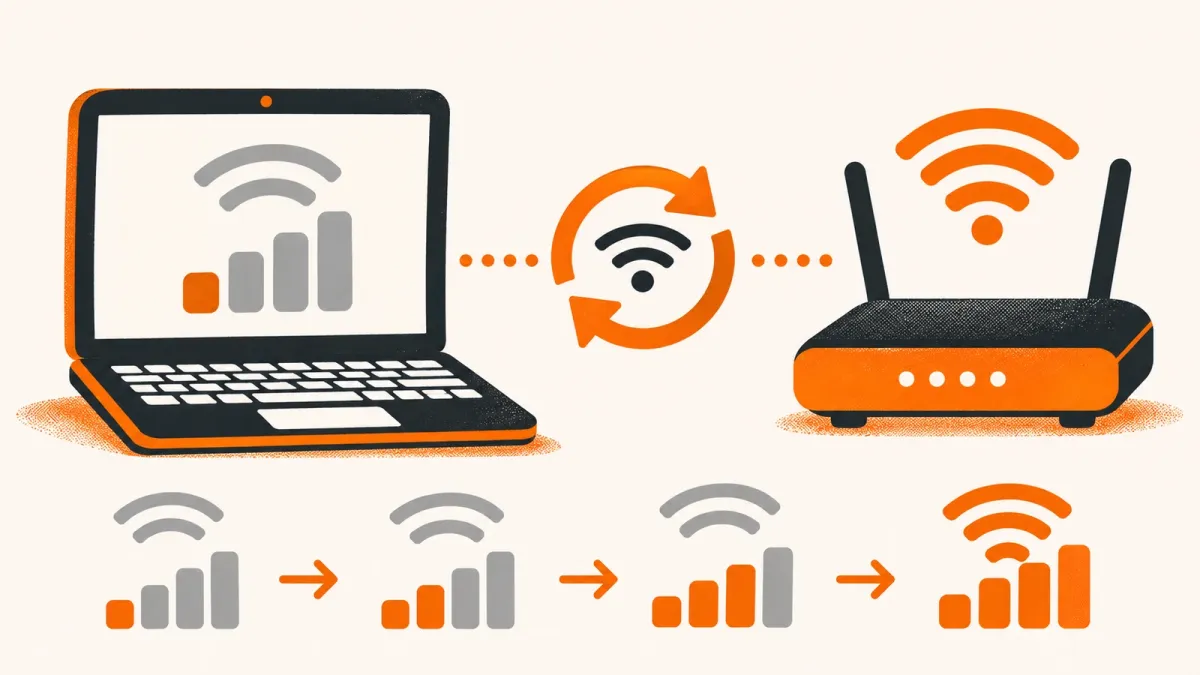
To get Wi-Fi working again in Windows:
- Select the network icon on the taskbar and make sure Wi-Fi is on and Airplane mode is off.
- Restart your modem and router: unplug both, wait about 30 seconds, plug the modem in first, then the router.
- Forget and rejoin the network: Settings > Network & internet > Wi-Fi > Manage known networks > Forget, then reconnect with the password.
- In Command Prompt (as administrator), run netsh winsock reset, netsh int ip reset, ipconfig /release, ipconfig /renew and ipconfig /flushdns.
- Last resort: Settings > Network & internet > Advanced network settings > Network reset.
How you know it worked: your network shows Connected under its name, and websites load normally.
Wi-Fi problems usually come down to one of a few things: Wi-Fi or Airplane mode switched the wrong way, a router that needs a restart, a saved network that's gone stale, or a problem with the Wi-Fi adapter's driver. Work through the fixes below in order and check your connection after each one. They're written for Windows 11, with the Windows 10 steps where they differ.
First, try connecting another phone or laptop to the same network. If that works, the problem is most likely on your PC. If nothing connects, start with your modem and router (section 3).
1. Check That Wi-Fi Is On and Airplane Mode Is Off
- Select the network, sound or battery icons on the right side of the taskbar.
- Make sure Wi-Fi is turned on, and check that your network name shows Connected under it. If not, select your network and connect.
- Go to Settings > Network & internet > Airplane mode and make sure it's turned off.
- On a laptop, check for a physical Wi-Fi switch or key and make sure it's on.
Expected result: Wi-Fi is on and you can see the networks around you.
2. Run the Network Troubleshooter
Windows can run diagnostics and fix many connection problems by itself.
- Windows 11: search for Get Help on the taskbar, open it and run the Network and Internet troubleshooter.
- Windows 10: go to Settings > Network & Internet > Status, scroll down and select Network troubleshooter.
Follow the prompts and let it apply any fixes it finds.
Expected result: the troubleshooter fixes the problem, or tells you what it found.
3. Restart Your Modem and Router
Microsoft recommends restarting them in this order:
- Unplug the router's power cable.
- Unplug the modem's power cable. If the modem has a backup battery and its lights stay on, take the battery out.
- Wait about 30 seconds.
- Put the battery back if you removed it, plug the modem in, and wait until its lights stop blinking.
- Plug the router back in and wait a few minutes for both to start up fully.
If your modem and router are one combined box, you only need to restart that one device.
Expected result: your PC reconnects to Wi-Fi by itself, or you can connect from the taskbar.
4. Forget the Network and Reconnect
Microsoft suggests removing the saved network and joining it again, so Windows starts fresh with it.
- Go to Settings > Network & internet > Wi-Fi > Manage known networks.
- Select your network and select Forget.
- Select the network from the taskbar again and enter its password.
If your router shows two versions of your network, one at 2.4 GHz and one at 5 GHz, try connecting to the other one.
Expected result: you join the network with the password and it shows Connected.
5. Reset the Connection With Network Commands
Microsoft lists these commands for resetting the network connection. Run them in the order shown.
- Search for Command Prompt on the taskbar, right-click it and select Run as administrator > Yes.
- Type each of these in order, pressing Enter after each one:
netsh winsock reset
netsh int ip reset
ipconfig /release
ipconfig /renew
ipconfig /flushdns - Restart your PC.
Expected result: your PC reconnects after the restart and websites load.
6. Update or Reinstall the Wi-Fi Driver
The driver is the software that lets Windows talk to your Wi-Fi adapter. Because you may not be able to get online, download the latest Wi-Fi driver from your PC maker's website on another device first, and copy it to a USB drive.
Update the Driver
- Check Windows Update first: go to Settings > Windows Update > Advanced options > Optional updates and install any network driver updates. On Windows 10, select View optional updates in Windows Update if it appears.
- Or right-click Start, select Device Manager and expand Network adapters.
- Right-click your Wi-Fi adapter and select Update driver, then Search automatically for drivers. To use the driver you downloaded, choose Browse my computer for drivers instead and pick its folder.
Reinstall the Driver
- In Device Manager > Network adapters, right-click your Wi-Fi adapter and select Uninstall device.
- Tick Attempt to remove the driver for this device and select Uninstall.
- Select Start > Power > Restart. Windows should reinstall the driver automatically. If it doesn't, install the driver you saved.
For more on drivers, see our guide to updating drivers in Windows.
Expected result: your Wi-Fi adapter appears under Network adapters without a warning sign, and you can see nearby networks.
7. Stop Windows Turning Off the Wi-Fi Adapter
If your Wi-Fi keeps dropping, Windows may be switching the adapter off to save power.
- In Device Manager > Network adapters, right-click your Wi-Fi adapter and select Properties.
- On the Power Management tab, clear Allow the computer to turn off this device to save power and select OK.
- Also open Control Panel > Hardware and Sound > Power Options > Change plan settings > Change advanced power settings, and set Wireless Adapter Settings > Power Saving Mode to Maximum Performance.
Frequent drops can also come from interference. Your router's admin page (see its manual) lets you change the wireless channel.
Expected result: the connection stays up instead of dropping.
8. Reset Your Network Settings
Network reset is the last resort. It removes all your network adapters and their settings, then reinstalls them with default settings after a restart.
- On Windows 11, go to Start > Settings > Network & internet > Advanced network settings > Network reset. On Windows 10, go to Settings > Network & Internet > Status > Network reset.
- Select Reset now, then Yes. Your PC restarts.
- Reconnect to your Wi-Fi network and enter its password.
Expected result: after the restart, you can connect to Wi-Fi again.
Still Having Trouble? Match Your Problem
- Connected, but "No Internet": turn Wi-Fi off and on, run the ipconfig commands from section 5, and turn off any manual proxy in Settings > Network & internet > Proxy. If your PC's IP address starts with 169.254, it didn't get an address from the router: check that DHCP is turned on in the router's settings.
- No Wi-Fi option at all: in Device Manager, right-click the Wi-Fi adapter and select Enable device. Then press Windows key + R, type services.msc, find WLAN AutoConfig, right-click it and select Restart. If the adapter isn't in Device Manager, install its driver from your PC maker's website.
- Your network isn't in the list: check that your adapter supports the band your network uses (2.4 GHz or 5 GHz). The adapter's Properties > Advanced tab shows its Wireless Mode or Band setting.
- Is it the PC or the router? In Command Prompt, run ipconfig, note the Default Gateway, then run ping followed by that address. Replies mean your PC reaches the router, so check the modem or contact your internet provider.
- Slow Wi-Fi: move closer to the router and close apps that use a lot of bandwidth (press Ctrl + Shift + Esc to see them in Task Manager).
Frequently Asked Questions
Why does Windows say "No Internet" when I'm connected to Wi-Fi?
Windows is connected to the Wi-Fi network but can't reach the internet through it. Turn Wi-Fi off and on, run ipconfig /release, ipconfig /renew and ipconfig /flushdns in an administrator Command Prompt, and turn off any manual proxy. An IP address starting with 169.254 means the router didn't give your PC an address.
Why does my Wi-Fi keep disconnecting?
Windows may be turning the adapter off to save power. Clear Allow the computer to turn off this device to save power in the adapter's Power Management settings and set the wireless adapter's power saving to Maximum Performance. Changing your router's wireless channel can also reduce interference.
Why is there no Wi-Fi option in Windows?
The adapter may be switched off or disabled. Check for a physical Wi-Fi switch on your laptop, enable the adapter in Device Manager, and restart the WLAN AutoConfig service from services.msc.
Will network reset delete my files?
Network reset removes and reinstalls your network adapters and resets their settings. You'll need to reconnect to Wi-Fi with your password, and you may need to reinstall VPN software afterwards.
How do I know if the problem is my PC or my router?
Try another phone or laptop on the same network. If it connects, the problem is more likely your PC. You can also ping your router's Default Gateway address from Command Prompt: replies mean your PC reaches the router, so the modem or internet provider is the next thing to check.
How This Guide Was Checked
- Written by
- Chris, WinZip Team. Updated by the WinZip Team in November 2026.
- First published
- April 20, 2020
- Sources reviewed
Related Guides



Speed Up Your PC With WinZip System Utilities Suite
- Clean junk files and free up disk space
- Update outdated drivers
- Speed up startup
- Optimize and defrag your drives