
How to Fix Bluetooth Problems in Windows 11 and 10
Get a Bluetooth mouse, keyboard, headset or speaker connecting again, step by step.
Keep your PC running smoothly. WinZip System Utilities Suite cleans junk files, updates drivers and manages the apps that start with Windows.
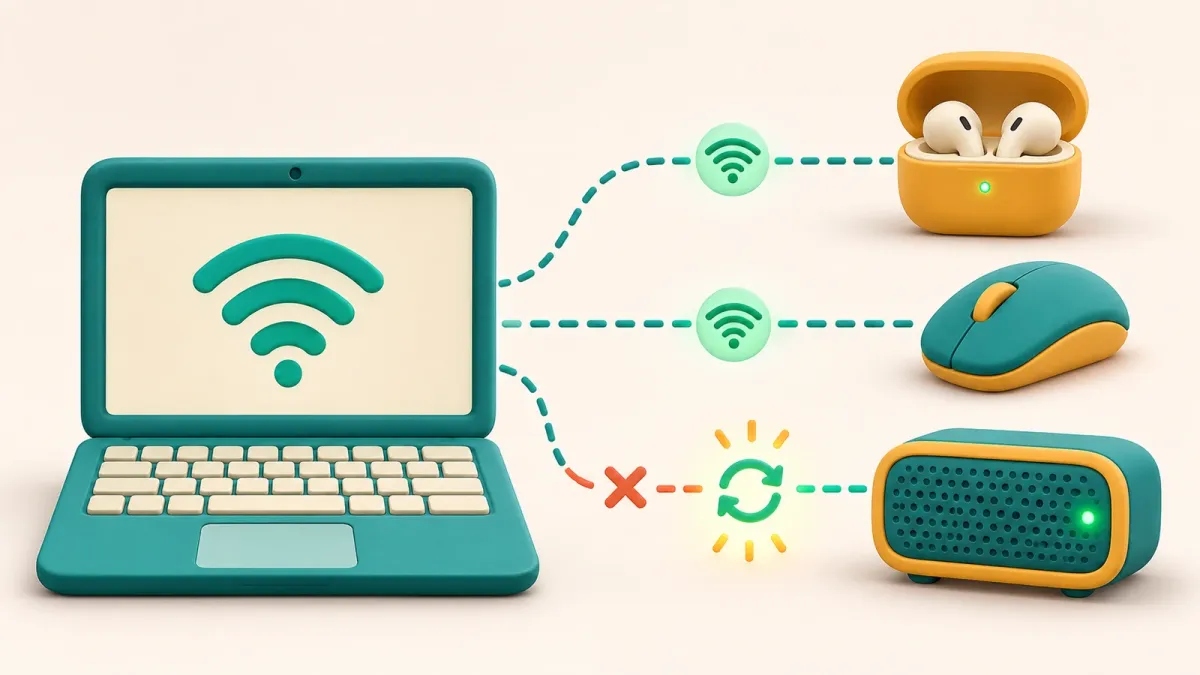
Quick Answer
To get Bluetooth working again in Windows 11:
- Make sure Bluetooth is on and Airplane mode is off: Start > Settings > Bluetooth & devices.
- Charge the device, turn it on, put it in pairing mode and bring it closer to your PC.
- Turn Bluetooth off, wait 10 seconds, then turn it back on.
- Remove the device (More options > Remove device), then select Add device to pair it again.
- Update the driver: right-click Start > Device Manager > Bluetooth, right-click the adapter and select Update driver.
How you know it worked: the device shows as connected in Bluetooth & devices and works (sound plays, the pointer moves, keys type).
When a Bluetooth mouse, keyboard, headset or speaker won't connect, the cause is usually simple: Bluetooth is switched off, the device isn't in pairing mode, or an old pairing has gone stale. Work through the fixes below in order. Each one shows the Windows 11 steps first, with Windows 10 differences where they matter.
If you're on Windows 11, you can also start with Microsoft's automated Bluetooth troubleshooter in the Get Help app, which runs checks and tries to fix the problem for you.
1. Make Sure Bluetooth Is On and Airplane Mode Is Off
- Select Start > Settings > Bluetooth & devices and make sure the Bluetooth switch is On. You can also use the Bluetooth quick setting: select the Network, Sound or Battery icon next to the clock.
- Select the Network, Sound or Battery icon next to the clock and make sure the Airplane mode quick setting is turned off.
- On a laptop, check for a physical wireless or Bluetooth switch and make sure it's on.
Windows 10: go to Start > Settings > Devices > Bluetooth & other devices, or use the Bluetooth tile in Action Center. Airplane mode is under Settings > Network & Internet.
Expected result: Bluetooth shows as On and Airplane mode is off.
2. Check the Bluetooth Device Itself
- Power: charge the device fully, turn it off, then turn it back on. Microsoft suggests keeping rechargeable headphones or speakers plugged in while you pair them.
- Pairing mode: the device has to be in pairing (discoverable) mode. How you do that depends on the device, so check its manual or the maker's website.
- Distance: move the device closer to your PC for a stronger signal.
- Interference: Microsoft notes that unshielded USB devices can interfere with Bluetooth. If the device is sluggish or unresponsive, keep it away from USB devices plugged into USB 3.0 ports.
Expected result: the device is charged, switched on and showing its pairing light or message.
3. Turn Bluetooth Off and On Again
- Select Start > Settings > Bluetooth & devices.
- Turn Bluetooth off, wait 10 seconds, then turn it back on.
- Try connecting the device again.
Expected result: the device reconnects on its own or appears in the list, ready to pair.
4. Remove the Device and Pair It Again
If a device is listed but won't connect, its pairing may be out of date. Removing it and pairing again starts fresh.
- Select Start > Settings > Bluetooth & devices.
- Find the device, select More options (…) > Remove device.
- Put the device back into pairing mode.
- Select Add device, choose your device from the list, follow any prompts, then select Done.
If your device doesn't appear in the list, go to Settings > Bluetooth & devices > Devices and, under Device settings, set Bluetooth devices discovery to Advanced.
Windows 10: in Settings > Devices > Bluetooth & other devices, select the device and choose Remove device. Then select Add Bluetooth or other device > Bluetooth and pick your device.
Expected result: the device pairs and shows as Connected.
5. Run the Bluetooth Troubleshooter
- Select Start > Settings > System > Troubleshoot > Other troubleshooters.
- Next to Bluetooth, select Run and follow the instructions.
Windows 10: go to Settings > Update & Security > Troubleshoot, select Bluetooth and run the troubleshooter. On either version, you can also run it from the Get Help app.
Expected result: the troubleshooter reports what it found and fixed, or confirms there's no problem with your Bluetooth settings.
6. Update or Reinstall the Bluetooth Driver
An outdated or damaged driver can stop Bluetooth from working, or make it disappear from Settings altogether.
Update the Driver
- Right-click Start and select Device Manager.
- Expand Bluetooth, then right-click your Bluetooth adapter (its name may include "Bluetooth" or "Radio").
- Select Update driver > Search automatically for updated driver software, then select Close and restart if asked.
Also check Start > Settings > Windows Update > Advanced options > Optional updates, where your PC maker may publish driver updates. If Windows finds nothing, download the latest Bluetooth driver from your PC maker's support site.
Reinstall the Driver
- In Device Manager, right-click the Bluetooth adapter and select Uninstall device > Uninstall.
- Select Start > Power > Shut down. Wait a few seconds, then turn your PC back on.
- Windows reinstalls the driver automatically. If it doesn't, open Device Manager and select Action > Scan for hardware changes.
Expected result: your Bluetooth adapter appears under Bluetooth in Device Manager without a warning symbol, and the Bluetooth switch is back in Settings.
7. Stop Bluetooth From Disconnecting
If your device connects but keeps dropping out, check the settings that save power by turning Bluetooth off.
- Energy Saver: select the battery icon on the taskbar and turn off Energy Saver if it's on. In Windows 10 it's called Battery Saver.
- Power management: in Device Manager, expand Bluetooth, right-click your Bluetooth device and select Properties. On the Power Management tab, clear Allow the computer to turn off this device to save power.
- Bluetooth Support Service: press Windows logo key + R, type services.msc and select OK. Right-click Bluetooth Support Service and select Restart.
Expected result: the device stays connected through normal use.
Still Not Working? What to Try Next
- Install Windows updates: select Start > Settings > Windows Update > Check for updates (Windows 10: Update & Security > Windows Update).
- Do a full shutdown: if Bluetooth has disappeared, hold Shift while you select Start > Power > Shut down. Wait about a minute, then turn the PC back on. Use Shut down, not Restart.
- Check your PC has Bluetooth: not every PC does. Check the product specifications. A USB Bluetooth adapter can add Bluetooth to a PC without it.
- Printers and scanners: these are added from Settings > Bluetooth & devices > Printers & scanners, not the usual Bluetooth list.
- Ask the maker: your PC or device manufacturer may have newer drivers or firmware for your model.
Frequently Asked Questions
Why doesn't my Bluetooth device show up in the list?
Most often the device isn't in pairing (discoverable) mode, is out of range or needs charging. If it still doesn't appear in Windows 11, go to Settings > Bluetooth & devices > Devices and set Bluetooth devices discovery to Advanced.
Where is the Bluetooth troubleshooter in Windows 11?
Select Start > Settings > System > Troubleshoot > Other troubleshooters, then select Run next to Bluetooth. You can also run the automated Bluetooth troubleshooter from the Get Help app.
Why does my Bluetooth keep disconnecting?
Power-saving settings are a common cause. Turn off Energy Saver (Battery Saver in Windows 10), and in Device Manager clear Allow the computer to turn off this device to save power on your Bluetooth device's Power Management tab. Restarting the Bluetooth Support Service can also help.
The Bluetooth switch has disappeared. What do I do?
Check that Airplane mode is off, then do a full shutdown: hold Shift while you select Power > Shut down, wait about a minute and turn the PC back on. If Bluetooth is still missing, update the Bluetooth driver in Device Manager or check Optional updates in Windows Update.
Can I add Bluetooth to a PC that doesn't have it?
Yes. Most Windows PCs have Bluetooth built in, but if yours doesn't, you can plug a USB Bluetooth adapter into a USB port and then pair devices as usual.
How do I connect a Bluetooth printer?
Make the printer discoverable, then go to Settings > Bluetooth & devices > Printers & scanners and select Add device. In Windows 10, use Settings > Devices > Printers & scanners > Add a printer or scanner.
How This Guide Was Checked
- Written by
- Chris, WinZip Team. Updated by the WinZip Team in November 2026.
- First published
- June 16, 2019
- Sources reviewed
- Microsoft Support: Fix Bluetooth problems in Windows
- Microsoft Support: Troubleshoot Bluetooth not connecting in Windows
- Microsoft Support: Fix Bluetooth disappeared in Windows
- Microsoft Support: Bluetooth keeps disconnecting in Windows
- Microsoft Support: Pair a Bluetooth device in Windows
- Microsoft Support: Update drivers through Device Manager in Windows
Related Guides

Speed Up Your PC With WinZip System Utilities Suite
- Clean junk files and free up disk space
- Update outdated drivers
- Speed up startup
- Optimize and defrag your drives