
How to Fix Sound Problems in Windows 11
From the output device and mute switch to the audio driver, with Windows 10 steps where they differ.
Audio driver out of date? WinZip System Utilities Suite's Driver Updater scans your PC for outdated drivers, so you can keep them up to date from one place.
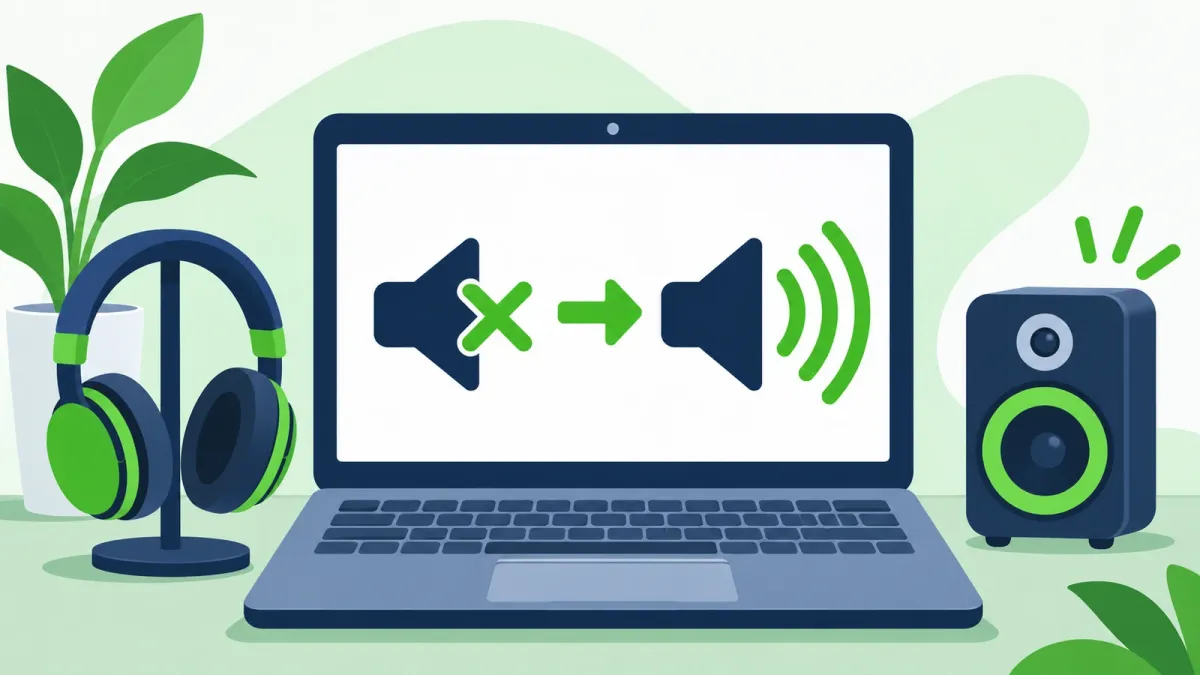
Quick Answer
To get sound working again in Windows 11:
- Check that speakers or headphones are plugged in, switched on and not muted, and the volume is up.
- Select the Speakers icon on the taskbar, then the arrow next to the volume slider, and choose the right device.
- Run the audio troubleshooter: Settings > System > Troubleshoot > Other troubleshooters > Audio > Run.
- Turn off Audio enhancements in Settings > System > Sound > your device.
- Update or reinstall the audio driver in Device Manager > Sound, video and game controllers.
How you know it worked: play a video or song and you hear it from the device you chose.
No sound in Windows 11 is usually down to something simple: the wrong output device, a muted app, a loose cable or an audio driver problem. Work through the fixes below in order, and check your sound after each one. Where Windows 10 is different, the Windows 10 steps are included too.
1. Check the Volume, Mute and Connections
- Make sure your speakers or headphones are plugged in, switched on and not muted, and that the volume is turned up.
- Check the cables. If your PC has several 3.5 mm jacks, make sure each cord is in the right one.
- For USB audio, try a different USB port.
- Unplug your headphones to check whether your speakers work on their own.
Expected result: you hear sound once the device is connected and the volume is up.
2. Choose the Right Output Device
Windows may be sending sound to a device you aren't using, such as a monitor or a headset.
- Select the Speakers icon on the taskbar.
- Select the arrow to the right of the volume slider and choose the device you want, such as your speakers or headphones.
To make a device the default, select Start > Settings > System > Sound, and under Output select the device. Selecting it there also sets it as the default.
On Windows 10: select Start > Settings > System > Sound > Sound Control Panel (under Related settings), open the Playback tab, select your device and choose Set Default.
Expected result: the volume slider shows the device you chose, and sound plays from it.
3. Run the Audio Troubleshooter
The troubleshooter runs checks and tries to fix most audio problems for you.
- Select Start > Settings > System > Troubleshoot > Other troubleshooters.
- Next to Audio, select Run and follow the steps in the Get Help app.
On Windows 10: select Start > Settings > Update & Security > Troubleshoot. Under Find and fix problems, select Playing audio > Run the troubleshooter.
Expected result: the troubleshooter reports what it found and fixed.
4. Check the Volume Mixer and Make Sure the Device Is Enabled
- Select the Speakers icon on the taskbar (if you can't see it, select Show hidden icons first). Select the arrow next to the volume slider, then the More mixer settings icon to open the volume mixer.
- Unmute any device or app marked with an "x" and turn its volume up.
- Select Start > Settings > System > Sound, and under Advanced select More sound settings.
- On the Playback tab, select your device, then Properties. Make sure Device usage is set to Use this device (enable).
On Windows 10: right-click the Speakers icon and select Open Volume mixer to unmute devices and apps.
Expected result: the app you're using has its own volume turned up, and your device is enabled.
5. Turn Off Audio Enhancements
Microsoft notes that audio enhancements can cause sound problems, and turning them off may fix them.
- Select Start > Settings > System > Sound.
- Under Output, select your device.
- Under Advanced settings, set Audio enhancements to Off.
On Windows 10: in Settings > System > Sound, select your playback device, then Properties. On the Enhancements tab, select Disable all enhancements and then OK.
Expected result: sound plays normally with enhancements off. If it doesn't help, you can turn them back on.
6. Install Windows Updates
- Select Start > Settings > Windows Update > Check for updates (on Windows 10: Update & Security > Windows Update).
- Select Install now if updates are available. Audio driver updates are sometimes listed as optional or recommended updates.
- Restart your PC and check your sound.
Expected result: Windows Update shows no more updates waiting, and the sound works after the restart.
7. Update, Reinstall or Roll Back the Audio Driver
Search for device manager in the search box on the taskbar, open it and expand Sound, video and game controllers. Then try these in order:
- Update: right-click your audio device, select Update driver > Search automatically for drivers, then restart.
- Reinstall: right-click the device, select Uninstall device, tick Attempt to remove the driver for this device, select Uninstall and restart. Windows tries to reinstall the driver.
- Use the generic Windows driver: right-click the device, select Update driver > Browse my computer for drivers > Let me pick from a list of available drivers on my computer, choose High Definition Audio Device and select Next. On Windows 10 the last option is called Let me pick from a list of device drivers on my computer.
- Roll back: if sound stopped after a driver update, right-click the device, select Properties > Driver > Roll Back Driver.
If Windows says the best driver is already installed, the PC or sound card maker may still have a newer one on its support site. For Realtek audio, see How to Fix Realtek Audio Driver Problems.
Expected result: your audio device appears in Device Manager without a warning sign, and sound plays after the restart.
8. Restart the Windows Audio Services
- Search for Services in the Start menu and open it.
- Right-click Windows Audio and select Restart.
- Do the same for Windows Audio Endpoint Builder.
Expected result: sound plays again without a full restart.
9. Try a Different Audio Format
- Open Control Panel > Hardware and Sound > Sound.
- On the Playback tab, right-click your default device and select Properties.
- On the Advanced tab, pick a different option under Default Format, select OK, and test the sound. Try a few if the first doesn't help.
Expected result: sound plays with the new format.
Still No Sound? What to Try Next
- Get the driver from the maker: Microsoft notes that some audio drivers come directly from the PC or audio device maker. Download the latest audio driver for your model and Windows version from their support site.
- Undo recent changes: as a last resort, Microsoft suggests restoring your PC from a system restore point. See how to use a Windows 11 System Restore point.
- Microphone problems too? See How to Fix Microphone Problems in Windows.
Frequently Asked Questions
Why did my sound stop working after a Windows update?
Try rolling back the audio driver in Device Manager if it was updated recently. Microsoft also suggests installing the audio driver from your PC or audio device maker, which it notes is most useful when audio problems began after a Windows upgrade.
How do I set my speakers or headphones as the default device?
Select Start > Settings > System > Sound and choose the device under Output. Selecting it there also makes it the default.
Should I turn off audio enhancements?
If you have sound problems, yes, as a test. Microsoft notes that audio enhancements can cause issues and that turning them off may fix them. You can turn them back on in the same place.
Windows says the best driver is already installed. Is there a newer one?
There may be. Microsoft notes that a newer version may still be available from the PC or audio device maker, so check their support site for your model.
What is the generic Windows audio driver?
It's the High Definition Audio Device driver that comes with Windows. You can switch to it from Update driver > Browse my computer for drivers > Let me pick from a list of available drivers on my computer.
How This Guide Was Checked
- Written by
- Chris, WinZip Team. Updated by the WinZip Team in November 2026.
- First published
- July 21, 2023
- Sources reviewed
Related Guides

Speed Up Your PC With WinZip System Utilities Suite
- Clean junk files and free up disk space
- Update outdated drivers
- Speed up startup
- Optimize and defrag your drives