
How to Fix Microphone Problems in Windows 10 and 11
Privacy settings, the right input device, input volume and drivers, for Windows 11 and Windows 10.
Audio driver out of date? WinZip System Utilities Suite's Driver Updater scans your PC for outdated drivers, so you can keep them up to date from one place.
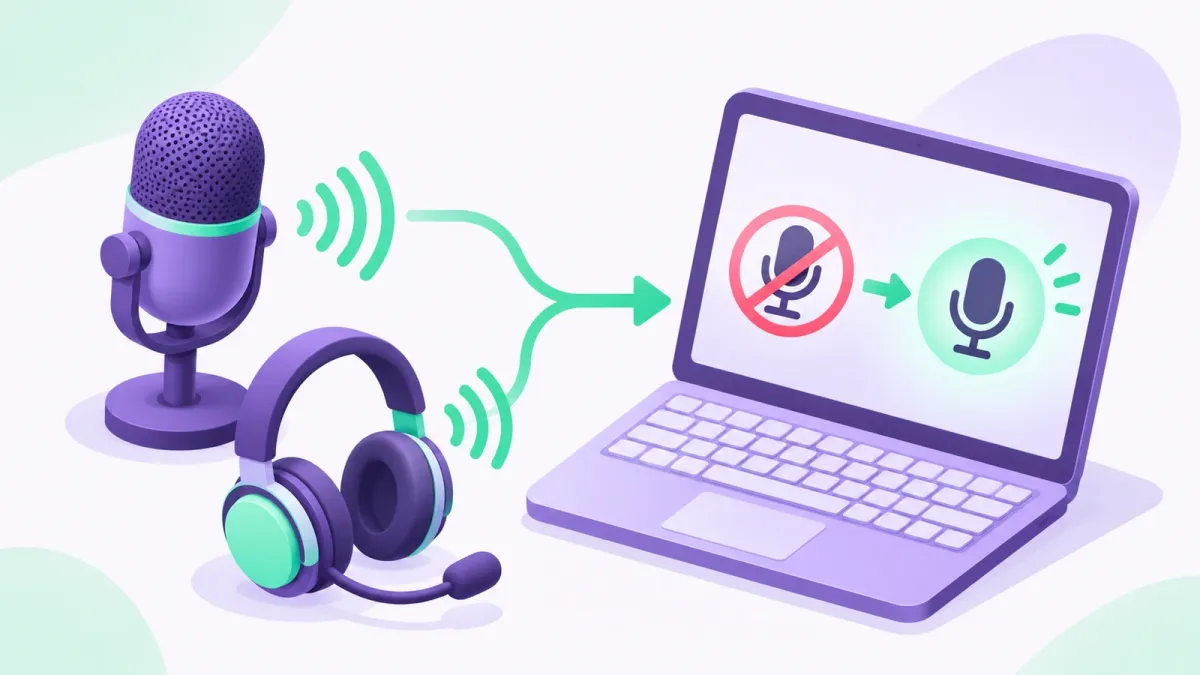
Quick Answer
To get your microphone working in Windows 11:
- Allow access: Settings > Privacy & security > Microphone, and turn on Microphone access and the app you're using.
- Make sure your headset's mute button is off and Bluetooth headsets are connected.
- Pick your mic: Settings > System > Sound > Input > Choose a device for speaking or recording.
- Select your mic, run Start test and raise the Input volume slider.
- If Windows doesn't detect the mic, reinstall the audio driver in Device Manager.
How you know it worked: the microphone test picks up your voice and the recorded sample plays back clearly.
When a microphone stops working in Windows, the cause is often a setting rather than broken hardware: apps aren't allowed to use the mic, Windows is listening to a different input device, or the input volume is too low. Work through the steps below in order and test your mic after each one. Steps are for Windows 11, with Windows 10 differences noted.
1. Let Apps Use Your Microphone
If microphone access is off, apps can't hear you even though the mic is plugged in.
- Select Start > Settings > Privacy & security > Microphone.
- Turn on Microphone access.
- Turn on Let apps access your microphone, and make sure the app you're using is switched on in the list.
- For desktop apps (most apps you didn't get from Microsoft Store), turn on Let desktop apps access your microphone. Desktop apps don't appear in the app list.
If your microphone is built into a webcam, also check Start > Settings > Privacy & security > Camera and make sure Camera access is on.
On Windows 10: select Start > Settings > Privacy > Microphone. Select Change and make sure microphone access for this device is on, then turn on Allow apps to access your microphone. Choose which Microsoft Store apps can use it, and turn on Allow desktop apps to access your microphone.
Expected result: the app you're using shows as allowed to use the microphone.
2. Check the Mute Button and the Connection
- If your headset has a mute button, make sure it isn't on.
- For a wired mic, check that it's plugged in firmly.
- For a Bluetooth headset, make sure it's paired and connected. If you need help, see how to fix Bluetooth problems.
Expected result: the headset or mic shows as connected.
3. Choose Your Microphone as the Input Device
If you have more than one microphone (for example, a laptop mic and a headset), Windows may be listening to the wrong one.
- Select Start > Settings > System > Sound.
- Under Input, open Choose a device for speaking or recording and select your microphone.
On Windows 10: in Start > Settings > System > Sound, select your microphone under Input > Choose your input device.
Expected result: your microphone is shown as the selected input device.
4. Test the Microphone and Turn Up the Input Volume
- In Settings > System > Sound, select the arrow (>) next to your microphone under Input.
- Under Microphone test, select Start test, speak for a few seconds, then select Stop test. Select Play under Recorded sample to hear yourself.
- If your voice is quiet, move the Input volume slider up and test again.
On Windows 10: under Input, speak and watch the Test your microphone bar. To change the level, select Device Properties, open the Levels tab, adjust the Microphone and Microphone Boost sliders, and select OK.
Expected result: the test bar moves when you speak, and the recorded sample sounds clear.
5. Run the Sound Troubleshooter
- Select Start > Settings > System > Sound.
- Scroll to Advanced and, next to Troubleshoot common sound problems, choose Input devices.
- Follow the steps it shows.
On Windows 10: select Settings > Update & Security > Troubleshoot > Additional troubleshooters, then Recording Audio.
Expected result: the troubleshooter reports what it found and fixed.
6. Reinstall or Update the Audio Driver
If Windows doesn't detect your microphone at all, reinstall the audio driver.
- Right-click Start and select Device Manager.
- Expand Sound, video and game controllers.
- Right-click your audio device and select Uninstall device. Tick Attempt to remove the driver for this device (on Windows 10: Delete the driver software for this device) and select Uninstall. Repeat for any other audio devices listed.
- Restart your PC. Windows tries to reinstall the drivers.
- If the devices don't come back, open Device Manager, right-click Sound, video and game controllers and select Scan for hardware changes.
- To check for a newer driver, right-click your audio device and select Update driver > Search automatically for drivers.
Expected result: your microphone appears again under Input in Settings > System > Sound.
Still Not Working? What to Try Next
- Check the app: if the mic works in the Windows test but not in one app, open that app's audio settings and make sure your microphone is selected there, and that the app is allowed in section 1.
- Restart the audio services: search for Services in the Start menu, then right-click Windows Audio and Windows Audio Endpoint Builder and select Restart.
- Get the driver from the maker: if Windows says the best driver is already installed, the PC or audio device maker may still have a newer one on its support site.
- Try another computer: plug the mic or headset into a different PC. If it doesn't work there either, the device itself may be faulty.
- No sound either? See How to Fix Sound Problems in Windows 11.
Frequently Asked Questions
Why can't my apps hear my microphone?
Check that microphone access is on. In Windows 11, select Settings > Privacy & security > Microphone and turn on Microphone access, Let apps access your microphone and, for desktop apps, Let desktop apps access your microphone.
Can I block the microphone for just one desktop app?
No. Desktop apps don't appear in the list on the Microphone privacy page, and Microsoft notes you can't turn off microphone access for individual desktop apps. You can only turn it on or off for all of them.
My webcam's built-in microphone doesn't work. What should I check?
Check the camera setting as well as the microphone setting. Select Settings > Privacy & security > Camera and make sure Camera access is turned on.
How do I make my microphone louder?
In Windows 11, select Settings > System > Sound, choose your microphone under Input and raise the Input volume slider. In Windows 10, open Device Properties > Levels and adjust Microphone and Microphone Boost.
What if Windows doesn't detect my microphone at all?
Reinstall the audio driver: in Device Manager, uninstall the device under Sound, video and game controllers and restart. If it doesn't come back, right-click the category and select Scan for hardware changes, then update the driver.
How This Guide Was Checked
- Written by
- Chris, WinZip Team. Updated by the WinZip Team in November 2026.
- First published
- July 14, 2019
- Sources reviewed
Related Guides

Speed Up Your PC With WinZip System Utilities Suite
- Clean junk files and free up disk space
- Update outdated drivers
- Speed up startup
- Optimize and defrag your drives