
How to Connect Your PC, Laptop or Phone to Your TV
Put your Windows PC on the big screen with a cable or wirelessly, and get the sound to play through the TV.
Keep your drivers up to date. Microsoft suggests up-to-date drivers when a wireless display won't connect. WinZip System Utilities Suite's one-click scan includes a Driver Updater.
Quick Answer
To show your Windows 11 or 10 PC on your TV:
- With a cable: connect an HDMI cable from your PC to the TV and switch the TV to that HDMI input.
- Press Windows logo key + P and choose Duplicate (same picture on both) or Extend.
- Wirelessly: turn on the TV (or plug a Miracast adapter into it), press Windows logo key + K and select the TV.
- For sound on the TV: select the speaker icon on the taskbar, then the arrow next to the volume slider, and choose the TV.
How you know it worked: your desktop appears on the TV, and a video's sound plays through the TV speakers.
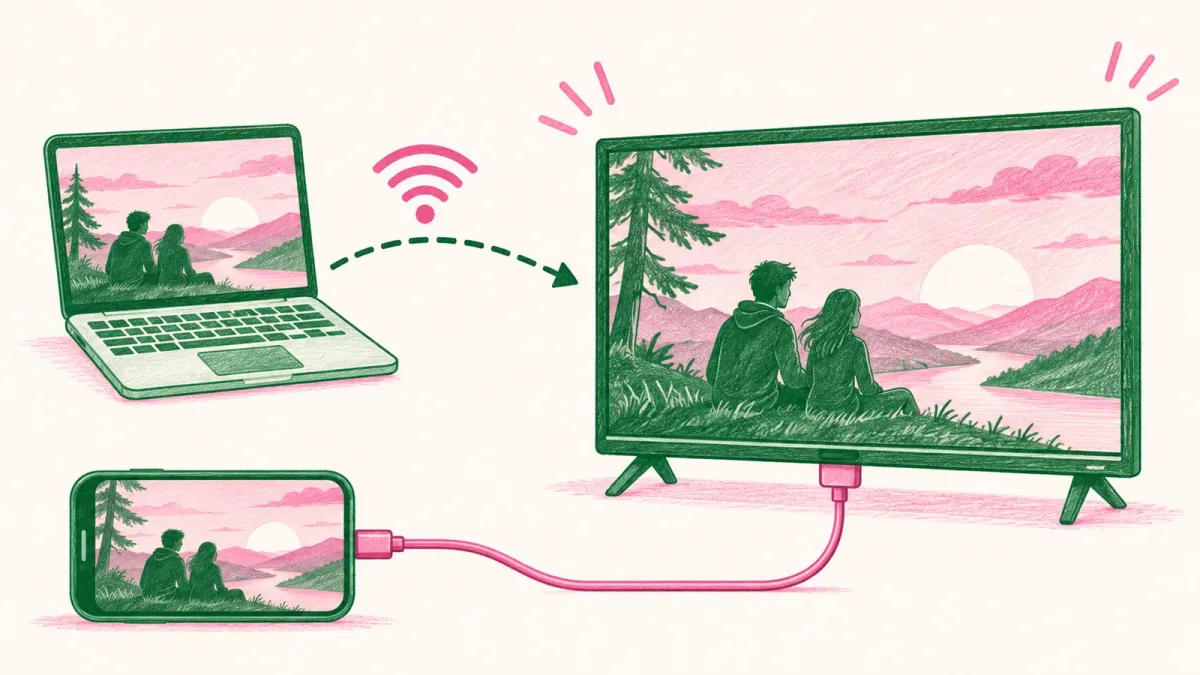
Watching a video, showing photos or joining a video call is easier on a big screen. A Windows PC can connect to most TVs in one of three ways: an HDMI cable, which is usually the simplest; Miracast, which is built into Windows; or a casting device such as Chromecast. This guide covers each, plus how to get the sound to play through the TV and what to check if the picture doesn't appear.
1. Connect With an HDMI Cable
Most TVs and many laptops have an HDMI port. If both do, a standard HDMI cable is all you need.
- Plug one end of the HDMI cable into your PC and the other into a free HDMI port on the TV.
- Turn the TV on and use its remote to switch the input (often labeled Input or Source) to the HDMI port you used.
- If the TV doesn't show your desktop after a few seconds, go to Start > Settings > System > Display > Multiple displays and select Detect.
No HDMI port on your laptop? Some laptops have only USB-C ports. Check your laptop maker's help pages to see whether you can connect a TV through one with a USB-C to HDMI adapter or cable.
Expected result: your desktop appears on the TV.
2. Choose How the Picture Appears
Once the TV is connected, press Windows logo key + P and pick one of four options:
- PC screen only: the TV goes blank and only your PC screen is used.
- Duplicate: the TV shows the same thing as your PC screen. This is usually the easiest for watching videos or showing photos.
- Extend: your desktop spreads across both screens, so you can move a window onto the TV and keep working on the PC.
- Second screen only: only the TV is used.
If you use Extend, go to Settings > System > Display and select Identify to see which screen is which. Drag the screens in Display settings to match where they sit, then select Apply.
If the picture looks blurry or doesn't fill the TV, select the TV in Settings > System > Display and choose the Display resolution marked (Recommended).
Expected result: the TV shows your desktop the way you want it.
3. Play the Sound Through the TV
When you connect over HDMI, Windows may keep playing sound through your PC's speakers. To switch it to the TV:
- Select the speaker icon on the taskbar.
- Select the arrow to the right of the volume slider (Select a sound output).
- Choose your TV from the list.
You can also go to Start > Settings > System > Sound and pick the TV under Output, which also makes it the default. When you disconnect, switch back to your PC speakers the same way.
Expected result: sound from videos and music plays through the TV speakers.
4. Connect Wirelessly With Miracast
Windows can project to a TV over Wi-Fi using Miracast. Your PC and your TV both need to support it; if the TV doesn't, you can plug a Miracast adapter (sometimes called a dongle) into one of its HDMI ports.
- Turn on the TV, or plug in the Miracast adapter.
- Make sure Wi-Fi is turned on on your PC.
- Press Windows logo key + K.
- Select your TV or adapter from the list of available devices, and follow any instructions on the TV.
Pressing Windows logo key + K also tells you whether your PC supports Miracast. If it doesn't, use an HDMI cable instead (section 1).
Expected result: your screen appears on the TV without a cable. Use Windows logo key + P to switch between Duplicate and Extend, as in section 2.
5. Cast From Chrome to a Chromecast or Google TV
If your TV has a Google Cast device, such as a Chromecast or Google TV Streamer, you can send a browser tab or your whole screen to it from Chrome. Your PC needs to be on the same Wi-Fi network as the Cast device, and Chrome should be up to date.
- In Chrome, open the tab you want to show.
- Select More (the three dots at the top right) > Cast, save, and share > Cast.
- Choose your Cast device.
- To show your whole desktop instead, open Sources in the same window and select Cast screen.
To stop, select the Cast icon on the right of the address bar, then Stop casting.
Expected result: the tab or your screen appears on the TV.
6. Connecting a Phone or Tablet Instead
iPhone or iPad to an Apple TV or AirPlay-compatible smart TV:
- Connect your iPhone or iPad to the same Wi-Fi network as the TV.
- Open Control Center and tap Screen Mirroring.
- Select your TV. If a passcode appears on the TV, enter it on your device.
To stop, open Control Center, tap Screen Mirroring, then Stop Mirroring. For Android phones, the steps depend on the phone and TV, so check your phone maker's help pages.
Still Not Working? What to Try Next
- Cable connection, no picture: check the cable is firmly connected at both ends and the TV is on the right input, then select Detect in Settings > System > Display > Multiple displays. Microsoft also suggests checking for Windows updates first.
- TV doesn't appear after Windows logo key + K: make sure the TV supports Miracast and is turned on, restart your PC and the TV, then go to Settings > Bluetooth & devices > Devices, select the TV under Wireless displays & docks, choose Remove device, and connect again.
- Update drivers and firmware: Microsoft suggests making sure drivers are up to date and the latest firmware is installed for your wireless display or adapter. The TV or adapter maker's website has instructions. See our guide to updating your graphics driver.
- Picture but no sound: make sure the TV is chosen as the sound output (section 3). See also how to fix sound problems in Windows 11.
Frequently Asked Questions
Why is there no sound on my TV when I connect my laptop with HDMI?
Windows may still be sending sound to your PC's speakers. Select the speaker icon on the taskbar, then the arrow next to the volume slider, and choose the TV. If the TV or monitor has no built-in speakers and is selected as the output, you won't hear anything, so pick your PC speakers instead.
How do I know if my PC supports Miracast?
Press Windows logo key + K. If your PC doesn't support Miracast, Windows tells you so, and you'll need to use a cable to connect to the TV.
My TV doesn't support Miracast. Can I still connect without a cable?
Yes. Plug a Miracast adapter into one of the TV's HDMI ports and connect to it with Windows logo key + K. If you have a Chromecast or Google TV Streamer, you can cast from Chrome instead.
What's the difference between Duplicate and Extend?
Duplicate shows the same thing on your PC and the TV. Extend spreads your desktop across both, so you can move windows between them. Press Windows logo key + P to switch.
Why does the sound stay on my computer when I cast my screen from Chrome?
Google notes that when you cast your whole screen, audio may play on your computer. To get the sound on the TV, cast the Chrome tab instead.
Why does the picture on my TV look blurry or cut off?
Select the TV in Settings > System > Display and choose the resolution marked (Recommended). Microsoft notes that lower resolutions can look less sharp, stretched or edged with black.
How This Guide Was Checked
- Written by
- Rachel, WinZip Team. Updated by the WinZip Team in November 2026.
- First published
- August 31, 2020
- Sources reviewed
- Microsoft Support: Screen mirroring and projecting to your PC or wireless display
- Microsoft Support: Fix connections to wireless displays or docks in Windows
- Microsoft Support: How to use multiple monitors in Windows
- Microsoft Support: Fix sound or audio problems in Windows
- Microsoft Support: Change your screen resolution and layout in Windows
- Google Chromecast Help: Cast from Chrome to your TV
- Apple Support: Use AirPlay to stream video or mirror the screen of your iPhone or iPad
Related Guides


Speed Up Your PC With WinZip System Utilities Suite
- Clean junk files and free up disk space
- Update outdated drivers
- Speed up startup
- Optimize and defrag your drives