
WinZip Registry Optimizer
How Do I Change the Language in WinZip Registry Optimizer?
Switch WinZip Registry Optimizer to your language in four clicks.
To change the language, open WinZip Registry Optimizer, click Options, select the General tab and choose your language from the Language list. The program then switches to the language you chose.
Change the Language
- Open WinZip Registry Optimizer.
- Click Options in the top menu bar.
- Select the General tab.
- Under Language, open the list and select the language you want.
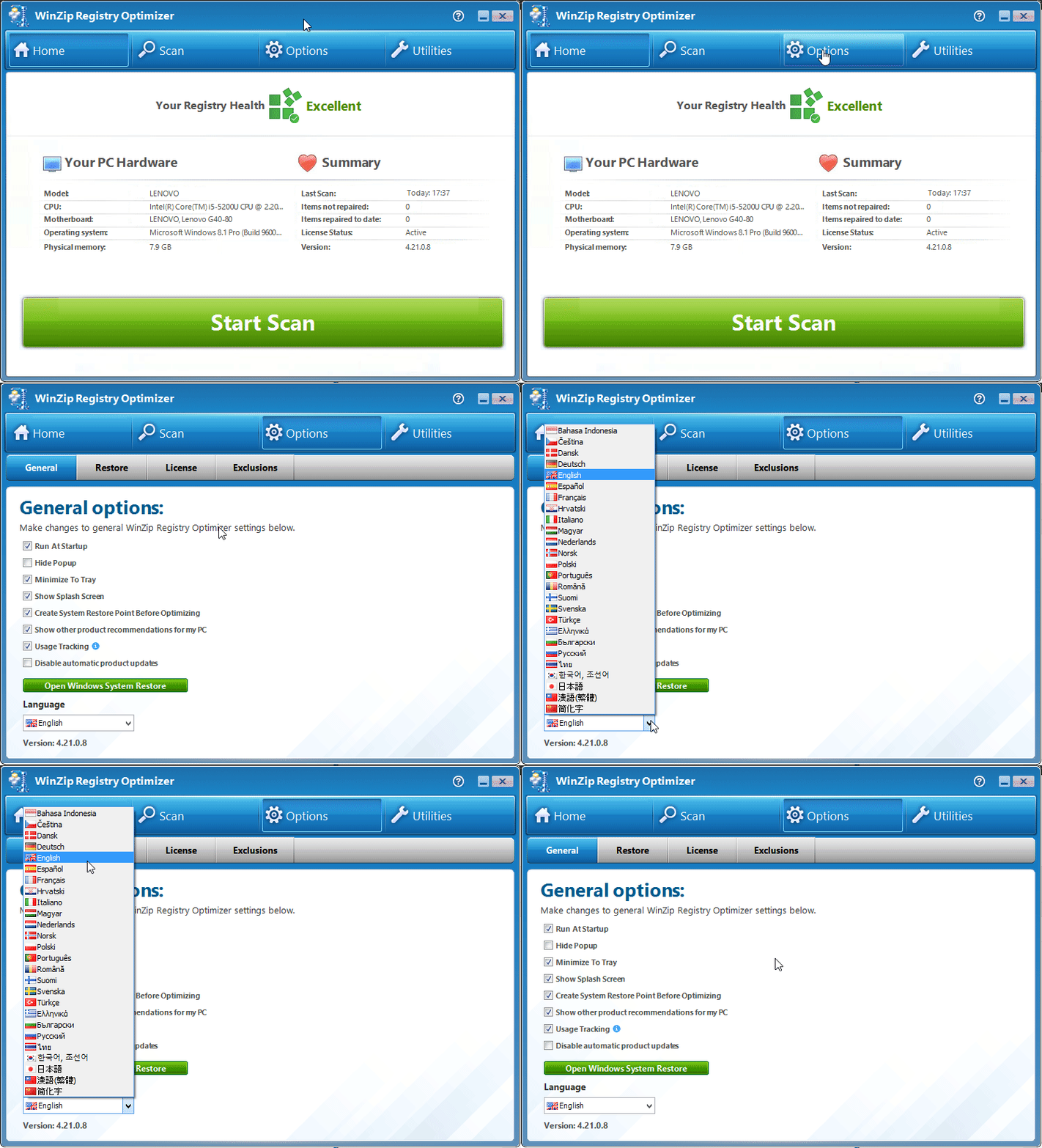
If the Program Opens in a Language You Can't Read
- Options is the button with the gear icon in the top menu bar. It is the third button from the left, after Home and Scan.
- General is the first tab under Options.
- The Language list is at the bottom of the General tab. It shows each language with its flag and its own name, for example English, Deutsch, Español, Français or 日本語.
Still having trouble? Contact our support team.
Frequently Asked Questions
Does this change the language of Windows?
No. It changes only the language of WinZip Registry Optimizer. Windows and your other programs keep their own language settings.
How do I switch back to English?
Follow the same steps: Options, General tab, then select English in the Language list.
Sources
Related Questions
- How Do I Create a Schedule to Run Registry Optimizer?
- How Do I Prevent Registry Optimizer from Running Every Time I Start My Computer?
- How Do I Activate or Register WinZip Registry Optimizer?
- What Is the Windows Registry and Why Use WinZip Registry Optimizer?
- Why Is My WinZip Registry Optimizer License Key Not Accepted?
- How Do I Retrieve a Lost WinZip Registry Optimizer License Code?