
Why Does My Computer Keep Freezing? Causes and Fixes
Unfreeze your Windows PC now, then find the cause so it stops locking up for good.
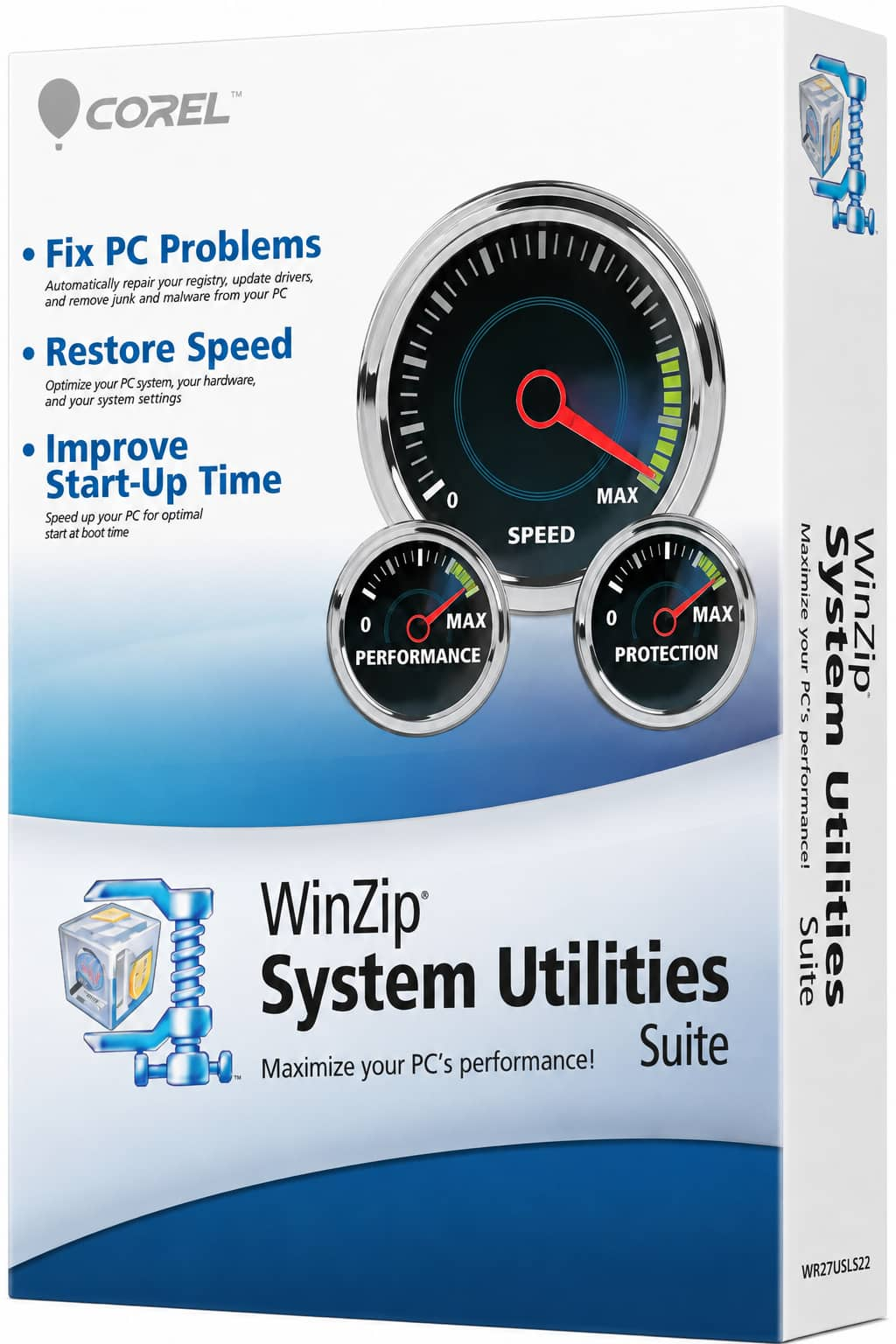
Check drivers and junk files in one scan. WinZip System Utilities Suite checks for outdated drivers and junk files, and its Startup Manager shows every app that starts with Windows.
Quick Answer
A computer that keeps freezing is usually overheating, running out-of-date drivers or Windows, clashing with a background app, or has a problem with its drive or memory (RAM). To find and fix the cause:
- If it's frozen now, press Ctrl + Shift + Esc to open Task Manager, select the app that's stuck and choose End task.
- Install updates: Start > Settings > Windows Update > Check for updates, then Advanced options > Optional updates for driver updates.
- Keep it cool: use your PC on a hard, flat surface and clean dust out of the air vents.
- Do a clean boot (type msconfig in Search) to see whether a background app is causing the freezes.
- Test your memory: press Windows key + R, type mdsched and choose Restart now and check for problems (recommended).
How you know it worked: your PC runs through several days of normal use without locking up, and the memory test reports no errors.
If your computer keeps freezing, the cause is usually one of a few things: heat, out-of-date drivers or Windows, a background app that clashes with something else, or a problem with the drive or memory. Freezes that seem random usually aren't. First get your PC working again, then use the checks below to find which cause matches what you see. Every step uses tools built into Windows 11 and Windows 10.
1. What to Do When Your Computer Is Frozen Right Now
Try these in order, and give each one a moment to respond:
- Close the app that's stuck. Press Ctrl + Shift + Esc to open Task Manager. On the Processes tab, select the app that isn't responding and choose End task.
- Use the security screen. If Task Manager doesn't open, press Ctrl + Alt + Delete. From that screen you can open Task Manager or sign out.
- If the screen has gone black or blank, press Windows key + Ctrl + Shift + B. Microsoft lists this shortcut to wake up the device when the screen is blank or black.
- If nothing responds, press and hold the power button until the PC turns off, wait a few seconds, then turn it on again.
Expected result: your PC responds again. Now find out why it froze, so it doesn't keep happening.
2. Check What Your PC Is Doing When It Freezes
Intel's advice for random freezing starts with Task Manager: check whether anything is running at 100% all the time, then close that app and see whether the freezing stops.
- Press Ctrl + Shift + Esc to open Task Manager.
- On the Processes tab, look at the CPU, Memory and Disk columns. Select a column heading to put the busiest apps at the top.
- Open the Performance tab and leave it open while you work. If your PC freezes for a few seconds and then catches up, look at which graph sits at 100% during the freeze.
Expected result: you know where to look next:
- One app keeps CPU or disk at 100%: close or uninstall it, and see How to Fix 100% CPU Usage or How to Fix 100% Disk Usage.
- Disk at 100% with nothing much running: check the drive (section 6).
- Memory almost full: close apps and browser tabs you aren't using, and test the memory (section 7).
- Nothing looks busy before it freezes: check heat (section 3) and drivers (section 4).
3. Your Computer Is Overheating
Dell lists a computer that locks up, stops responding, reboots randomly or shuts down unexpectedly as the typical symptoms of overheating. Intel names overheating as the first cause of random freezing.
Check: does it freeze after a while of heavy use rather than straight after you turn it on? Is it very hot to the touch even when idle, with the fans running fast all the time? Both point to heat.
Fix:
- Give it air. Use the PC on a hard, flat surface. A blanket, pillow or cloth can cover the fan's air intake.
- Clean the vents. Turn the PC off and unplug it, then blow dust out of the air vents with compressed air, holding the can about 6 to 8 inches away.
- Check the room. Dell's working range for its computers is 32°F to 95°F (0°C to 35°C).
Expected result: the PC runs cooler, the fans are quieter and the freezes under load stop.
4. Your Drivers or Windows Are Out of Date
Dell notes that outdated drivers or BIOS settings often cause lockups, and Intel lists out-of-date drivers and Windows among the causes of random freezing.
Update Windows and drivers: select Start > Settings > Windows Update > Check for updates and install what's available. For driver updates on Windows 11, go to Advanced options > Optional updates, select the driver updates listed and choose Download and install. Microsoft notes that optional drivers aren't installed automatically. On Windows 10, Windows Update is under Settings > Update & Security.
Update one device: right-click Start > Device Manager, expand the category, right-click the device and choose Update driver > Search automatically for updated driver software. Graphics drivers are a good place to start if the screen freezes. More in How to Update Drivers in Windows 11 and 10.
Did the freezing start after an update? Roll the driver back: in Device Manager, right-click the device > Properties > Driver tab > Roll Back Driver, choose a reason and select Yes. Microsoft notes that if a problem started after a Windows Update, reinstalling the previous driver often resolves it.
Expected result: Windows Update says you're up to date, and Device Manager shows no warning icons.
5. A Background App Is Causing It
Apps that start with Windows and keep running in the background can clash with each other. Dell also warns that running more than one antivirus program at the same time can make a computer lock up, so keep just one.
Check with a clean boot. Microsoft says a clean boot starts Windows with only essential drivers and startup programs, which makes it easier to find software conflicts. On Windows 11:
- Sign in with an administrator account. Select Search, type msconfig and select System Configuration.
- On the Services tab, select Hide all Microsoft services, then Disable all and Apply.
- On the Startup tab, select Open Task Manager. On Startup apps, select each Enabled item and choose Disable. Note which ones you turned off.
- Close Task Manager, select OK in System Configuration and restart.
Expected result: if the freezing stops, one of the apps or services you turned off is the cause. Turn them back on a few at a time, restarting each time, until the freezing returns. Then update or uninstall that app.
Back to normal: in System Configuration, select Normal Startup on the General tab. On the Services tab, clear Hide all Microsoft services, select Enable all and Apply. Turn your startup apps back on in Task Manager, then restart.
6. Your Drive Is Nearly Full or Starting to Fail
Microsoft lists slowness or freezing among the signs of a storage device with a health problem, and notes that a nearly full drive can slow your PC down and cause trouble installing Windows updates.
Check free space: select Start > Settings > System > Storage. To free space on Windows 11, select Cleanup recommendations, choose what you want to remove and select Clean up.
Check drive health (Windows 11): select Start > Settings > System > Storage > Advanced storage settings > Disks & volumes, then Properties for your drive. It shows the drive's estimated remaining life, available spare and temperature. Windows only monitors NVMe SSDs here, not SATA SSDs or hard drives. On Windows 10, the same details are under Storage > Manage disks and volumes.
Check the drive for errors: select Search, type cmd, right-click Command Prompt and choose Run as administrator. Type chkdsk C: /scan and press Enter. It scans the drive while Windows is running. If it finds errors, run chkdsk C: /f to fix them. Windows can't fix the drive it's running from straight away, so it asks whether to check it the next time you restart: type Y and restart.
Expected result: you have free space on your system drive, no health warning, and chkdsk reports no problems.
7. Your Memory (RAM) Has a Problem
Intel lists memory issues as a cause of random freezing, including memory that isn't seated properly and not having enough of it. Windows has a built-in memory test:
- Save your work. Press Windows key + R, type mdsched and select OK.
- Choose Restart now and check for problems (recommended). The test runs before Windows starts and takes a while.
- After you sign in again, Windows shows the result in a notification. If you miss it, open Event Viewer and look under Application and Services Logs > Microsoft > Windows > MemoryDiagnostics-Results. Event ID 2001 means no memory errors were found.
Expected result: no memory errors. If the test finds errors, the memory is likely faulty. On a desktop, Intel suggests checking that the memory is seated well or trying different memory. On a laptop or all-in-one, contact your PC's maker.
8. Windows System Files Are Damaged
Intel notes that a corrupted Windows installation can cause random freezing. Two built-in commands check and repair Windows system files.
- Select Search, type cmd, right-click Command Prompt and choose Run as administrator.
- Type DISM.exe /Online /Cleanup-image /Restorehealth and press Enter. It may take several minutes.
- Type sfc /scannow and press Enter. Don't close the window until the check reaches 100%.
Expected result: "Windows Resource Protection did not find any integrity violations" means your system files are fine. "Found corrupt files and successfully repaired them" means the repair worked. For the other messages, see How to Repair System Files Using System File Checker.
9. Malware Is Running in the Background
Dell notes that malware can make a Windows computer lock up or appear to stop responding. Windows Security is built in, so there's nothing to install.
Check and fix: on Windows 11, select Start > Settings > Privacy & security > Windows Security > Virus & threat protection > Quick scan. On Windows 10, go to Settings > Update & Security > Windows Security > Virus & threat protection.
Expected result: the scan reports no current threats, or tells you what it found and removed.
Why Does My Computer Freeze After Startup?
If your PC freezes in the first few minutes after you sign in, the usual suspects are the apps that start with Windows. Turn off the ones you don't need in Task Manager's Startup apps page (right-click an app and choose Disable), then try a clean boot (section 5). If it still freezes, update your drivers (section 4). For a full walk-through of startup apps, see How to Fix Slow Startup in Windows 11.
Why Does My Laptop Keep Freezing?
Everything above applies to laptops too, but heat is more often to blame because the vents are small and easy to block.
- Don't use it on your lap, a bed or a sofa. Dell recommends a hard, flat, non-cloth surface so air can reach the fan intake. A laptop cooling pad with its own fans can also help.
- Get drivers from your laptop's maker. Dell suggests updating the BIOS first, then the chipset, video, audio and network drivers. Use your laptop maker's support site for these.
Still Freezing? What to Try Next
- Undo a recent change: if the freezing started after you installed an app, driver or update, System Restore can take your PC back to an earlier point. Press Windows + R, type rstrui.exe, press Enter and pick a restore point from before the problem began. More in How to Use a System Restore Point in Windows 11.
- It shows a blue screen or turns itself off: see How to Fix the Blue Screen of Death in Windows 11 or How to Fix Random Shutdowns in Windows.
- It's slow rather than frozen: see Why Is My Computer So Slow?
- The memory test or drive health shows a problem, or the fans don't spin: contact your PC's maker. A hardware fault needs a repair or a replacement part.
Frequently Asked Questions
Does bad RAM cause freezing?
It can. Intel lists memory issues among the causes of random freezing. Run Windows Memory Diagnostic (press Windows key + R, type mdsched) to check. If it finds errors, the memory needs reseating or replacing.
Why is my PC freezing so much all of a sudden?
A sudden change usually has a recent cause: a Windows or driver update, a new app, or the PC getting hotter than before. Roll back a driver you just updated, uninstall the new app, or use System Restore to go back to a point before the freezing started.
Can dust cause a PC to freeze?
Yes. Dell lists blocked fans and air vents and dust on the cooling fins as causes of overheating, and lockups as a typical symptom. Turn the PC off, unplug it and clean the vents with compressed air.
What do I do when my computer freezes and Ctrl + Alt + Delete doesn't work?
If the screen is black or blank, press Windows key + Ctrl + Shift + B. If nothing responds at all, press and hold the power button until the PC turns off, then turn it back on. Unsaved work will be lost.
Why does my computer freeze for a few seconds and then carry on?
Something is keeping your processor, memory or drive fully busy for a moment. Keep Task Manager's Performance tab open and watch which graph hits 100% during the freeze. A drive stuck at 100% is worth a health check.
Can WinZip System Utilities Suite stop my computer from freezing?
Not on its own, but it helps with some common causes: its scan checks for outdated drivers and clears junk files, and its Startup Manager lets you turn off apps that start with Windows. It isn't antivirus software and it can't fix overheating or faulty hardware, so use the other checks in this guide for those.
How This Guide Was Checked
- Written by
- WinZip Team, November 2026.
- First published
- November 16, 2026
- Sources reviewed
- Microsoft Support: Keyboard shortcuts in Windows
- Microsoft Support: How to perform a clean boot in Windows
- Microsoft Support: Update drivers manually in Windows
- Microsoft Support: Automatically get recommended and updated hardware drivers
- Microsoft Support: What to do about a critical warning for a storage device
- Microsoft Support: Free up drive space in Windows
- Microsoft Learn: chkdsk
- Microsoft Support: How to fix Error 0xA (Windows Memory Diagnostic steps)
- Microsoft Support: Use the System File Checker tool to repair missing or corrupted system files
- Microsoft Support: System Restore
- Microsoft Support: Tips to improve PC performance in Windows
- Intel: Tips for Random System Freezing Issue
- Dell: Computer Restarts or Shuts Down Intermittently, Locks Up, Stops Responding or an Error Occurs
- Dell: How to Stop Computer and Laptop Overheating and Shut Down Issues
Related Guides


Speed Up Your PC With WinZip System Utilities Suite
- Clean junk files and free up disk space
- Update outdated drivers
- Speed up startup
- Optimize and defrag your drives