
How Do I Use the Backup and Undo Function of Mac Optimizer?
No longer sold
WinZip Mac Optimizer is no longer sold. This answer stays here for existing customers.
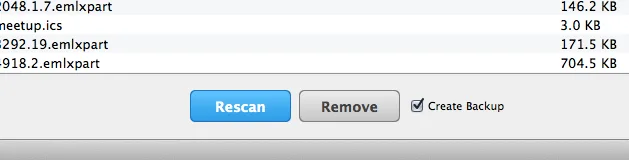
Each major optimization feature in Mac Optimizer saves a backup by default. An optional pop-up screen explains the backup when you perform this feature. This automatic backup can be turned off and on by deselecting or selecting the Create Backup checkbox next to each feature.
Once you’ve optimized your Mac, you can click on the Undo tab and review your change in the list. To restore to a point before you optimized, click Restore next to that item in the list. To remove the item permanently, click Remove; you will no longer be able to undo it.
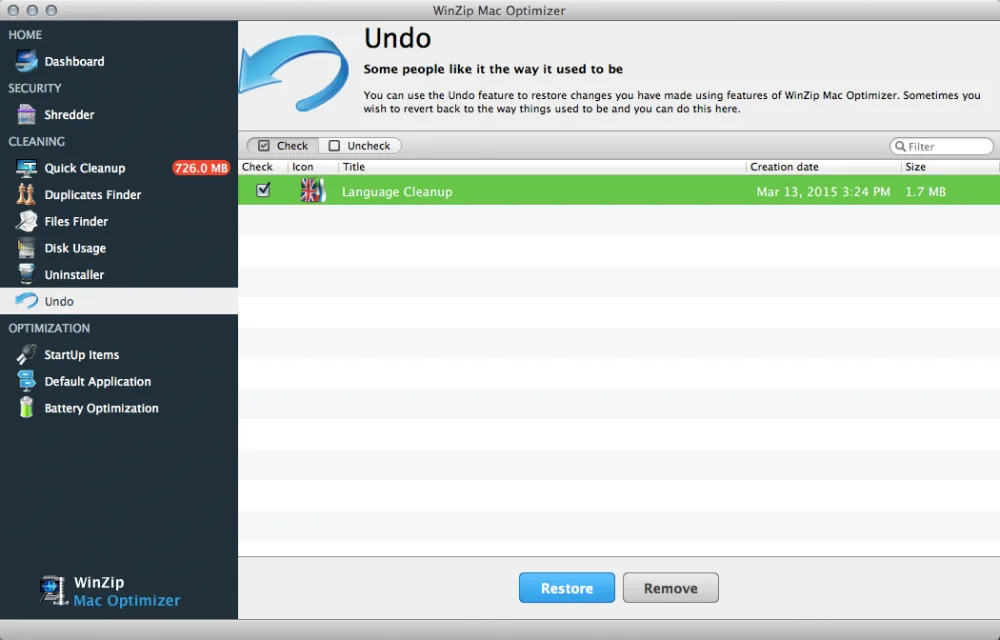
Restore or remove multiple items at once by selecting them all and clicking Restore or Remove on the bottom of the screen.
By default, backups are saved for 10 days. You can modify this number in the Preferences; keep in mind that increasing the duration will take up more space on your Mac.
Related Questions
- How Do I Change the Default Application to Open a Specific File Extension Using Mac Optimizer?
- How Do I Improve the Startup Speed of My Mac Optimizer?
- How Do I Set Up Battery Optimization Profiles Using Mac Optimizer?
- How Do I Use Disk Usage to Find the Folders and Files That Take Up the Most Space in Mac Optimizer?
- How Do I Use Duplicates Finder to Remove Duplicate Files in Mac Optimizer?
- How Do I Use Files Finder to Find Large Files, or Any Files, in Mac Optimizer?