
WinZip Mac Optimizer
How Do I Use Duplicates Finder to Remove Duplicate Files in Mac Optimizer?
No longer sold
WinZip Mac Optimizer is no longer sold. This answer stays here for existing customers.
The Duplicates Finder feature in Mac Optimizer can instantly scan your entire Mac and sort all the files on the system, showing you all the files that are duplicated across different folders. Then, you can easily remove the duplicates.
To use Duplicates Finder:
- Launch Mac Optimizer.
- Click Duplicates Finder.
- Click Scan.
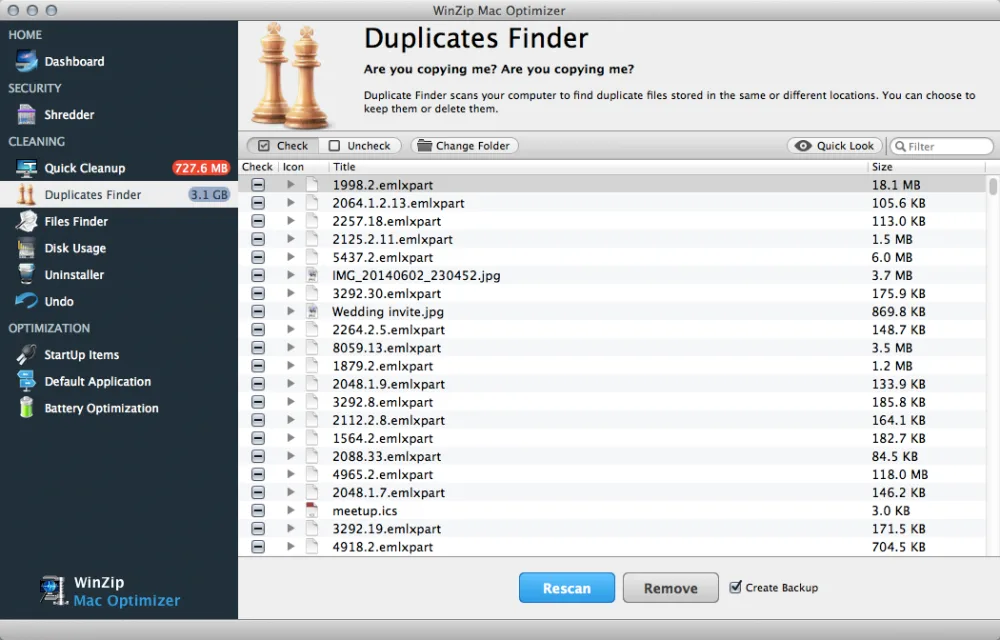
- Once the scan is complete, click the arrow next to any duplicate file to see the different folders where the files reside.
- Select any files you’d like to remove one of. You can choose which duplicate to remove by clicking the arrow.
- You can sort this list by size to find the duplicate files taking up the most space or search for a particular file or file extension.
- Make sure that you are not removing any files that you want to keep.
- Click Remove to remove one of the duplicate files.
Related Questions
- How Do I Change the Default Application to Open a Specific File Extension Using Mac Optimizer?
- How Do I Improve the Startup Speed of My Mac Optimizer?
- How Do I Set Up Battery Optimization Profiles Using Mac Optimizer?
- How Do I Use Disk Usage to Find the Folders and Files That Take Up the Most Space in Mac Optimizer?
- How Do I Use Files Finder to Find Large Files, or Any Files, in Mac Optimizer?
- How Do I Use Quick Cleanup to Clean Unnecessary Files in Mac Optimizer?