
WinZip Mac Optimizer
How Do I Change the Default Application to Open a Specific File Extension Using Mac Optimizer?
No longer sold
WinZip Mac Optimizer is no longer sold. This answer stays here for existing customers.
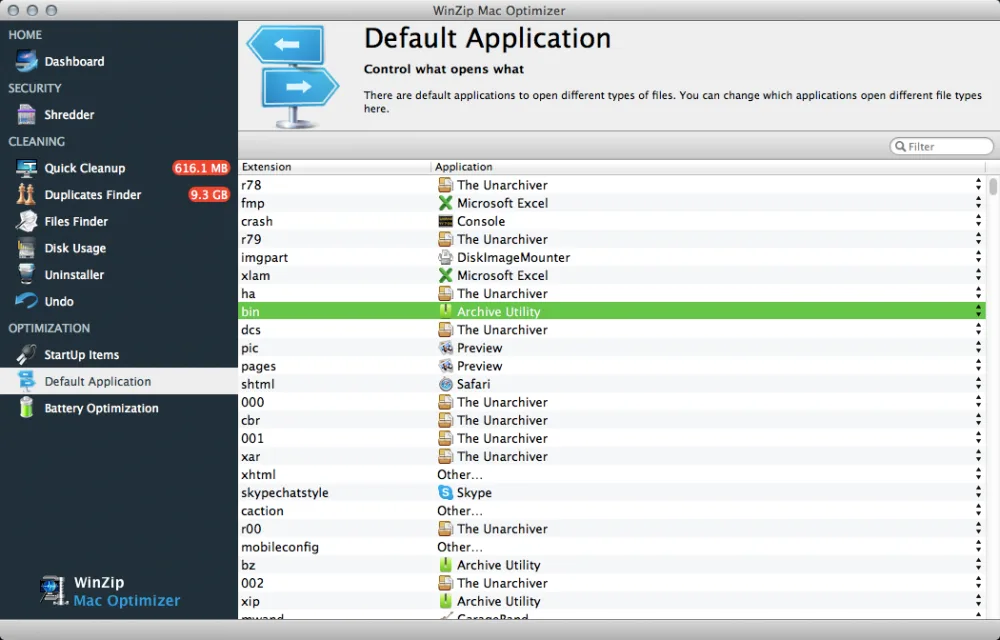
Mac Optimizer makes it very easy to manage what applications open a specific file extension using the Default Application area of the product.
- Launch Mac Optimizer.
- Within the Default Application area, you will see a list of all extensions that are present on your Mac sorted in alphabetical order.
- To find a specific file extension either scroll down this list or use the Filter box in the top right corner to search for a particular file extension.
- Once you have found the extension you are looking for, to the right of that extension you will see the current application that is set to open it.
- If you click on the name of that application you will see a drop down menu appear with a list of all applications that support opening that file extension.
- You can either select one of those applications, or you can select Other to see a full list of your applications and select one of those. Changes made on this screen are saved automatically.
Related Questions
- How Do I Improve the Startup Speed of My Mac Optimizer?
- How Do I Set Up Battery Optimization Profiles Using Mac Optimizer?
- How Do I Use Disk Usage to Find the Folders and Files That Take Up the Most Space in Mac Optimizer?
- How Do I Use Duplicates Finder to Remove Duplicate Files in Mac Optimizer?
- How Do I Use Files Finder to Find Large Files, or Any Files, in Mac Optimizer?
- How Do I Use Quick Cleanup to Clean Unnecessary Files in Mac Optimizer?