
WinZip Malware Protector
How Do I Enable Automatic Definition Updates in Malware Protector?
To check and install the latest definition updates automatically, follow the steps below:
- Launch Malware Protector.
- Click on Settings and select the Updater tab.
- Check (select) the Download updates automatically option.
- Click on the Apply button to save the settings.
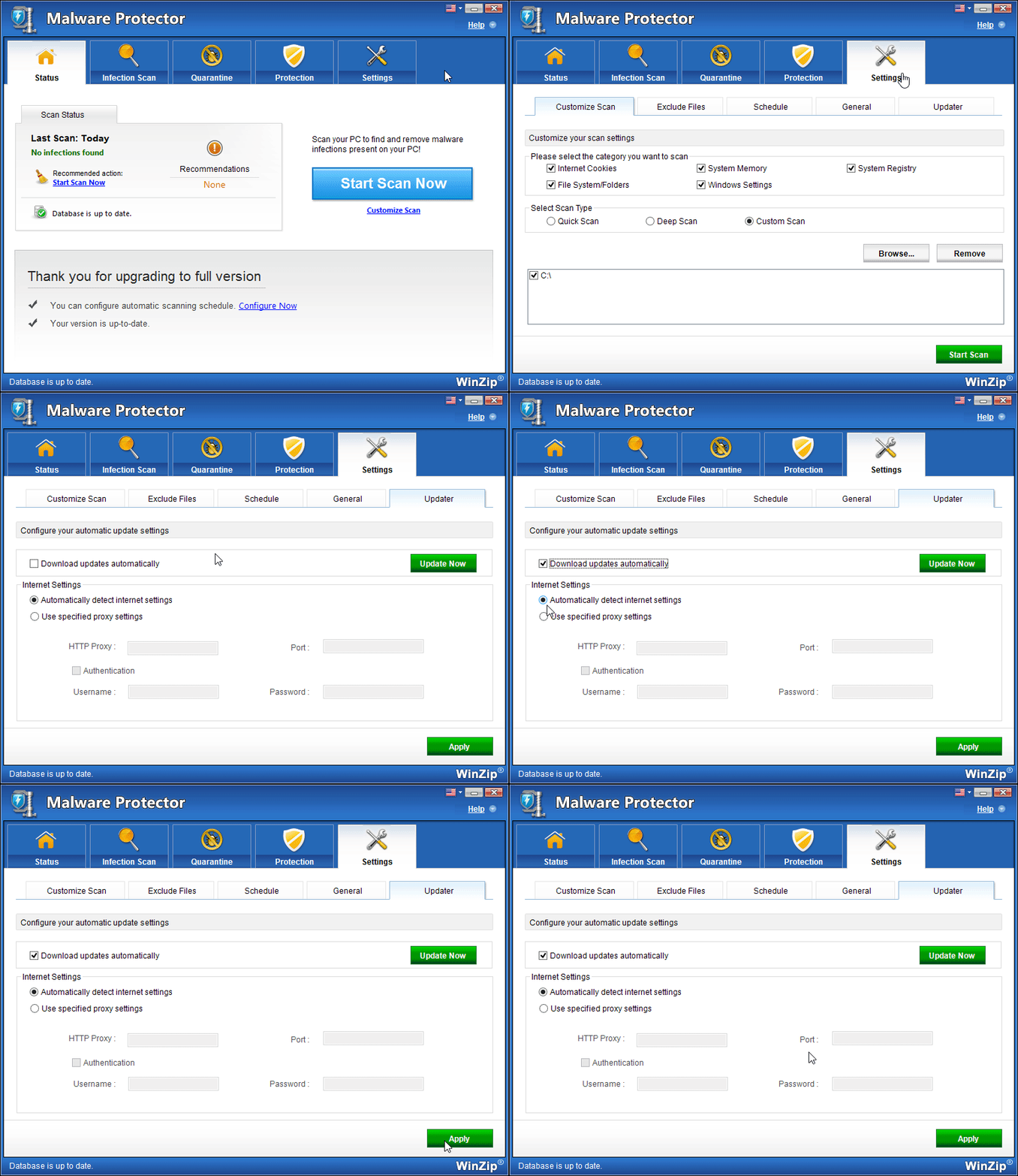
Malware Protector will now check and install the latest definitions automatically!
Note that you can also configure your Internet Settings for Malware Protector on this screen.
You can either:
- Automatically detect internet settings: Select this option to detect internet settings automatically for updates.
- Use specified proxy settings: Select this option to use specified proxy settings for updates
Related Questions
- How Do I Access the Basic Settings of Malware Protector?
- How Do I Create a Schedule to Run Malware Protector?
- How Do I Customize the Scan Settings in Malware Protector?
- How Do I Download Updated Definitions Manually?
- How Do I Prevent Malware Protector from Running at Every Startup?
- How to Check Your PC for Malware