
WinZip Malware Protector
How Do I Access the Basic Settings of Malware Protector?
To access the basic settings of Malware Protector, click on the Settings button and click the General tab.
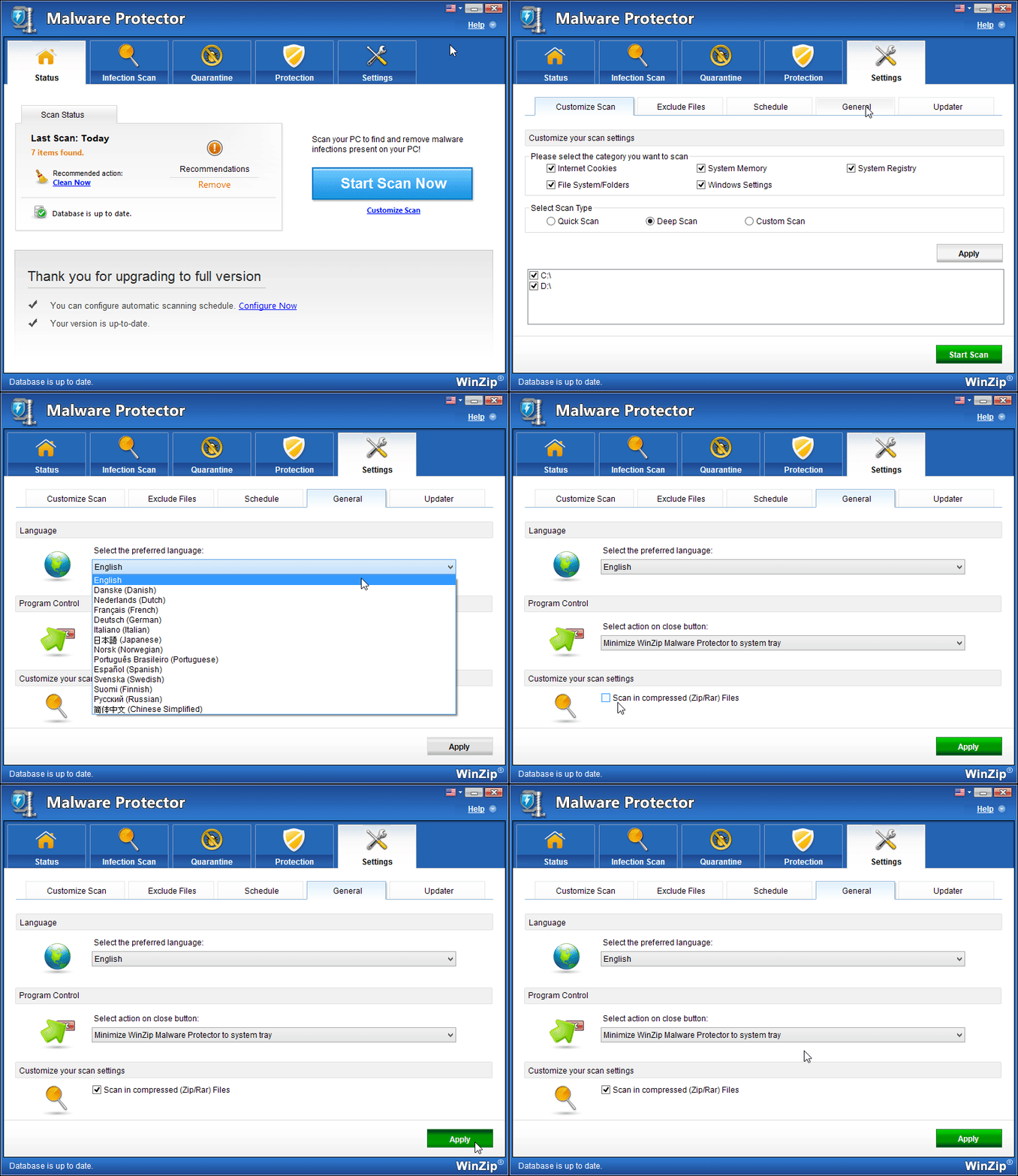
The options available in the general settings are explained below:
- Language: Malware Protector is available in various languages (covers most languages). You can run this program in your desired language by customizing this option.Click on drop down bar under Select the preferred language, select the desired language and click on Apply button.
- Program Control: This option offers you the following options:
Minimize Malware Protector to system tray (Recommended): Select this option to minimize the program to the system tray, when you click on the close button.
Exit Malware Protector: Select this option to exit the program when you click on the close button.
- Customize your scan settings: Scan in compressed (Zip/Rar) Files: You can select this option to scan compressed files e.g. ZIP and RAR files during deep scan for malware infections. After selecting the above options click on the “Apply” button.
Related Questions
- How Do I Create a Schedule to Run Malware Protector?
- How Do I Customize the Scan Settings in Malware Protector?
- How Do I Download Updated Definitions Manually?
- How Do I Enable Automatic Definition Updates in Malware Protector?
- How Do I Prevent Malware Protector from Running at Every Startup?
- How to Check Your PC for Malware