
How to Roll Back Driver Updates in WinZip Driver Updater
Go back to the drivers you had before an update, using a backup in WinZip Driver Updater.
Open WinZip Driver Updater, select Backup, then Start Restore. Choose a backup, select Load Backup, pick the drivers to restore and select Restore. Then restart your PC.
Restore Your Original Drivers
- Open WinZip Driver Updater.
- Select Backup in the top menu.
- Select Start Restore.
- On the Restore Drivers screen, select a backup in the Drivers Backup List. Each backup shows the date and time it was made.
- If you want your PC to restart by itself when needed, select Reboot automatically if required.
- Select Load Backup.
- On the Select Drivers to be Restored screen, select the check boxes of the devices whose drivers you want to restore and clear the others. To restore all of them, select the Select All check box.
- Select Restore.
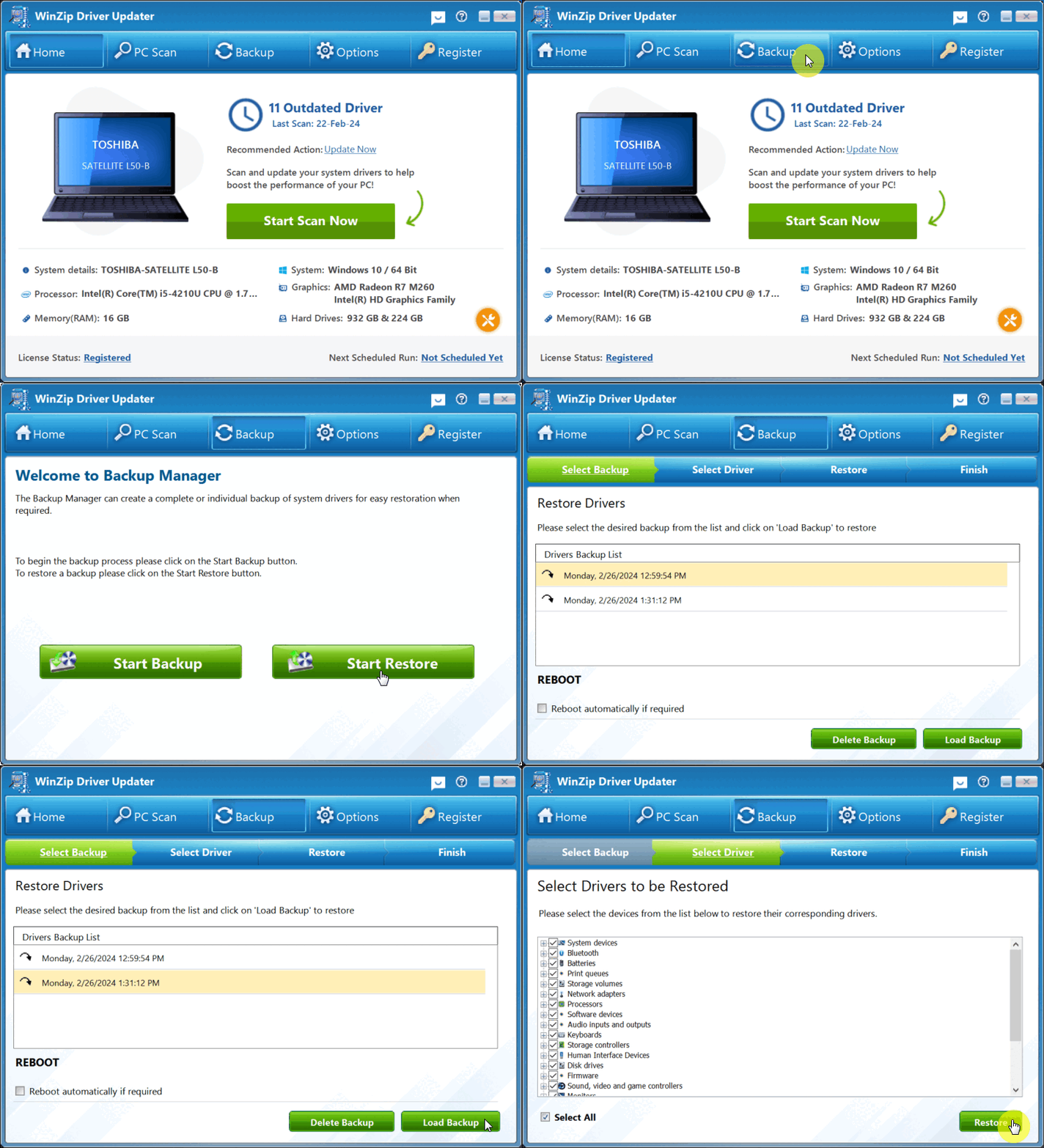
When the restore is complete, restart your PC before you use it again.
If Windows Does Not Start Normally
Start your PC in Safe Mode with Networking, then open WinZip Driver Updater and follow the steps above.
- Open the Windows Recovery Environment in one of these ways:
- Windows 11: select Start > Settings > System > Recovery. Next to Advanced startup, select Restart now.
- Windows 10: select Start > Settings > Update & Security > Recovery. Under Advanced startup, select Restart now.
- Or: press and hold the Shift key while you select Power > Restart.
- Select Troubleshoot > Advanced options > Startup Settings > Restart.
- After the PC restarts, press 5 on the Startup Settings screen to choose Safe Mode with Networking.
- Sign in, open WinZip Driver Updater and restore your drivers.
- Restart your PC to return to normal mode.
If your PC uses BitLocker encryption, you may need your BitLocker recovery key for these steps.
If It Didn't Work
If no backup appears in the list, no backup was made on this PC. Contact our support team.
Frequently Asked Questions
Where do the backups in the list come from?
WinZip Driver Updater backs up your original drivers before it installs updates. Backups you make yourself with Start Backup appear in the same list.
Can I restore only one driver?
Yes. After you select Load Backup, select the check box of that one device, clear all the other check boxes, then select Restore.
How do I stop WinZip Driver Updater from offering the same update again?
After a scan, right-click the driver update in the scan results and select Exclude this driver from future scans.
Can I delete a backup I no longer need?
Yes. Select Backup, then Start Restore. Select the backup in the Drivers Backup List and select Delete Backup.
Sources
Related Questions
- How to Back Up Your Drivers Before Updating in WinZip Driver Updater
- How Do I Use WinZip Driver Updater to Update My Drivers? (Quick Guide)
- Why Won't WinZip Driver Updater Download and Install Updates After I Bought It?
- Why Can't I Complete a Scan with WinZip Driver Updater?
- What Are Device Drivers, and Why Use WinZip Driver Updater?
- How to Upgrade to the Latest Version of WinZip Driver Updater