
Is WinZip Driver Updater Safe?
Where its drivers come from, the safety features it includes, and how to undo any change it makes.
Want drivers and cleanup in one tool? WinZip System Utilities Suite's one-click scan includes a Driver Updater, along with junk file and privacy cleanup.
Quick Answer
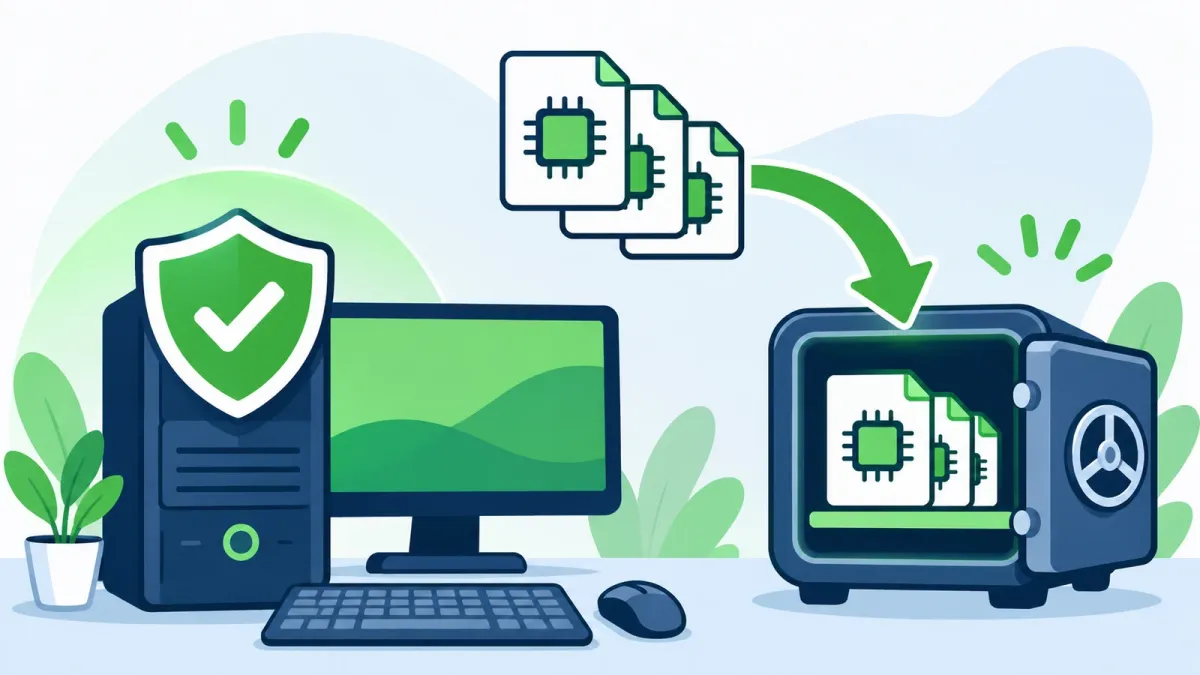
WinZip Driver Updater is built to update drivers safely:
- It sources driver updates from the original equipment manufacturer only.
- It includes automatic backups, a restore wizard, exclusions and a scheduler.
- You can back up your drivers before you update, and restore them later from Backup > Start Restore.
- For extra protection, create a Windows restore point before any driver update.
- You can uninstall it any time from Settings > Apps > Installed apps.
How you know it worked: after updating, your devices work as before and Device Manager shows no warnings. If not, restore your driver backup.
Drivers let Windows work with your hardware, so it's sensible to ask whether a tool that changes them is safe. This guide explains where WinZip Driver Updater gets its drivers, which safety features it includes, what the free trial does, and how to undo a change or remove the program. It also covers the Windows tools that protect you during any driver update.
1. What WinZip Driver Updater Does
Every time Windows and your apps are updated, your hardware may need new drivers to keep working fully, and many manufacturers don't tell you when a new driver is released. WinZip Driver Updater does the checking for you: it scans your PC, identifies drivers that are outdated, incorrect or corrupt, and recommends updates. It then replaces them with the latest versions from the original manufacturers.
A scan lists each driver with its status, such as Outdated or Up to date, so you can see which devices have newer drivers available.
2. Where Its Drivers Come From
WinZip Driver Updater sources its driver updates from the original equipment manufacturer only. That matches Microsoft's own advice for drivers you install yourself: avoid downloading drivers from any website other than the manufacturer's official site.
Installing the wrong or an outdated driver can cause problems with your PC. WinZip Driver Updater is designed to identify and deliver only the correct drivers for your system.
3. Its Safety Features
WinZip Driver Updater includes automatic backups, a restore wizard, exclusions and a scheduler.
- Back up before you update: open Driver Updater, select the Backup icon on the top menu, then Start Backup. Choose the type of backup, select Next and follow the steps.
- Restore older drivers: select Backup > Start Restore, choose a backup from the list, then select Load Backup and Restore. Restart your PC when it's done.
- Exclude a driver: after a scan, right-click a driver update in the results and select Exclude this driver from future scans. You can remove it from the Driver Exclusion List later.
4. Free Trial vs Registered Version
You can download a free trial of WinZip Driver Updater from its official page. The trial scans your PC for out-of-date drivers, so you can see which updates are available before you buy.
The registered version adds:
- One-click install of all driver updates, instead of updating drivers one at a time
- Early access to new drivers
- Dedicated email support
5. How to Install It and Run Your First Scan
- Download WinZip Driver Updater from the WinZip Driver Updater page.
- Double-click the downloaded file to run the installer, and follow the steps.
- After installation, Driver Updater opens and runs a first scan for out-of-date drivers.
- To scan again later, select the Home tab, then Start Scan Now.
- Review the results before you update anything, and run Start Backup if you haven't yet.
- Select Update next to a driver to install it. Wait for one driver to finish updating before you start the next.
- A message tells you when the installation is complete. With the registered version, you can select Update All to install every update at once.
Restart your PC if you're asked to.
Expected result: the drivers you updated show as up to date when you scan again.
6. Extra Protection for Any Driver Update
Whatever tool you use, Windows has two safety nets of its own.
- Create a restore point first: select Start, type Create a restore point and open it. On the System Protection tab, select Create, type a description and select Create.
- Roll back a single driver: right-click Start > Device Manager, right-click the device, select Properties > Driver > Roll Back Driver. You need administrator rights.
7. How to Uninstall WinZip Driver Updater
- Select Start > Settings > Apps > Installed apps.
- Find WinZip Driver Updater, select More (…) > Uninstall, and follow the steps.
You can also use Control Panel > Programs > Programs and Features: select WinZip Driver Updater, then Uninstall/Change.
Expected result: WinZip Driver Updater no longer appears in your list of installed apps.
Frequently Asked Questions
Is WinZip Driver Updater free?
You can download a free trial that scans your PC for out-of-date drivers. The registered version adds one-click install of all driver updates, early access to new drivers and dedicated email support.
Where does WinZip Driver Updater get its drivers?
It sources driver updates from the original equipment manufacturer only, and delivers the latest versions from the original manufacturers.
Can I undo a driver update made with WinZip Driver Updater?
Yes, if you backed up first. Select Backup > Start Restore, choose your backup, then select Load Backup and Restore, and restart your PC. You can also use Roll Back Driver in Device Manager.
Can I stop it from updating a particular driver?
Yes. In the scan results, right-click the driver update and select Exclude this driver from future scans. It moves to the Driver Exclusion List, where you can remove it again later.
Which versions of Windows does WinZip Driver Updater work with?
The WinZip Driver Updater page lists Windows 10, 8, 7 and Vista.
How do I uninstall WinZip Driver Updater?
Go to Start > Settings > Apps > Installed apps, find WinZip Driver Updater, and select More > Uninstall. Or use Control Panel > Programs and Features > Uninstall/Change.
How This Guide Was Checked
- Written by
- Chris, WinZip Team. Updated by the WinZip Team in November 2026.
- First published
- March 12, 2022
- Sources reviewed
- WinZip SystemTools: WinZip Driver Updater
- WinZip SystemTools: How to Update Your Drivers for Free
- WinZip Support: How do I backup my drivers, before I install the driver updates?
- WinZip Support: How do I restore driver updates and roll back the original drivers?
- WinZip Support: Can I exclude a driver update from being downloaded and installed?
- Microsoft Support: Update drivers through Device Manager in Windows
- Microsoft Support: System Protection
- Microsoft Support: Uninstall or remove apps and programs in Windows
Related Guides

Speed Up Your PC With WinZip System Utilities Suite
- Clean junk files and free up disk space
- Update outdated drivers
- Speed up startup
- Optimize and defrag your drives