
How to Update Drivers in Windows 11 and 10
Three free ways to update drivers, how to check them, and how to undo a bad update.
Find outdated drivers in one scan. WinZip System Utilities Suite's Driver Updater scans your PC for outdated drivers and updates them, so you don't have to check each device.
Quick Answer
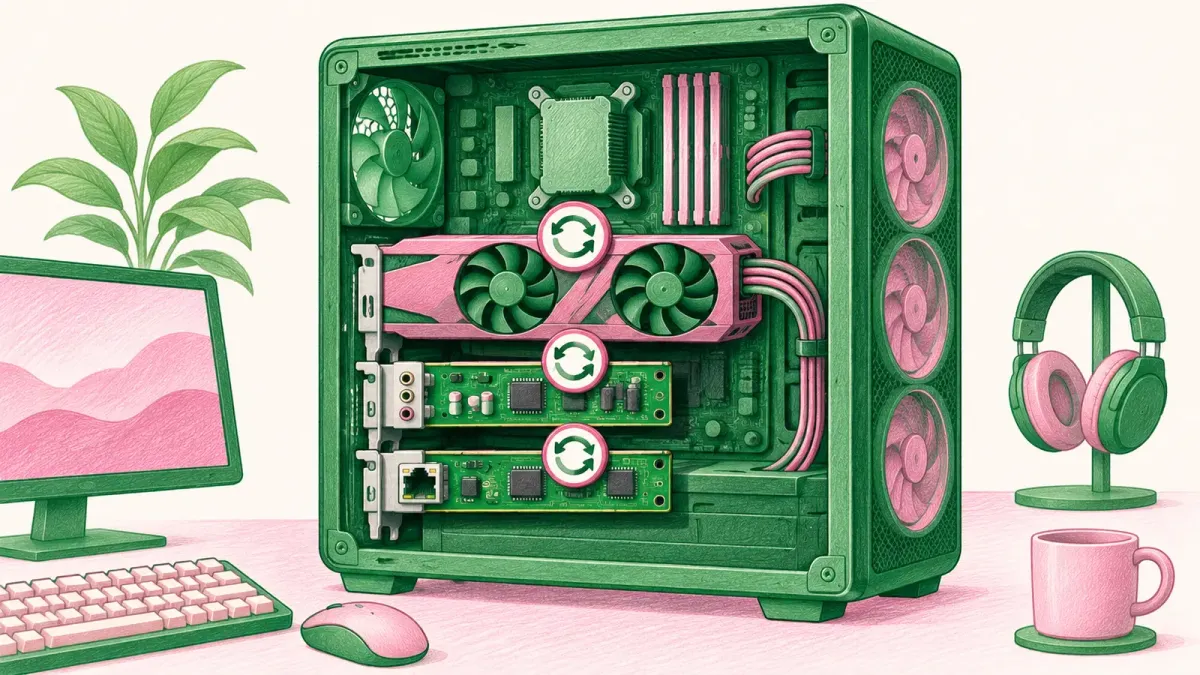
To update drivers in Windows 11, start with Windows Update: it installs recommended drivers on its own and lists the rest under Optional updates. For a single device, use Device Manager. If Windows finds nothing newer, get the driver from your PC or device maker's official website. All three ways are free.
- Select Start > Settings > Windows Update, check for updates and install what's available.
- Select Advanced options > Optional updates, select the driver updates you want, then Download and install.
- For one device, right-click Start > Device Manager, right-click the device and select Update driver > Search automatically for drivers.
- If Windows finds nothing newer, download the driver from the maker's official support page for your model and install it.
- Restart your PC, even if Windows doesn't ask you to.
How you know it worked: the device's Driver tab in Device Manager shows the new driver version, and Windows Update has no driver updates waiting.
A driver is the software that lets Windows talk to a piece of hardware, such as your sound chip, graphics card, Wi-Fi adapter or printer. If you want to know how to update drivers on your PC, there are three free ways, and Windows has the first two built in: Windows Update, Device Manager, and your PC or device maker's website or app. This guide shows each one in Windows 11, with Windows 10 differences, plus how to check whether a driver is up to date and how to undo an update that causes trouble.
1. How to Check if Your Drivers Are Up to Date
Device Manager shows which devices have a problem and which driver version each one is using.
- Right-click Start and select Device Manager.
- Expand the category for the device you want to check, such as Sound, video and game controllers.
- Right-click the device and select Properties. If Windows has found a problem, the Device status box shows an error code.
- Open the Driver tab and note the Driver Version.
- Compare that version with the newest one on your PC or device maker's support page for your model.
Go by the version number, not the date. Microsoft explains that a driver's date is set by its maker and can be any date they choose, so an old-looking date doesn't mean the driver is out of date. For a quick check across your PC, open Settings > Windows Update > Advanced options > Optional updates and see whether Windows Update has any driver updates waiting.
Expected result: you know which devices, if any, have a newer driver available.
2. How to Update Drivers in Windows 11 With Windows Update
Windows Update is the safest place to start. Microsoft says Windows 11 installs recommended drivers automatically through it, but optional drivers aren't installed until you choose them.
- Select Start > Settings > Windows Update > Advanced options.
- Turn on Receive updates for other Microsoft products.
- Under Additional options, select Optional updates.
- Select the driver updates you want, then select Download and install.
- Restart your PC, even if Windows doesn't ask you to.
On Windows 10: go to Start > Settings > Update & Security > Windows Update > Advanced options and turn on Receive updates for other Microsoft products when you update Windows. Go back, select Check for updates, then View optional updates if it appears.
Expected result: no driver updates are left under Optional updates.
3. How to Update a Driver Manually in Device Manager
Use Device Manager when one device isn't working properly or you want to update just that one.
- Right-click Start and select Device Manager.
- Expand the device's category, right-click the device and select Update driver.
- Select Search automatically for drivers (on Windows 10: Search automatically for updated driver software). Windows installs any newer driver it finds.
- If it finds nothing, select Search for updated drivers on Windows Update, or move on to the maker's website (section 4).
- Select Close.
Expected result: Windows installs a newer driver, or tells you the best drivers for your device are already installed.
4. Install Drivers From Your PC or Device Maker
If Windows can't find a newer driver, Microsoft suggests checking the hardware maker's website for the latest driver for your version of Windows. On a laptop or ready-made PC, start with your PC maker's support page for your exact model. PC makers often customize drivers for their own systems: Intel, for example, recommends using drivers from your computer manufacturer when they're available.
- On the maker's support site, find the drivers page for your exact model.
- Download the driver. Make sure it matches your version of Windows and its type (for example 64-bit).
- If it's an installer, run it and follow the steps. If it's a ZIP file, extract it, then in Device Manager right-click the device and select Update driver > Browse my computer for drivers > Browse, choose the folder and select OK > Next.
- Restart your PC.
Some makers offer an app that does this for you. Dell's SupportAssist, for example, comes with most Dell computers that ship with Windows: it scans your computer, then downloads and installs the driver updates it finds.
Expected result: the device's Driver tab shows the version you downloaded.
5. How to Update Audio Drivers
Your audio driver is listed under Sound, video and game controllers in Device Manager. To update it:
- Right-click Start > Device Manager and expand Sound, video and game controllers.
- Right-click your sound card or audio device and select Update driver > Search automatically for drivers.
- If Windows finds nothing newer, download the audio driver from your PC maker's support page for your model (section 4).
- Still no sound? Microsoft suggests trying the generic Windows driver: select Update driver > Browse my computer for drivers > Let me pick from a list of available drivers on my computer (Windows 10: Let me pick from a list of device drivers on my computer), select your audio device, select Next and follow the steps.
Expected result: sound plays normally. Check it with our free speaker and sound test. If you still have no sound, see How to Fix Sound in Windows 11 or, for Realtek audio, How to Fix Realtek Audio Driver Problems.
6. Graphics Drivers
Your graphics driver is under Display adapters in Device Manager and updates the same way as any other driver. Graphics drivers have their own step-by-step guide: How to Update Your Graphics Driver. Not sure which graphics card you have? Use our graphics card checker.
7. How to Update All Drivers at Once in Windows 11
To update several drivers in one go, use one of these:
- Windows Update: under Optional updates, select every driver update listed, then select Download and install once (section 2).
- Your PC maker's app: tools like Dell SupportAssist find and install the driver updates for your model in one go (section 4).
- A driver updater: the Driver Updater in WinZip System Utilities Suite scans your PC for outdated drivers and updates them. On Windows 10, you can also use WinZip Driver Updater on its own.
Expected result: the driver updates on offer install together, instead of one device at a time.
8. How to Undo a Driver Update That Causes Problems
If a device stops working properly after a driver update, go back to the previous driver. You need to be signed in with an administrator account. Microsoft notes that if a problem started after a Windows Update, reinstalling the previous driver often fixes it.
- In Device Manager, right-click the device and select Properties.
- Select the Driver tab, then Roll Back Driver. Choose a reason and select Yes.
- Restart if Windows asks you to.
Roll Back Driver is greyed out? Dell explains that this means no previous version of the driver is stored on your PC. Reinstall the driver instead:
- Save your work. In Device Manager, right-click the device and select Uninstall device.
- To remove the driver completely, tick Attempt to remove the driver for this device (Windows 10: Delete the driver software for this device), then select Uninstall.
- Restart your PC. Windows tries to reinstall the driver when it starts. If it doesn't, select Action > Scan for hardware changes in Device Manager, or install the maker's driver (section 4).
Expected result: the device works again and its Device status box shows no error code.
Is It Safe to Update All Your Drivers?
Yes, if the drivers come from Windows Update or the maker's official website. Microsoft says Windows Update picks the best driver for each device using information the driver's maker puts in the driver files, and it advises against downloading drivers from any website other than the maker's official site. You don't have to install every optional driver, though: Windows Update already installs recommended drivers on its own, and optional ones wait until you choose them. Update a driver by hand when a device isn't working properly or the maker tells you to.
Still Having Driver Problems? What to Try Next
- Look up the error code: Microsoft lists what each Device Manager code means. Code 28 means the drivers for the device aren't installed. Code 43 means Windows stopped the device because it reported problems.
- Go back to a restore point: if a driver change caused new problems, press Windows key + R, type rstrui.exe, press Enter and pick a restore point from before the change. More in How to Use a System Restore Point in Windows 11.
- A USB device, Wi-Fi or Bluetooth isn't working: see How to Fix USB Driver Issues, How to Fix Wi-Fi Issues or How to Fix Bluetooth Issues.
- Contact the device maker: if nothing above works, the maker can help with a driver for your exact model.
Frequently Asked Questions
How do I fix corrupted drivers?
Reinstall the driver. In Device Manager, right-click the device, select Uninstall device, tick Attempt to remove the driver for this device and select Uninstall. Restart, and Windows tries to reinstall it. If it doesn't, select Action > Scan for hardware changes or install the driver from the maker's website.
What is the latest audio driver for Windows 11 or 10?
There isn't one driver for every PC: the right one depends on the sound hardware in your computer. Use Update driver in Device Manager or your PC maker's support page for your model. Windows also comes with a generic audio driver that you can switch to if the maker's driver gives you trouble (see the audio section above).
Does Windows update drivers automatically?
Partly. Windows Update installs recommended drivers automatically. Optional driver updates aren't installed until you select them under Windows Update > Advanced options > Optional updates.
How often should I update my drivers?
There's no fixed schedule. Your PC checks Windows Update regularly and installs newer recommended drivers on its own. Look at Optional updates or the maker's website when a device isn't working properly.
Why does my driver show a date from years ago?
Microsoft explains that the driver date is set by the driver's maker and can be any date they choose, so an old date doesn't mean the driver is out of date. Compare the driver version with the one on the maker's website instead.
Can I update all my drivers for free?
Yes. Windows Update, Device Manager and drivers from your PC or device maker's website cost nothing. A driver updater such as the one in WinZip System Utilities Suite saves you checking each device: it scans for outdated drivers and updates them.
How This Guide Was Checked
- Written by
- Chris, WinZip Team. Updated by the WinZip Team in November 2026.
- First published
- January 15, 2019
- Sources reviewed
- Microsoft Support: Update drivers through Device Manager in Windows
- Microsoft Support: Automatically get recommended and updated hardware drivers
- Microsoft Support: Understanding driver updates
- Microsoft Support: Fix sound or audio problems in Windows
- Microsoft Support: Error codes in Device Manager in Windows
- Microsoft Support: System Protection
- Microsoft Support: System Restore
- Intel: How to Identify Your Intel Graphics Driver Version in Windows 10 and Windows 11
- Intel: An Introduction to Drivers
- Microsoft Support: Install Windows Updates
- Dell: How to Automatically Download and Install Drivers on a Dell Computer
- Dell: How to Roll Back a Device Driver on Dell Windows Computers
Related Guides
Speed Up Your PC With WinZip System Utilities Suite
- Clean junk files and free up disk space
- Update outdated drivers
- Speed up startup
- Optimize and defrag your drives