
How to Remove Ads in Chrome and Edge
Use each browser's own settings to stop pop-ups, intrusive ads and spam notifications on Windows.
Ads coming from add-ons? WinZip System Utilities Suite's Add-ons Manager lists your browser add-ons in one place, and its Uninstall Manager removes programs you don't want.
Quick Answer
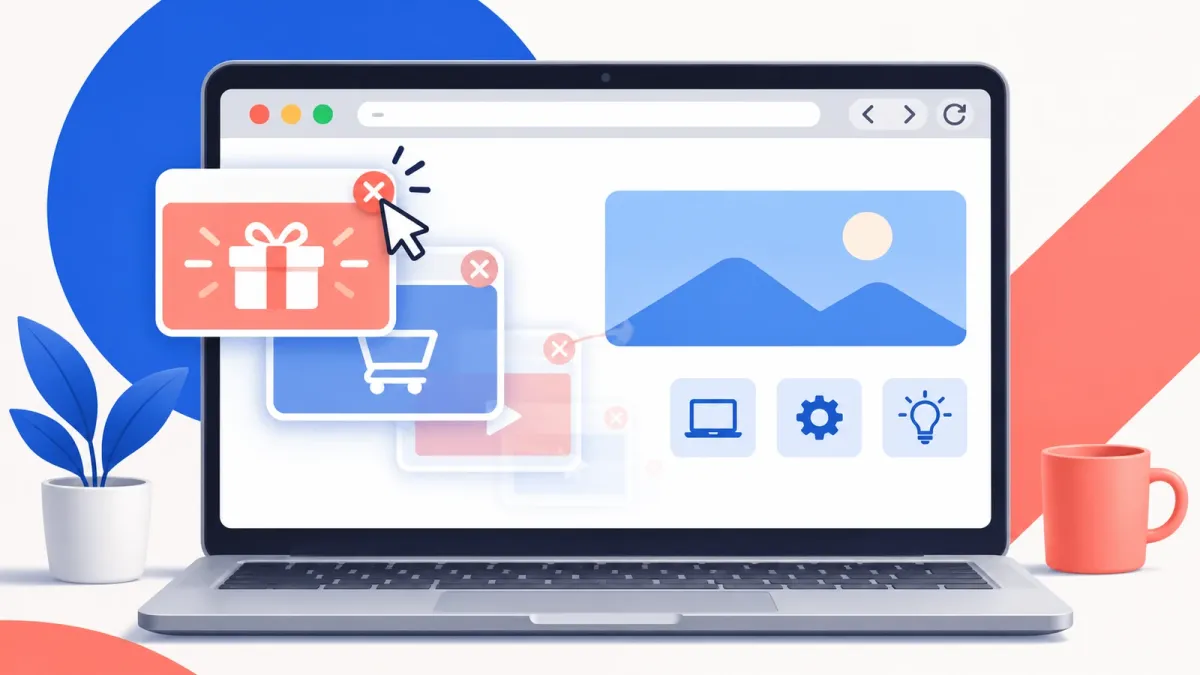
To cut down on pop-ups and ads using your browser's own settings:
- Check the pop-up blocker is on. Chrome: Settings > Privacy and security > Site settings > Pop-ups and redirects. Edge: Settings > Privacy, search, and services > Site permissions > Pop-ups and redirects.
- Block notifications from sites that send ads to the corner of your screen.
- Remove browser extensions you don't recognize or no longer use.
- Uninstall programs you didn't mean to install: Start > Settings > Apps > Installed apps.
- Scan your PC with Windows Security if the pop-ups keep coming back.
How you know it worked: pop-ups and new tabs stop opening on their own, and ads no longer appear in the corner of your screen.
Chrome and Edge both have built-in settings that cut down on pop-ups, intrusive ads, spam notifications and ad tracking. They won't remove every ad on every website, because many sites are paid for by ads. But if pop-ups and new tabs keep appearing, or your homepage or search engine changed without your OK, Google says unwanted software may be the cause, and the steps below deal with that too.
1. Make Sure the Pop-Up Blocker Is On
Both browsers include a pop-up blocker. Chrome and Edge turn it on by default, but it's worth checking.
- Chrome: select More (⋮) > Settings > Privacy and security > Site settings > Pop-ups and redirects, and choose the option that doesn't allow sites to send pop-ups.
- Edge: select Settings and more (…) > Settings > Privacy, search, and services > Site permissions. Under Content, select Pop-ups and redirects and turn on Blocked (recommended).
Pop-up blockers can't stop everything. Microsoft notes that Edge's blocker can't block website advertisements, and a pop-up can still open when you select a button or link on a page.
Expected result: when a site tries to open a pop-up, you see a blocked pop-up icon in the address bar instead of a new window.
2. Turn On Chrome's Intrusive Ads Blocking
Chrome removes ads from websites that break the Better Ads Standards, such as sites with too many ads, flashing or autoplaying ads, or ad walls before the content. To check this setting:
- Select More > Settings > Privacy and security > Site settings.
- Under Content, select Additional content settings > Intrusive ads.
- Make sure the default isn't set to Any site you visit can show any ad to you.
Expected result: sites known for intrusive ads show their pages without those ads. Normal ads on other sites still appear.
3. Stop Sites From Sending Ads as Notifications
Website notifications aren't the same as pop-ups, as Microsoft points out, so the pop-up blocker doesn't stop them. If ads keep appearing in the corner of your screen, check whether a site is sending them as notifications, and block it:
- Chrome: select More > Settings > Privacy and security > Site settings > Notifications. Next to Not allowed to send notifications, select Add and enter the site's address. You can also change the default, for example to quieter notification prompts.
- Edge: on the site, select View site information to the left of the address bar, then set Notifications to Block. For other sites, go to Settings > Privacy, search, and services > Site permissions > All sites.
Expected result: the site can no longer send alerts to your desktop.
4. Remove Extensions You Don't Recognize
Google lists unwanted extensions or toolbars that keep coming back as a sign of unwanted software, and Microsoft suggests turning extensions off one at a time when pop-ups won't stop.
- Chrome: select More > Extensions > Manage extensions. Use the switch to turn an extension off, or select Remove and confirm.
- Edge: select Extensions to the right of the address bar > Manage extensions. Use the toggle to turn one off. To remove one, select Extensions again, then More actions next to it > Remove from Microsoft Edge > Remove.
Turn everything off first. If the ads stop, turn extensions back on one at a time until you find the one causing them, then remove it.
Expected result: the pop-ups or extra ads stop once the problem extension is off.
5. Cut Down on Ad Tracking
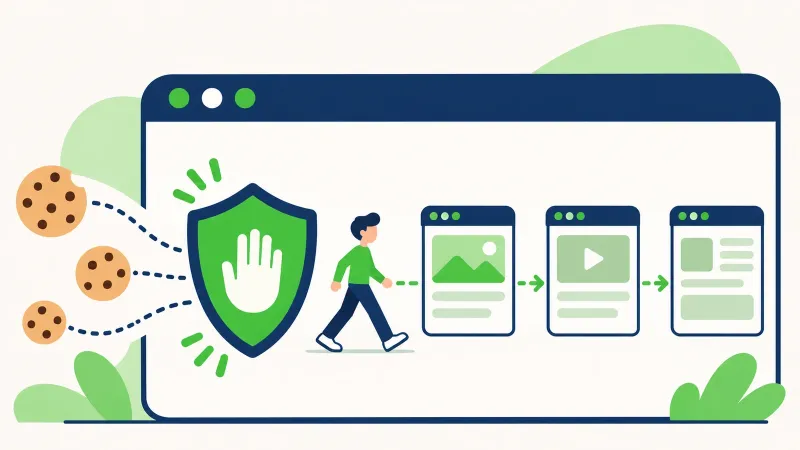
Trackers that follow you from site to site are why ads can seem to chase you around the web. Each browser can block many of them:
- Edge: go to Settings > Privacy, search, and services > Tracking prevention, make sure it's on, and choose Balanced (recommended) or Strict.
- Chrome: go to Settings > Privacy and security > Third-party cookies and select Block third-party cookies.
Strict settings block more, but Microsoft notes that some sites may not work as expected. Our guide on how to block tracking cookies covers this step in more detail.
Expected result: ads become less personalized. You'll still see ads, but fewer of them will follow you from site to site.
6. Remove Unwanted Programs and Reset Your Browser
If pop-ups keep coming back, a program on your PC may be causing them.
- Select Start > Settings > Apps > Installed apps. Select any app you don't recognize or didn't mean to install, then Uninstall.
- Scan your PC with Windows Security: search for Windows Security in the Start menu and select Virus & threat protection > Quick scan.
- In Chrome, reset your settings: select More > Settings > Reset settings > Restore settings to their original defaults > Reset settings.
Expected result: your homepage and search engine are back to what you chose, and new tabs no longer open on their own.
Still Seeing Ads? What to Try Next
- Update your browser: in Chrome, select More > Help > About Google Chrome. In Edge, select Settings and more > Help and feedback > About Microsoft Edge.
- Turn on stronger Safe Browsing in Chrome: go to Settings > Privacy and security > Security and choose Enhanced protection, which warns you about dangerous sites, downloads and extensions.
- Want to block more ads? Ad-blocking extensions are available in each browser's extension store. Only install extensions you trust, and remove any you stop using.
Frequently Asked Questions
Does Chrome block all ads?
No. Chrome only removes ads from websites that break the Better Ads Standards, such as sites with too many ads or ads with flashing graphics or autoplaying audio. Ads on other sites still appear.
Why do I still see ads with Edge's pop-up blocker on?
Microsoft notes that Edge's pop-up blocker can't block website advertisements, and it doesn't stop a pop-up that opens when you select a button or link. Tracking prevention, blocking third-party cookies and checking your extensions can help.
Why do ads appear in the corner of my screen?
They may be website notifications rather than pop-ups. Microsoft notes the two aren't the same, so the pop-up blocker won't stop them. Block the site in your browser's notification settings, and if they keep coming, check your extensions and installed programs.
Is it safe to block third-party cookies?
Yes, but some sites may not work as expected. Chrome lets you allow third-party cookies for specific sites you trust, and Edge lets you add exceptions to tracking prevention.
Do I need an ad-blocker extension?
Not for pop-ups and intrusive ads: the built-in settings above handle those. If you want to block more, ad-blocking extensions are available, but only install extensions you trust, since extensions can also be a source of unwanted ads.
Does WinZip System Utilities Suite block ads?
No. WinZip System Utilities Suite isn't an ad blocker or antivirus. Its Add-ons Manager helps you find and remove browser add-ons, and its Uninstall Manager removes programs you don't want. Use your browser's settings and Windows Security for the rest.
How This Guide Was Checked
- Written by
- Chris, WinZip Team. Updated by the WinZip Team in November 2026.
- First published
- January 12, 2023
- Sources reviewed
- Google Chrome Help: Block or allow pop-ups in Chrome
- Google Chrome Help: Visit a site by turning off Chrome's ad blocker
- Google Chrome Help: Remove unwanted ads, pop-ups & malware
- Google Chrome Help: Use notifications to get alerts
- Chrome Web Store Help: Install and manage extensions
- Microsoft Support: Block pop-ups in Microsoft Edge
- Microsoft Support: Learn about tracking prevention in Microsoft Edge
- Microsoft Support: Manage website notifications in Microsoft Edge
- Microsoft Support: Add, turn off, or remove extensions in Microsoft Edge
- Google Chrome Help: Delete, allow, and manage cookies in Chrome
- Google Chrome Help: Choose your Safe Browsing protection level in Chrome
- Microsoft Support: Stay protected with the Windows Security app
- Google Chrome Help: Update Google Chrome
- Microsoft Support: Microsoft Edge update settings
Related Guides


Speed Up Your PC With WinZip System Utilities Suite
- Clean junk files and free up disk space
- Update outdated drivers
- Speed up startup
- Optimize and defrag your drives