
How to Compress PDFs for Free
Free ways to make a PDF smaller so it's easier to email, upload and store, with tools you already have.
Keep your PC running smoothly. WinZip System Utilities Suite cleans junk files, updates drivers and manages the apps that start with Windows.
Quick Answer
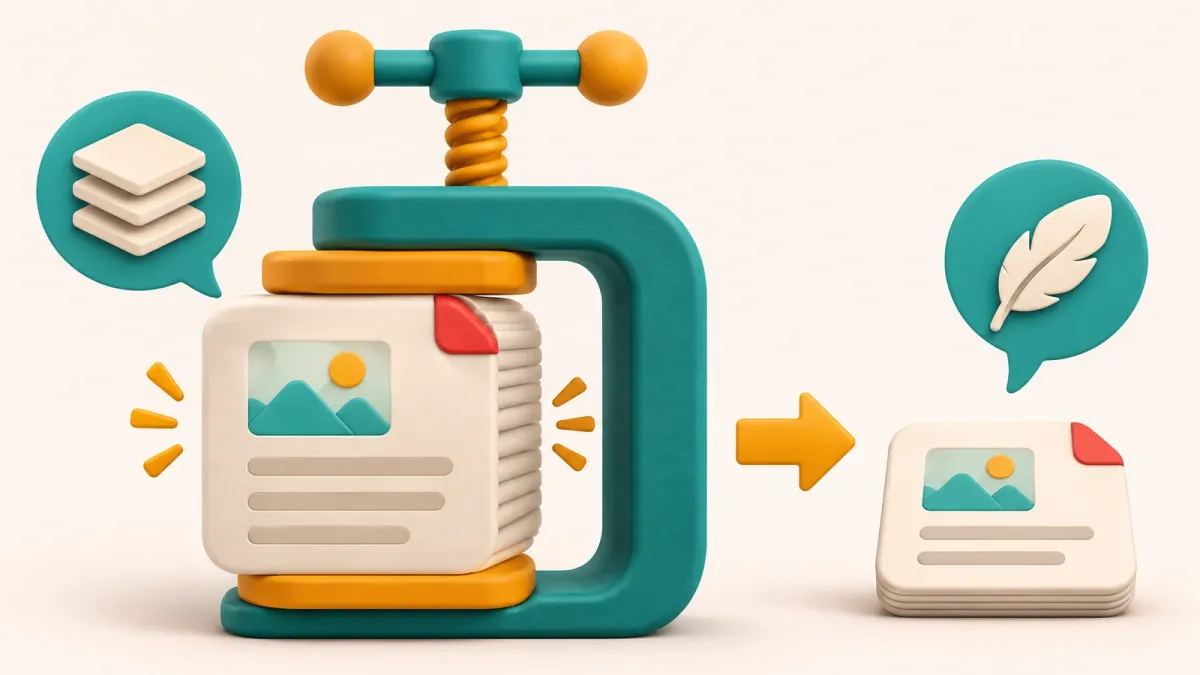
To make a PDF smaller for free:
- If you made it in Excel or PowerPoint, save it as a PDF again and choose Minimum size (publishing online).
- If it has photos, select a picture in the original document, then Picture Format > Compress Pictures, pick a lower resolution and save as PDF again.
- Keep only the pages you need: open the PDF in Microsoft Edge, press Ctrl + P, choose Microsoft Print to PDF and set Pages to Custom.
- Still too big to email? Zip it, or share a OneDrive link instead of attaching it.
How you know it worked: right-click the new file, select Properties and compare its Size with the original.
A large PDF can be too big to email, slow to upload and awkward to store. You don't need to buy a PDF app to make it smaller. The methods below use tools that come with Windows or Microsoft Office, and one for Mac users. Start with the first one that fits your file, and check the size after each step.
1. Check How Big Your PDF Is
- In File Explorer, right-click the PDF and select Properties.
- Look at Size on the General tab.
Why it matters: Gmail, for example, limits attachments to 25 MB for personal accounts. If you attach something bigger, Gmail removes the attachment and adds a Google Drive link to it instead. For Google Workspace work and school accounts, the administrator sets the limit.
Expected result: you know the starting size, so you can see how much each method saves.
2. Save It Again at Minimum Size From Excel or PowerPoint
If the PDF came from an Office file you still have, the quickest fix is to make it again at a smaller size. Microsoft recommends the minimum size option when file size matters more than print quality.
- PowerPoint: select File > Export, then PDF (*.pdf) in the Save as type list.
- Excel: select File > Save As or Save a Copy, then PDF in the Save as type list.
- Choose Minimum size (publishing online) instead of Standard (publishing online and printing).
- Save the file with a new name, so you keep the original.
Expected result: the new PDF is smaller than the one saved at Standard.
3. Compress the Pictures Before You Make the PDF
Photos and scanned images can make a document large. Word, PowerPoint and Excel can shrink the pictures before you save as PDF.
- Open the original document and select a picture.
- On the Picture Format tab, select Compress Pictures in the Adjust group.
- To compress every picture in the document, clear the Apply only to this picture check box.
- Under Resolution, choose a lower resolution, then select OK.
- Save the document as a PDF again: in Word, select File > Save a Copy > Browse and choose PDF.
Expected result: the new PDF is smaller. Zoom in on the pictures to make sure they still look clear enough.
4. Keep Only the Pages You Need
If people only need part of a long document, a PDF with fewer pages is smaller. Windows includes a printer called Microsoft Print to PDF that saves what you print as a new PDF.
- Open the PDF in Microsoft Edge.
- Press Ctrl + P.
- Choose Microsoft Print to PDF as the printer.
- Under Pages, choose Custom and enter the pages you want, such as 1-5.
- Select Print, then choose a name and folder for the new file.
Making the PDF in Word? Select Options in the save window and set a Page range instead.
Expected result: a new, shorter PDF with only the pages you chose. You can repeat this to split a big PDF into several smaller ones.
5. Zip the PDF
Microsoft notes that zipped (compressed) files take up less storage space and can be transferred more quickly. Zipping also lets you send several PDFs as one file.
- Right-click the PDF (or several selected PDFs).
- Select Show more options > Send to > Compressed (zipped) folder. On Windows 10, Send to is in the first menu.
- Send the new .zip file. The person you send it to can right-click it and select Extract All.
Expected result: a .zip file next to the original. Compare the sizes: how much you save depends on the PDF.
6. Share a Link Instead of Attaching the File
If the file is still too big, don't attach it at all. Put it in your OneDrive folder and send a link.
- Move or copy the PDF into your OneDrive folder in File Explorer.
- Right-click it and select Share a OneDrive link. The link is copied for you.
- Paste the link into your email or message.
Links made this way let people edit by default. To change that, share from OneDrive.com instead and turn off editing in the link settings.
Expected result: the recipient opens the PDF from the link, and nothing large is attached to your email.
7. Compress a PDF on a Mac With Preview
- Open the PDF in the Preview app.
- Choose File > Export.
- In the Quartz Filter pop-up menu, choose Reduce File Size.
- Give the file a new name in Export As so you keep the original, then click Save.
Expected result: a smaller copy of the PDF. Apple notes it may be lower quality than the original, so check it before you send it.
Still Too Big? What to Try Next
- Combine methods: compress the pictures, save at minimum size, then zip the result.
- Split it: use the page range steps in section 4 to make two or three smaller PDFs.
- Use a link: with a OneDrive link (section 6), nothing is attached to the email, so attachment limits don't apply.
Need to make a PDF from pictures first? See How to Convert PNG to PDF for Free, and for the basics, What Does PDF Stand For?
Frequently Asked Questions
How big can an email attachment be?
It depends on the email service. Gmail's limit for personal accounts is 25 MB, and if you attach something bigger it's automatically replaced with a Google Drive link. Work and school accounts have limits set by their administrator.
Will compressing my PDF make it look worse?
It can. Microsoft says compressing pictures may make them look different because of loss of detail, and Apple says a PDF made smaller in Preview may be lower quality than the original. Keep the original and check the new file before you send it.
Can I compress a PDF without Microsoft Office?
Yes. On Windows you can keep only the pages you need with Microsoft Edge and Microsoft Print to PDF, zip the file with File Explorer, or share a OneDrive link. On a Mac, Preview's Reduce File Size filter is free.
Will the person I send a zipped PDF to be able to open it?
Yes. On Windows they right-click the .zip file and select Extract All, or open the zipped folder and drag the PDF out.
What's the difference between Standard and Minimum size when saving a PDF?
Microsoft recommends Standard (publishing online and printing) when you need high print quality, and Minimum size (publishing online) when file size matters more than print quality.
How This Guide Was Checked
- Written by
- Chris, WinZip Team. Updated by the WinZip Team in November 2026.
- First published
- October 27, 2022
- Sources reviewed
- Microsoft Support: Save or convert to PDF or XPS in Office desktop apps
- Microsoft Support: Reduce the file size of a picture in Microsoft Office
- Microsoft Support: Print in Microsoft Edge
- Microsoft Learn: RemoveMPDW (Microsoft Print to PDF)
- Microsoft Support: Zip and unzip files
- Microsoft Support: Share files and folders in Microsoft OneDrive
- Apple Support: Reduce the size of a PDF in Preview on Mac
- Gmail Help: Send attachments with your Gmail message
Related Guides



Speed Up Your PC With WinZip System Utilities Suite
- Clean junk files and free up disk space
- Update outdated drivers
- Speed up startup
- Optimize and defrag your drives