
What Does PDF Stand For? A Simple Guide to PDF Files
PDF means Portable Document Format. Here's what that means, and how to open, edit and protect PDFs for free.
Keep your PC running smoothly. WinZip System Utilities Suite cleans junk files, updates drivers and manages the apps that start with Windows.
Quick Answer
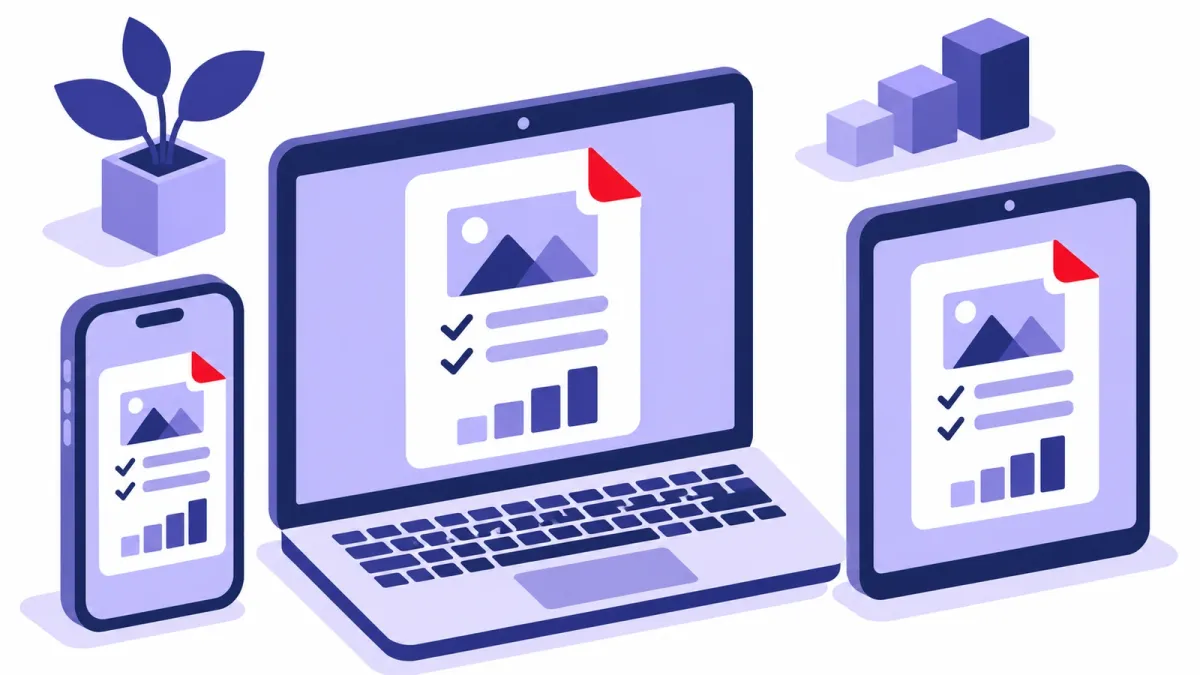
PDF stands for Portable Document Format, a file type Adobe introduced in 1993 that looks the same on any device. On Windows you can work with PDFs for free:
- Open: double-click the PDF. Microsoft Edge has a built-in PDF reader; Adobe Acrobat Reader is also free.
- Create: in Word, select File > Save a Copy, choose PDF and select Save, or print from any app to Microsoft Print to PDF.
- Mark up: in Edge, select text, right-click and choose Highlight or Add comment.
- Change the text: open the PDF in Word with File > Open; Word makes an editable copy.
How you know it worked: your PDF opens in the app you chose and your changes are there when you open it again.
PDF stands for Portable Document Format. It's the file type behind most forms, contracts, manuals and e-tickets you download, and it ends in .pdf. This guide explains where PDFs came from and why they're everywhere, then shows you how to open, create, edit, fix and password-protect them for free on a Windows PC.
1. What PDF Stands For and Where It Came From
Adobe created the format. Its co-founder, Dr. John Warnock, started a project called the Camelot Project to move documents from paper to digital, and Adobe says the result, the Portable Document Format, was born in 1993. Adobe added passwords and encryption in 1994 and fill-in forms in 1996.
Today PDF is an open standard maintained by the International Organization for Standardization (ISO), so many companies make apps that can open and create PDFs.
2. Why People Use PDFs
- They look the same everywhere. Adobe designed PDFs to display the same way whatever software, hardware or operating system the reader uses, so fonts and layout don't shift.
- They can hold more than text. A PDF can contain links, buttons, form fields, audio and video, and it can be signed electronically.
- They're easy to share and print. Most office apps can save as PDF, and most computers and phones can open one.
One common belief isn't quite right: saving as a PDF doesn't stop people editing it. Microsoft points out that many programs, including Word, can open and edit PDF files.
3. How to Open a PDF for Free
You don't need to buy anything. Windows comes with Microsoft Edge, which has a built-in PDF reader for files on your PC, online PDFs and PDFs inside web pages.
- Double-click the PDF. If it opens in a different app, right-click it and select Open with > Microsoft Edge.
- Use the toolbar at the top to zoom, rotate, search or jump to a page.
- Prefer Adobe's app? Adobe Acrobat Reader is free to view, print, comment on and fill in PDFs.
To choose which app opens PDFs every time, select Start > Settings > Apps > Default apps, type .pdf in the search box, select the result and pick your app.
Expected result: double-clicking any PDF opens it in the app you chose.
4. How to Create a PDF
From Word:
- Select File > Save a Copy (or Save As if the document hasn't been saved yet).
- Select Browse and choose where to save it.
- In the file type list, select PDF, then select Save.
From any app that can print: Windows has included a printer called Microsoft Print to PDF since Windows 10, and it's installed by default. Open the app's Print window (often Ctrl + P), choose Microsoft Print to PDF as the printer, select Print, then choose a name and folder for the file.
Expected result: a new .pdf file appears in the folder you picked.
5. How to Edit a PDF for Free
To mark up a PDF in Microsoft Edge (good for notes, reviews and forms):
- Highlight: select the text, right-click, choose Highlight and pick a color.
- Comment: select the text, right-click, choose Add comment, type your note and select the check mark.
- Draw: use the Draw tool to write notes or sign on the page, in the color and line width you choose.
- Fill in forms: type into the form fields. Edge handles basic forms, but not forms that rely on JavaScript or the older XFA format.
- Read aloud: have Edge read the document to you.
Save the file when you're done so your markup stays with it.
To change the text itself, use Word:
- In Word, select File > Open and choose the PDF.
- Word tells you it's going to make an editable copy of the PDF; your original stays unchanged. Select OK.
- Make your changes, then save it as a PDF again (see section 4).
Microsoft notes this works best with PDFs that are mostly text. Scanned book pages or copier-style documents won't format well, and the converted copy may not match the original page for page.
Expected result: your highlights and notes show when you reopen the PDF, or Word saves a new PDF with your edits.
6. How to Fix a PDF That Won't Open
- Download it again. If the file came from an email or website, the copy you have may be damaged. Get a fresh copy from the original source, and only open PDFs from people and sites you trust.
- Try a different reader. If it fails in Edge, try Adobe Acrobat Reader, and the other way round. Forms built with XFA, for example, won't work in Edge.
- Update your reader. Edge's PDF reader updates with the browser. In Acrobat Reader, install the latest version from Adobe.
- Check the default app. If PDFs open in the wrong program, change it in Settings > Apps > Default apps (see section 3).
- Ask for the password. If the PDF asks for one, ask the person who sent it.
Expected result: the document opens and shows all its pages.
7. How to Password-Protect a PDF for Free
If you create the PDF in Word, you can lock it so only people with the password can open it.
- In Word, select File > Save a Copy > Browse, and choose PDF as the file type.
- Select More options > Options (or the Options button in the save window).
- Tick Encrypt the document with a password and select OK.
- Type the password, type it again to confirm, select OK, then Save.
Send the password separately from the file, for example by text message rather than in the same email.
Expected result: when you open the new PDF, it asks for the password first.
Frequently Asked Questions
Who invented the PDF?
Adobe. Co-founder Dr. John Warnock started the Camelot Project to move documents from paper to digital, and Adobe says the Portable Document Format was born from it in 1993.
Is PDF owned by Adobe?
Adobe created it, but PDF is now an open standard maintained by the International Organization for Standardization (ISO). That's why so many apps, including Microsoft Edge and Word, can open and create PDFs.
Do I need Adobe Acrobat to open a PDF?
No. Microsoft Edge, which comes with Windows, has a built-in PDF reader. Adobe Acrobat Reader is also free if you prefer it.
Can someone edit a PDF I send them?
Yes. Microsoft notes that saving as PDF doesn't prevent editing, because many programs, including Word, can open and edit PDF files. A password from Word's Encrypt the document with a password option stops people opening it without the password.
Why can't I fill in a PDF form in Edge?
Edge supports basic form filling, but not forms that use JavaScript or the older XFA format. Try the free Adobe Acrobat Reader, which can fill in forms.
Can I sign a PDF for free?
Yes. In Edge, use the Draw tool to sign on the page. Adobe Acrobat Reader also lets you add signatures for free.
How This Guide Was Checked
- Written by
- Chris, WinZip Team. Updated by the WinZip Team in November 2026.
- First published
- April 26, 2022
- Sources reviewed
- Adobe: What is a PDF? Portable Document Format
- Adobe: The history of the PDF (timeline)
- Adobe: Acrobat Reader, the free PDF reader
- Microsoft Learn: PDF reader in Microsoft Edge
- Microsoft Support: Save or convert to PDF or XPS in Office desktop apps
- Microsoft Support: Edit a PDF
- Microsoft Support: Change default apps in Windows
- Microsoft Learn: RemoveMPDW (Microsoft Print to PDF)
- Microsoft Support: Common file name extensions in Windows
Related Guides


Speed Up Your PC With WinZip System Utilities Suite
- Clean junk files and free up disk space
- Update outdated drivers
- Speed up startup
- Optimize and defrag your drives