
How to Fix 100% Disk Usage in Windows 10 and 11
Find out what keeps your drive at 100%, then fix it with tools already built into Windows.
Drive nearly full? WinZip System Utilities Suite's Junk Files scan clears unneeded files, and Disk Explorer shows which files and folders take up the most space.
Quick Answer
To bring disk usage down in Windows 10 or 11:
- Press Ctrl + Shift + Esc, open Processes and select the Disk column to see what is using the drive.
- Restart, then install updates in Settings > Windows Update and let them finish.
- If search indexing is busy, exclude large folders in Settings > Privacy & security > Searching Windows.
- Free up space in Settings > System > Storage > Temporary files.
- Check the drive for errors: run chkdsk C: /f from an administrator Command Prompt.
How you know it worked: on Task Manager's Performance tab, your disk's active time stays well below 100% when you aren't copying files or installing anything.
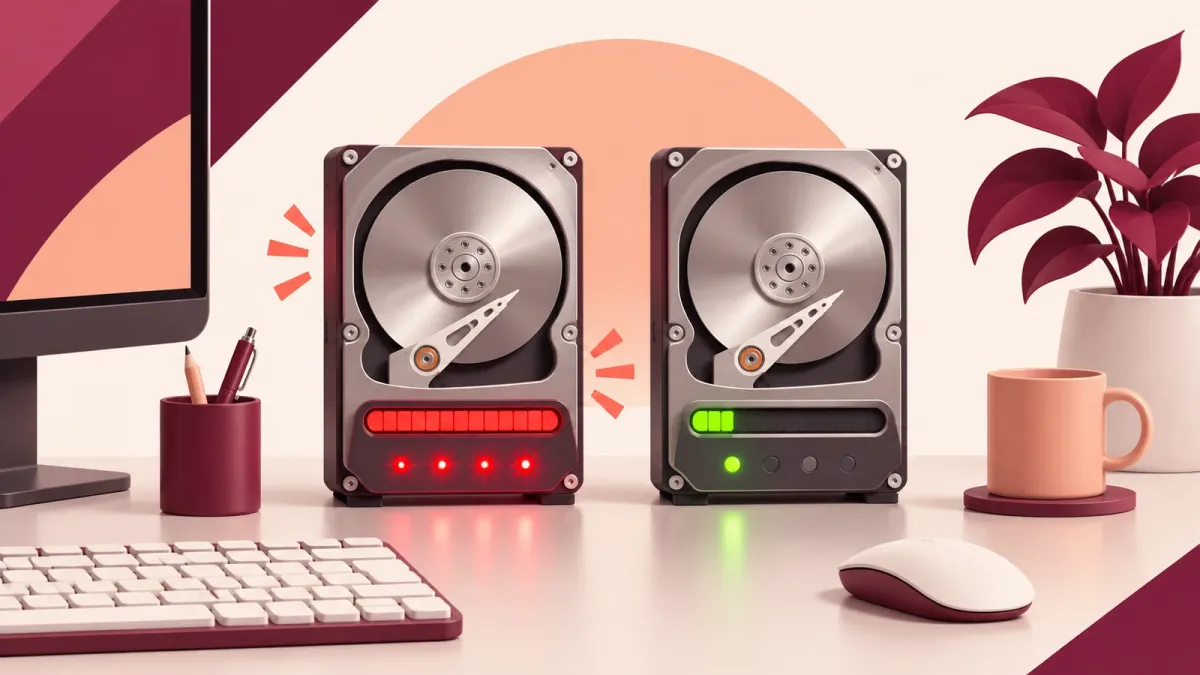
When Task Manager shows your disk at or near 100%, apps open slowly and the whole PC can feel frozen, because everything is waiting for the drive. Common culprits are updates or search indexing running in the background, a nearly full drive, too many startup apps, outdated drivers, malware or file system errors. The steps below work in Windows 10 and Windows 11.
1. Find What's Using the Disk in Task Manager
- Press Ctrl + Shift + Esc to open Task Manager. On Windows 10, select More details if you only see a short list of apps.
- Select Processes, then select the Disk column heading so the busiest items are at the top.
- Open the Performance tab and select your disk to watch its activity over a few minutes.
If an app you opened yourself is at the top, save your work and close it. If the busy item is Windows Update or the Windows Search indexer (SearchIndexer.exe), use the matching step below. Don't end Windows processes you don't recognize.
Expected result: you know which program is keeping the disk busy.
2. Restart and Let Windows Updates Finish
A restart closes apps that have piled up, and installing waiting updates gets fixes and performance improvements onto your PC.
- Save your work and select Start > Power > Restart.
- Windows 11: select Start > Settings > Windows Update > Check for updates. Windows 10: select Start > Settings > Update & Security > Windows Update > Check for updates.
- Install what's available and restart if Windows asks you to.
Expected result: Windows Update says you're up to date, and disk activity settles once installing has finished.
3. Check Whether Search Indexing Is Busy
Windows Search builds an index of your files so searches are quick. Microsoft says a typical PC indexes fewer than 30,000 items, and performance problems can start above 400,000. Large folders and big Outlook mailboxes push the count up.
- Windows 11: select Settings > Privacy & security > Searching Windows and check the Indexed count. Windows 10: select Settings > Search > Searching Windows and check Indexed Items.
- To index less, select Add an excluded folder on the same page and pick large folders you don't need to search, such as archives or backups.
- If the index seems stuck or broken, open Advanced indexing options (Windows 10: Advanced Search Indexer Settings), select Advanced > Rebuild, and leave the PC on. Microsoft says rebuilding can take up to 24 hours.
Microsoft notes that the indexer stops running when disk or processor use is high, to leave those resources for what you're doing. It also notes that some "optimize your PC" apps turn off the Windows Search service, and recommends not doing that if you want search to work.
Expected result: the Searching Windows page shows Indexing complete and fewer indexed items.
4. Scan for Malware With Windows Security
- Windows 11: select Start > Settings > Privacy & security > Windows Security > Virus & threat protection > Quick scan.
- Windows 10: select Start > Settings > Update & Security > Windows Security > Virus & threat protection > Quick scan.
Expected result: the scan reports no current threats, or removes what it found.
5. Free Up Disk Space
A nearly full drive leaves Windows little room to work. Microsoft notes the search indexer alone needs more than 1 GB of free space.
- Temporary files: select Start > Settings > System > Storage > Temporary files, tick what you want to remove and select Remove files.
- Storage Sense: turn it on in Settings > System > Storage so Windows clears temporary files for you.
- Disk Cleanup: search for Disk Cleanup, pick your drive and tick the file types to delete.
Empty the Recycle Bin afterwards to get the space back. For more ways to clear space, see How to Find and Remove Duplicate Files.
Expected result: Settings > System > Storage shows more free space.
6. Update Your Drivers
Drivers let Windows talk to your hardware, including your drive. Microsoft recommends Windows Update as the best way to get driver updates; Device Manager is the manual route.
- Right-click Start and select Device Manager.
- Expand a category, such as Disk drives or Storage controllers.
- Right-click the device, select Update driver > Search automatically for updated driver software.
- If Windows finds nothing newer, select Search for updated drivers on Windows Update.
Full steps are in How to Update Drivers.
Expected result: Windows installs a newer driver or tells you the best one is already installed.
7. Check the Drive for Errors
The built-in chkdsk command checks the drive's file system for logical and physical errors and, with /f, fixes them.
- Select Start, type Command Prompt, right-click it and choose Run as administrator.
- Type chkdsk C: /f and press Enter.
- Because Windows is using drive C:, chkdsk asks whether to check it the next time the system restarts. Type Y, press Enter and restart.
Run without /f, chkdsk only reports problems. chkdsk C: /r also looks for bad sectors and recovers readable information, but it reads every sector and can take hours on a large hard drive.
Expected result: chkdsk finishes during the restart and Windows starts normally.
8. Turn Off Startup Apps You Don't Need
Every app that starts with Windows reads from the disk while you sign in. Press Ctrl + Shift + Esc, select Startup apps (Windows 10: Startup), right-click an app you don't need straight away and choose Disable. More in How to Fix Slow Startup in Windows 11.
Expected result: less disk activity in the first minutes after you sign in.
Still at 100%? What to Try Next
- Optimize the drive: search for Defragment and Optimize Drives, select your drive and choose Optimize.
- Back up your files: if chkdsk keeps finding errors, copy your important files somewhere safe now. Microsoft notes that when Windows Search has trouble writing its index to the drive, a drive failure usually follows, and recommends backing up your personal data.
- General slowness: see How to Speed Up a Slow Windows PC for more fixes.
Frequently Asked Questions
Should I disable Windows Search to fix 100% disk usage?
Microsoft doesn't recommend it if you want search to work. Instead, exclude large folders in Searching Windows or rebuild the index. Microsoft also notes that the indexer pauses on its own when the disk or processor is busy.
How long does rebuilding the search index take?
Microsoft says to let the indexer run for up to 24 hours to rebuild the index database. Search results may be incomplete until it shows Indexing complete.
Is it safe to run chkdsk on an SSD?
Yes. Microsoft says running chkdsk on an SSD isn't dangerous. Repeated full scans with /r add some wear, but occasional checks aren't a significant concern.
Why does chkdsk want to run when I restart?
To fix errors, chkdsk needs to lock the drive. Windows is always using drive C:, so chkdsk offers to check it the next time the PC restarts, when nothing else is using it.
Does 100% disk usage mean my drive is failing?
Not necessarily. Updates, search indexing and a nearly full drive can all keep the disk busy, so work through the steps above first. If chkdsk keeps finding errors, back up your personal files: Microsoft notes that when Windows Search has trouble writing its index to the drive, a drive failure usually follows.
How This Guide Was Checked
- Written by
- Chris, WinZip Team. Updated by the WinZip Team in November 2026.
- First published
- April 29, 2019
- Sources reviewed
- Microsoft Learn: Troubleshoot Windows Search performance
- Microsoft Learn: chkdsk
- Microsoft Support: Tips to improve PC performance in Windows
- Microsoft Support: Update drivers through Device Manager in Windows
- Microsoft Support: Free up drive space in Windows
- Microsoft Support: Use a screen reader to navigate Windows support tools (Task Manager)
Related Guides




Speed Up Your PC With WinZip System Utilities Suite
- Clean junk files and free up disk space
- Update outdated drivers
- Speed up startup
- Optimize and defrag your drives