
How to Fix Programs That Won't Install in Windows
Fixes for when a program won't install on Windows 11 or Windows 10, from quickest to most thorough.
Short on space for new programs? WinZip System Utilities Suite clears junk files and lets you remove programs you no longer use with Uninstall Manager, making room for the ones you need.
Quick Answer
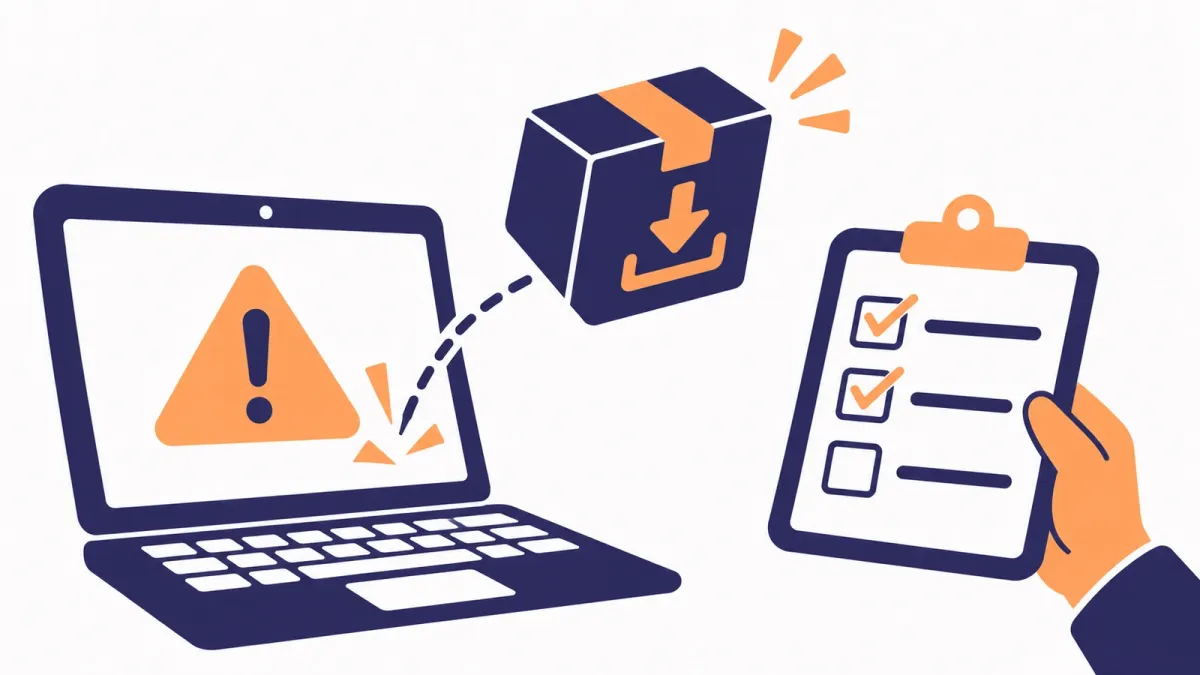
When a program won't install on Windows 11 or 10:
- Restart your PC: Start > Power > Restart, then run the installer again.
- Free up drive space: Settings > System > Storage > Cleanup recommendations.
- Check Settings > Apps > Advanced app settings > Choose where to get apps, in case Windows only allows Microsoft Store apps.
- If the app is half-installed, repair or uninstall it in Settings > Apps > Installed apps, then install it again.
- Install Windows updates, then repair Windows files with DISM and sfc /scannow.
How you know it worked: the installer finishes without an error and the program appears in Installed apps.
When a program refuses to install, the cause is usually something simple: a pending restart, a full drive, a setting that only allows Microsoft Store apps, or a half-finished earlier install. Work through the fixes below in order and try the installer again after each one. The steps are for Windows 11, with Windows 10 differences noted where the menus change.
1. Restart Your PC and Try Again
Microsoft's first suggestion for programs that won't install or uninstall is a simple restart, so start there before you change anything else.
- Save your work and close your apps.
- Select Start > Power > Restart.
- Run the program's installer again.
Expected result: the installer gets further than before, or finishes.
2. Free Up Drive Space
A program can't install if there isn't room for its files. If your system drive is nearly full, clear some space first.
- Select Start > Settings > System > Storage > Cleanup recommendations.
- Review the categories (such as Temporary files, Large or unused files and Unused apps), select what you want to remove, and select Clean up.
On Windows 10: search for Disk Cleanup on the taskbar, choose your drive, tick the file types to delete and select OK. Select Clean up system files to find more space.
Expected result: Settings > System > Storage shows more free space on your system drive.
3. Check Which Apps Windows Allows You to Install
Windows can be set to install apps only from the Microsoft Store. If yours is, programs you download from a website are blocked.
- Select Start > Settings > Apps > Advanced app settings.
- Look at Choose where to get apps. If it says The Microsoft Store only (Recommended), change it to Anywhere or Anywhere, but warn me before installing an app that's not from the Microsoft Store.
On Windows 10: the same setting is under Start > Settings > Apps > Apps & features.
Is your PC in S mode? Windows 11 in S mode only lets you install apps from the Microsoft Store. To install other programs, you have to switch out of S mode: go to Settings > System > Activation, find Switch to Windows 11 Pro and select Go to the Store, then select Get on the Store page. Microsoft warns not to use the link under Upgrade your edition of Windows, which keeps you in S mode.
Expected result: the installer starts instead of showing a message about Microsoft Store apps.
4. Repair, Reset or Uninstall a Half-Installed Program
If an earlier install or update of the same program stopped partway, the leftovers can block a new install. Fix or remove the old copy first.
- Select Start > Settings > Apps > Installed apps.
- Find the program, open its options and select Advanced options.
- Select Repair. If that doesn't help, select Reset. Not every desktop program offers these options.
- If the program still doesn't work, select Uninstall from the same list, follow the prompts, restart, and then run the latest installer.
Expected result: the old copy is repaired, or it no longer appears in Installed apps and the fresh install goes through.
5. Install Windows Updates
Bring Windows up to date before you try again. Microsoft notes that the time updates take depends mostly on your internet speed and the size of the update.
- Select Start > Settings > Windows Update.
- Select Check for updates and install everything that's available.
- Restart if Windows asks you to.
On Windows 10: select Start > Settings > Update & Security > Windows Update > Check for updates.
Expected result: Windows Update says you're up to date.
6. Repair Windows System Files With DISM and SFC
Damaged Windows files can make installs fail. Two built-in tools check and repair them. Microsoft recommends running DISM first, then System File Checker.
- Type cmd in the search box, right-click Command Prompt and select Run as administrator. Select Yes if Windows asks for permission.
- Type DISM.exe /Online /Cleanup-image /Restorehealth and press Enter. This can take several minutes.
- When it finishes, type sfc /scannow and press Enter. Don't close the window until verification reaches 100%.
- Restart your PC and try the installer again.
Expected result: SFC reports "Windows Resource Protection did not find any integrity violations" or "found corrupt files and successfully repaired them." For a full walkthrough, see How to Repair System Files Using System File Checker.
7. Scan for Malware With Windows Security
If you suspect malware or a suspicious app is behind the problem, Microsoft suggests scanning with Windows Security, and removing a suspicious app only after any threats are cleaned. Windows Security is built into Windows 11 and Windows 10, so there's nothing extra to install.
- Search for Windows Security in the Start menu and open it.
- Select Virus & threat protection > Quick scan.
- Follow the steps it gives you if it finds anything.
Expected result: the scan reports no current threats, or tells you what it found and removed.
8. Windows 10: Run the Program Install and Uninstall Troubleshooter
For Windows 10, Microsoft offers a downloadable Program Install and Uninstall troubleshooter on its page "Fix problems that block programs from being installed or removed." Microsoft says it can repair corrupted registry keys and fix problems that stop programs from installing, updating or uninstalling completely.
- Open that Microsoft Support page and download the troubleshooter.
- Select Run or Open, then follow the steps.
On Windows 11, Microsoft doesn't list this download. Instead, Windows may recommend troubleshooting steps in a message or notification when an install fails, so follow those if you see them.
Expected result: the troubleshooter reports what it fixed, and the installer runs.
Still Can't Install It? What to Try Next
- Check the installer: download the latest version from the publisher's own website, and make sure it's made for your version of Windows.
- Contact the publisher: Microsoft suggests asking the app's publisher for help if the problem continues. Include the exact error message.
- Reset this PC: as a last resort, Microsoft suggests Reset this PC with the option to keep your files. It reinstalls Windows and removes your apps and settings, so back up first and keep the installers for the programs you'll need again.
- Windows 10 users: Microsoft ended support for Windows 10 on October 14, 2025. Check the program's system requirements on the publisher's site to make sure it still supports Windows 10.
Frequently Asked Questions
Why can I only install apps from the Microsoft Store?
Either Choose where to get apps is set to The Microsoft Store only, or your PC is in S mode. Change the setting in Settings > Apps > Advanced app settings. In S mode, Windows only installs Microsoft Store apps until you switch out of S mode.
Can I switch back to S mode later?
No. Microsoft says switching out of S mode is one-way. There's no charge to switch, but you won't be able to turn S mode back on.
What if Repair and Reset aren't shown for my program?
Microsoft notes that not all desktop apps offer these options. Uninstall the program from Settings > Apps > Installed apps, restart, and install it again from a fresh copy of the installer.
Does the Program Install and Uninstall troubleshooter work on Windows 11?
Microsoft lists the downloadable troubleshooter in its Windows 10 steps. For Windows 11, it says Windows may recommend troubleshooting steps when an install or removal fails, and you should follow the guidance in that message or notification.
Should I run DISM or SFC first?
DISM first. Microsoft says to run DISM.exe /Online /Cleanup-image /Restorehealth before sfc /scannow, from a Command Prompt opened with Run as administrator.
Do I need to buy antivirus software to check for malware?
No. Windows Security, which includes Microsoft Defender Antivirus, is built into Windows 11 and Windows 10. Open it from the Start menu and select Virus & threat protection > Quick scan.
How This Guide Was Checked
- Written by
- Chris, WinZip Team. Updated by the WinZip Team in November 2026.
- First published
- October 6, 2019
- Sources reviewed
- Microsoft Support: Fix problems that block programs from being installed or removed
- Microsoft Support: Change your app recommendation settings in Windows
- Microsoft Support: Windows 10 and Windows 11 in S mode FAQ
- Microsoft Support: Free up drive space in Windows
- Microsoft Support: Windows Update: FAQ
- Microsoft Support: Use the System File Checker tool to repair missing or corrupted system files
- Microsoft Support: Reset your PC
- Microsoft Support: Stay protected with the Windows Security app
Related Guides


Speed Up Your PC With WinZip System Utilities Suite
- Clean junk files and free up disk space
- Update outdated drivers
- Speed up startup
- Optimize and defrag your drives