
How to Make Text Larger on Your Computer, Phone and Browser
Make text easier to read in Windows, in your web browser and on your phone, with built-in settings.
Keep your PC running smoothly. WinZip System Utilities Suite cleans junk files, updates drivers and manages the apps that start with Windows.
Quick Answer
To make text larger on a Windows 11 PC:
- Text only: Start > Settings > Accessibility > Text size, drag the slider to the right, then select Apply.
- Everything (text, apps and images): Settings > System > Display, then pick a larger option under Scale.
- One web page: press Ctrl and + in Chrome or Edge (Ctrl and - makes it smaller again).
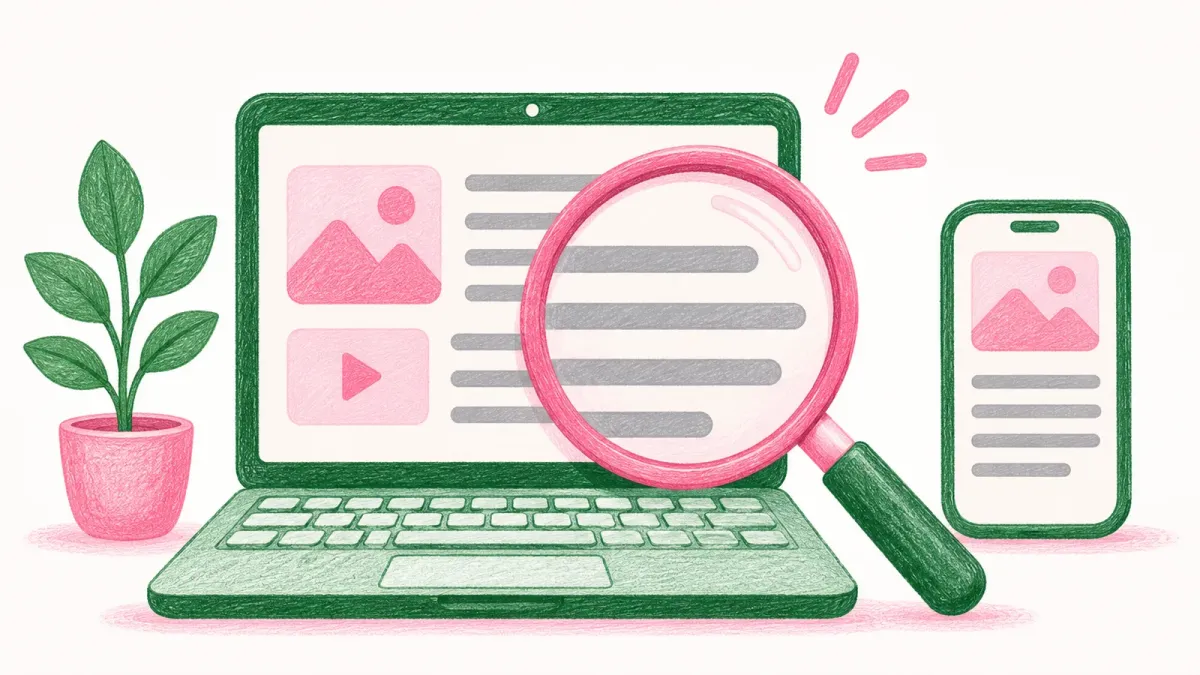
- Part of the screen: press the Windows logo key and + to open Magnifier, and Windows logo key + Esc to close it.
How you know it worked: menus, title bars and Settings text look bigger straight away. If one app hasn't changed, sign out and back in.
If you find yourself leaning toward the screen to read, you don't need a bigger monitor. Windows, your web browser and your phone all have built-in settings that make text larger. Start with the first method below: it changes only the text, so everything else stays where you're used to it.
1. Make Just the Text Bigger in Windows
This setting enlarges text across Windows, including title bars, menus and icon labels, without changing the size of pictures or windows.
- Press the Windows logo key + U, or select Start > Settings > Accessibility.
- Select Text size.
- Drag the Text size slider to the right until the preview text is comfortable to read.
- Select Apply.
Windows 10: press the Windows key + U to open Ease of Access settings. On the Display page, drag the slider under Make text bigger to the right, then select Apply.
Expected result: text in menus, title bars and Settings gets bigger. Microsoft notes that most things change straight away, but some apps only pick up the change after you sign out and back in.
2. Make Everything Bigger With Scale
If buttons and icons feel small too, change the scale. This enlarges text, apps and images together.
- Select Start > Settings > System > Display.
- If you have more than one screen, select the one you want to change.
- Under Scale & layout, open the Scale list and pick a larger percentage.
Windows 10: go to Start > Settings > System > Display, scroll to Scale and layout, and choose an option under Change the size of text, apps, and other items.
Microsoft says the option marked (Recommended) is usually the best choice, so if things look too big afterwards, go back to that one.
Expected result: everything on the screen, not just the words, looks larger.
3. Change the Screen Resolution Only If You Need To
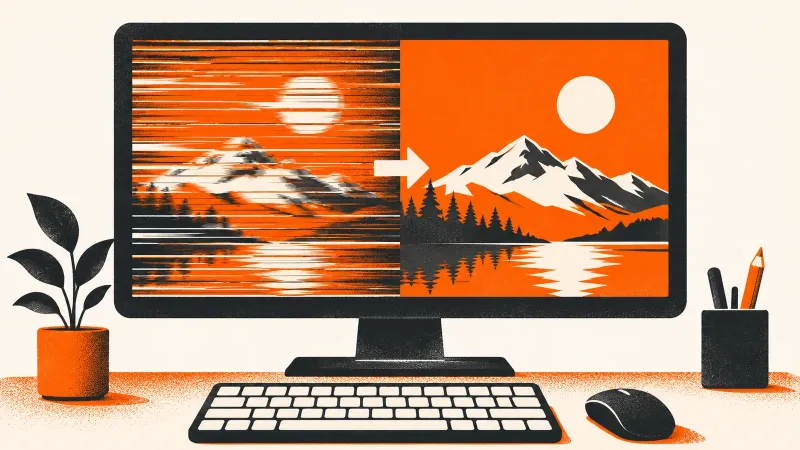
A lower screen resolution also makes everything look bigger, but it's usually not the best way to do it. Microsoft notes that when a monitor runs below its native resolution, text won't look as sharp, and the picture can look small, centered, edged with black or stretched. Try text size or scale first.
If you do want to check it, go to Settings > System > Display and look at Display resolution. Microsoft recommends keeping the resolution marked (Recommended).
Expected result: the resolution shows the (Recommended) option, and text is sharp rather than fuzzy.
4. Zoom In on Part of the Screen With Magnifier
Magnifier is useful when you only need a closer look now and then, such as reading small print in a form or a photo.
- Press the Windows logo key + Plus sign (+) to turn on Magnifier.
- Keep pressing Windows logo key + Plus sign (+) to zoom in further, or Windows logo key + Minus sign (-) to zoom out.
- Press Windows logo key + Esc to turn Magnifier off.
Expected result: words, images and controls on the screen look bigger, and the screen goes back to normal when you close Magnifier.
5. Make Web Pages Bigger in Chrome and Edge
Browser zoom affects only the browser, so it's handy when websites are the main problem.
Zoom the Page You're On
- Press Ctrl and + to make everything on the page larger, or Ctrl and - to make it smaller.
- In Microsoft Edge, Ctrl + 0 (zero) resets the page to its normal size.
- In Chrome, you can also select More (the three dots at the top right) and use the buttons next to Zoom.
Make Every Page Bigger in Chrome
- Select More > Settings > Appearance.
- Next to Page zoom, choose a larger zoom level for all pages.
- To change only the text, choose a size next to Font size. For more choices, select Customize fonts.
Make Text Bigger in Microsoft Edge
- Select Settings and more (the three dots) > Settings > Appearance.
- Select Fonts, then choose a larger size from the Font size list.
Expected result: websites open with larger text without you having to zoom each one.
6. Make Text Larger on Your Phone or Tablet
iPhone and iPad:
- Go to Settings > Display & Brightness > Text Size and drag the slider.
- For even bigger text, go to Settings > Accessibility > Display & Text Size > Larger Text, then drag the slider.
Android: open the Settings app, search for Font size and move the slider. To make everything bigger, search for Display size instead. Google notes that the font size setting doesn't apply to some apps, and that some steps work only on Android 13 and up.
Expected result: text in Settings and in most apps looks bigger.
Still Too Small? What to Try Next
- One app didn't change: sign out of Windows and back in. If it's a website, use browser zoom (section 5) for that site.
- Text looks blurry after a change: go back to the (Recommended) resolution and scale in Settings > System > Display.
- Resolution changes on its own: Microsoft says your graphics driver might need to be updated. Check Windows Update, or see our guide to updating your graphics driver.
- Reset Chrome's zoom for one site: select More > Settings > Privacy and security > Site settings > Additional content settings > Zoom levels, then select the X next to the site.
Frequently Asked Questions
What's the difference between text size and scale in Windows?
Text size (in Settings > Accessibility) makes only the text larger. Scale (in Settings > System > Display) makes text, apps and images larger together.
Why didn't the text get bigger in some apps?
Microsoft says the change applies to most things straight away, but you may need to sign out and back in for some apps to pick it up.
Should I lower my screen resolution to make text bigger?
Usually not. Microsoft notes that text won't look as sharp below the monitor's native resolution, and recommends keeping the resolution marked (Recommended). Change text size or scale instead.
How do I make every website bigger in Chrome?
Select More > Settings > Appearance and choose a larger level next to Page zoom. That applies to all pages, so you don't have to zoom each site.
What's the keyboard shortcut to zoom in on my screen?
Press the Windows logo key + Plus sign (+) to open Magnifier and zoom in, Windows logo key + Minus sign (-) to zoom out, and Windows logo key + Esc to close it. In a browser, Ctrl and + zooms just the web page.
Does a bigger font size on Android change every app?
Not always. Google notes that the font size setting doesn't apply to some apps. To change the size of everything on the screen, not just the text, use Display size instead.
How This Guide Was Checked
- Written by
- Rachel, WinZip Team. Updated by the WinZip Team in November 2026.
- First published
- September 13, 2019
- Sources reviewed
- Microsoft Support: Make text and apps bigger
- Microsoft Support: Change the size of text in Windows
- Microsoft Support: Change your screen resolution and layout in Windows
- Google Chrome Help: Change text, image & video sizes (zoom)
- Microsoft Support: Increase default text size in Microsoft Edge
- Microsoft Support: Keyboard shortcuts in Microsoft Edge
- Microsoft Support: Magnifier keyboard shortcuts and touch gestures
- Apple Support: Change the font size on your iPhone, iPad, and iPod touch
- Android Accessibility Help: Change text & display settings
Related Guides


Speed Up Your PC With WinZip System Utilities Suite
- Clean junk files and free up disk space
- Update outdated drivers
- Speed up startup
- Optimize and defrag your drives