
How to Fix Start Menu Issues in Windows 11 and 10
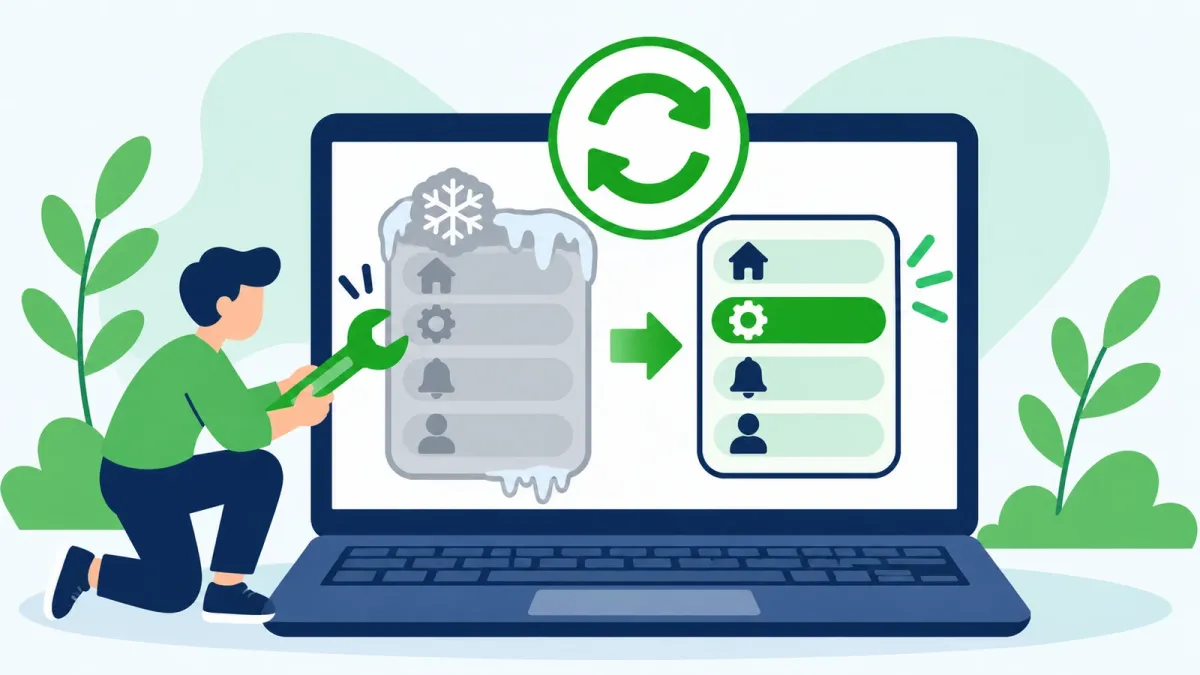
What to do when the Start menu won't open, freezes or ignores the Windows key, from quick fixes to repairs.
Suspect an app that starts with Windows? WinZip System Utilities Suite's Startup Manager lists the apps that start with Windows in one place, so you can turn them off one at a time.
Quick Answer
To get a stuck Start menu working again:
- Restart your PC. If Start won't open, press Windows key + X and select Shut down or sign out > Restart.
- Restart Windows Explorer: press Ctrl + Shift + Esc, right-click Windows Explorer and select Restart.
- Install updates: press Windows key + I to open Settings, then Windows Update > Check for updates.
- Repair system files: in an administrator window, run DISM.exe /Online /Cleanup-image /Restorehealth, then sfc /scannow.
- Check that the Start menu package is registered for your account, and re-register it if it isn't.
How you know it worked: press the Windows key (or Ctrl + Esc); the Start menu opens straight away and you can search and open apps from it.
The Start menu is how most people open apps, settings and files, so when it won't open, freezes or ignores the Windows key, the whole PC feels broken. The fixes below start with the quickest and move on to deeper repairs. They work on Windows 11 and Windows 10; where the steps differ, both are given.
You don't need the Start menu for any of them. These keyboard shortcuts still work when Start doesn't: Ctrl + Shift + Esc opens Task Manager, Windows key + I opens Settings, Windows key + R opens the Run box, and Windows key + X opens the same menu you get by right-clicking the Start button.
1. Restart Your PC
A restart clears out anything that's stuck and installs updates that are waiting for one.
- Save your work and close your apps.
- If Start won't open, right-click the Start button or press Windows key + X, then select Shut down or sign out > Restart.
Expected result: after you sign back in, the Start menu opens when you press the Windows key.
2. Restart Windows Explorer
Microsoft's Start menu troubleshooting guide lists explorer.exe among the processes whose crashes can affect Start. Restarting it takes a few seconds and doesn't need a full restart.
- Press Ctrl + Shift + Esc to open Task Manager.
- Find Windows Explorer, right-click it and select Restart.
- If it isn't listed, select File > Run new task, type explorer.exe and press Enter.
Expected result: the Start menu opens when you press the Windows key.
3. Install the Latest Windows Updates
Microsoft's first question when Start isn't working is whether the PC has the latest feature and monthly updates, and whether the problem started right after an update. Microsoft has fixed several Start menu problems in later updates.
- Press Windows key + I to open Settings.
- On Windows 11, select Windows Update > Check for updates. On Windows 10, select Update & Security > Windows Update > Check for updates.
- Install everything that's available and restart when asked.
Expected result: Windows Update says you're up to date, and Start opens after the restart.
4. Repair System Files With DISM and SFC
Windows has two built-in tools that check for missing or corrupted system files and repair them. Run them before the deeper fixes below.
- Press Ctrl + Shift + Esc, select File > Run new task, type powershell, tick Create this task with administrative privileges and select OK.
- Type DISM.exe /Online /Cleanup-image /Restorehealth and press Enter. Keep the space before each "/". It can take a few minutes.
- When it says "The operation completed successfully", type sfc /scannow and press Enter.
- Wait for "Verification 100% complete", then type exit and restart your PC.
See our guide to repairing system files with System File Checker for more detail.
Expected result: the scan reaches 100%, and Start opens after the restart.
5. Check That the Start Menu Is Registered for Your Account
In Windows 11 and recent versions of Windows 10, the Start menu is an app package called Microsoft.Windows.StartMenuExperienceHost. If it isn't registered for your user account, Start won't open for you. Microsoft's troubleshooting guide gives these checks.
- Press Windows key + R, type powershell and press Enter. Don't run this one as administrator.
- Type Get-AppxPackage -Name Microsoft.Windows.StartMenuExperienceHost and press Enter. If you see details such as the package name and version, it's registered and you can skip to section 6.
- If nothing comes back, check whether the package is still on the PC for other accounts. Open PowerShell as administrator (press Ctrl + Shift + Esc, select File > Run new task, type powershell and tick Create this task with administrative privileges), then run Get-AppxPackage *StartMenu* -AllUsers. If details come back, the package exists on the PC.
- Go back to the normal (not administrator) PowerShell window, type this on one line and press Enter:
Add-AppxPackage -Path "C:\Windows\SystemApps\Microsoft.Windows.StartMenuExperienceHost_cw5n1h2txyewy\AppxManifest.xml" -Register -DisableDevelopmentMode - Sign out and back in, or restart.
Run the register command from a normal window, not an administrator one. Otherwise, Microsoft notes, the package is registered to the administrator account instead of yours. On Windows 10 version 1809 and earlier, the Start menu package is Microsoft.Windows.ShellExperienceHost instead.
Expected result: the Get-AppxPackage command now returns the package details, and Start opens.
6. Make Sure Background Tasks Infrastructure Service Is Running
Microsoft lists a stopped Background Tasks Infrastructure Service as a cause of a Start menu that doesn't respond on Windows 10, and says the service is required for a stable Start menu.
- Press Windows key + R, type services.msc and press Enter.
- Find Background Tasks Infrastructure Service and double-click it.
- Check that Startup type is Automatic and that the service is running. Don't change other services.
Expected result: the service shows as Running with Automatic startup.
7. Test in Safe Mode to Rule Out Other Apps
Microsoft suggests restarting into Safe mode to see whether a third-party app or driver is getting in the way. Safe mode starts Windows with default settings and basic drivers.
- Open Advanced startup: on Windows 11, go to Settings > System > Recovery; on Windows 10, Settings > Update & Security > Recovery. Next to Advanced startup, select Restart now.
- Select Troubleshoot > Advanced options > Startup Settings > Restart.
- After the restart, press 4 or F4 to start in Safe mode.
- Try the Start menu. To leave Safe mode, just restart.
If Start works in Safe mode, Microsoft says your default settings and basic drivers probably aren't the cause. Look at the apps and drivers you installed recently, and turn off or uninstall them one at a time until Start works normally again.
Expected result: you know whether the problem comes from Windows itself or from something you installed.
Still Not Working? What to Try Next
If the Start menu package is missing for every account, Microsoft says the quickest fix is to go back to a configuration that worked, and that there's no supported way to reinstall the Start menu files on their own.
- Roll back a recent change: if Start broke after an update, a new app or a driver, use a System Restore point from before it happened. Your personal files aren't affected.
- Uninstall the update: removing a Windows update keeps your files and apps, though some updates can't be uninstalled.
- Reset this PC: reinstalls Windows. You can keep your personal files, but your apps and settings are removed.
- Taskbar or desktop problems too? See our guide to fixing File Explorer issues.
Frequently Asked Questions
How do I open Settings when the Start menu won't open?
Press Windows key + I. You can also press Windows key + X, which opens the same menu as right-clicking the Start button.
The Windows key doesn't open Start. Is my keyboard broken?
Try Ctrl + Esc, which also opens the Start menu. If that works but the Windows key doesn't, the problem is more likely the key than the Start menu. If neither works, follow the steps in this guide.
How do I get out of Safe mode?
Restart your PC; it normally starts in normal mode again. If it keeps starting in Safe mode, press Windows key + R, type msconfig, select OK, and on the Boot tab clear the Safe boot check box.
Can I reinstall the Start menu?
You can re-register it for your account if it's still installed on the PC (section 5). Microsoft says there's no supported way to reinstall the Start menu files themselves, so if they're missing for everyone, Microsoft suggests going back to a setup that worked: roll back the update, reset the PC or restore from a backup.
Does this work on Windows 10?
Yes. The steps are the same apart from the Settings paths, which go through Update & Security on Windows 10. On Windows 10 version 1809 and earlier, the Start menu package is called Microsoft.Windows.ShellExperienceHost.
How This Guide Was Checked
- Written by
- Chris, WinZip Team. Updated by the WinZip Team in November 2026.
- First published
- July 28, 2019
- Sources reviewed
- Microsoft Learn: Troubleshoot Start menu errors
- Microsoft Support: Keyboard shortcuts in Windows
- Microsoft Support: Troubleshooting blank screens in Windows
- Microsoft Support: Using System File Checker in Windows
- Microsoft Support: Windows Update FAQ
- Microsoft Support: Windows startup settings
- Microsoft Support: Recovery options in Windows
- Microsoft Support: Windows recovery environment
Related Guides

Speed Up Your PC With WinZip System Utilities Suite
- Clean junk files and free up disk space
- Update outdated drivers
- Speed up startup
- Optimize and defrag your drives